Greenhouse
Greenhouse is an applicant tracking system and recruiting software that's designed to help companies build better hiring processes and hire for what's next.
The Greenhouse connector enables you to build even more automation around applicant and candidate workflow, and connect with other human resource management systems.
Use cases
Connect Greenhouse with your HR and IT systems to automate hiring and onboarding. You can integrate the Greenhouse connector with other apps to sync candidate data, automate onboarding, and improve efficiency across your HR and IT workflows. Explore our use cases to discover how you can use the Greenhouse connector to create powerful multi-app workflows:
- Sync Greenhouse offer letters to Box and create onboarding requests in ServiceNow.
- Sync Greenhouse new hires to SAP SuccessFactors.
Watch a quick video
API version
The Greenhouse connector uses both legacy (v1/v2) and v3 APIs:
- API key authentication uses v1/v2 APIs
- OAuth 2.0 authorization code grant authentication uses v3 APIs
MIGRATION REQUIRED
If your connections use API key authentication (v1/v2), migrate to OAuth 2.0 authorization code grant authentication and replace all v1/v2 triggers and actions with their v3 equivalents before August 30, 2026. Greenhouse will remove support for the v1 and v2 APIs on this date.
Refer to the Greenhouse v3 migration guide and the Greenhouse v3 object coverage guide for more information.
Existing connections that use API key authentication continue to run until August 30, 2026.
Connection setup
The Greenhouse connector supports the following authentication types:
Connections that use API key authentication support only v1/v2 actions; connections that use OAuth 2.0 support only v3 actions.
New Greenhouse connections support OAuth 2.0 authorization code grant authentication only. API key authentication is available for existing connections only.
If you use API key authentication, refer to the Greenhouse v3 migration guide to migrate your existing connections and recipes.
OAuth 2.0 authorization code grant authentication (v3)
Use OAuth 2.0 authorization code grant authentication to connect to Greenhouse with v3 APIs. This is the default authentication method for all new connections.
Minimum and default scopes
Harvest OAuth scopes define the level of access Workato has to your Greenhouse instance.
View minimum scopes
The following scope is always included when you select specific scopes:
harvest:users:list
View default scopes
All scopes in this list are requested if you leave the Harvest OAuth scopes field blank:
harvest:ai_opt_out_statuses:listharvest:application_stages:listharvest:applications:convert_to_candidateharvest:applications:createharvest:applications:destroyharvest:applications:hireharvest:applications:listharvest:applications:moveharvest:applications:rejectharvest:applications:unrejectharvest:applications:updateharvest:applied_candidate_tags:createharvest:applied_candidate_tags:destroyharvest:applied_candidate_tags:listharvest:approval_flows:createharvest:approval_flows:listharvest:approval_flows:replace_approver_groupsharvest:approval_flows:request_approvalsharvest:approval_flows:updateharvest:approver_groups:listharvest:approver_groups:replace_approverharvest:approvers:listharvest:attachments:createharvest:attachments:destroyharvest:attachments:listharvest:bulk_requests:listharvest:candidate_attribute_types:listharvest:candidate_educations:createharvest:candidate_educations:destroyharvest:candidate_educations:listharvest:candidate_employments:createharvest:candidate_employments:destroyharvest:candidate_employments:listharvest:candidate_tags:createharvest:candidate_tags:destroyharvest:candidate_tags:listharvest:candidates:anonymizeharvest:candidates:createharvest:candidates:destroyharvest:candidates:listharvest:candidates:mergeharvest:candidates:updateharvest:close_reasons:listharvest:custom_field_departments:createharvest:custom_field_departments:destroyharvest:custom_field_departments:listharvest:custom_field_offices:createharvest:custom_field_offices:destroyharvest:custom_field_offices:listharvest:custom_field_options:createharvest:custom_field_options:destroyharvest:custom_field_options:listharvest:custom_field_options:updateharvest:custom_fields:createharvest:custom_fields:destroyharvest:custom_fields:listharvest:custom_fields:updateharvest:default_interviewers:listharvest:demographic_answer_options:listharvest:demographic_answers:listharvest:demographic_question_sets:listharvest:demographic_questions:listharvest:departments:createharvest:departments:listharvest:departments:updateharvest:eeoc:listharvest:email_templates:listharvest:focus_candidate_attributes:listharvest:future_job_permissions:createharvest:future_job_permissions:destroyharvest:future_job_permissions:listharvest:interview_kits:listharvest:interview_media:listharvest:interviewer_tags:listharvest:interviewers:listharvest:interviews:createharvest:interviews:destroyharvest:interviews:listharvest:interviews:updateharvest:job_board_custom_locations:listharvest:job_boards:listharvest:job_candidate_attributes:listharvest:job_hiring_managers:createharvest:job_hiring_managers:destroyharvest:job_hiring_managers:listharvest:job_interview_stages:listharvest:job_interviews:listharvest:job_notes:createharvest:job_notes:destroyharvest:job_notes:listharvest:job_notes:updateharvest:job_owners:createharvest:job_owners:destroyharvest:job_owners:listharvest:job_post_locations:createharvest:job_post_locations:destroyharvest:job_post_locations:listharvest:job_post_searchable_locations:listharvest:job_posts:createharvest:job_posts:listharvest:job_posts:updateharvest:jobs:createharvest:jobs:listharvest:jobs:updateharvest:notes:createharvest:notes:listharvest:offers:createharvest:offers:listharvest:offers:updateharvest:offices:createharvest:offices:listharvest:offices:updateharvest:openings:createharvest:openings:destroyharvest:openings:listharvest:openings:updateharvest:pay_input_ranges:listharvest:pay_inputs:listharvest:prospect_details:listharvest:prospect_pool_stages:listharvest:prospect_pools:listharvest:referrers:listharvest:rejection_details:listharvest:rejection_details:updateharvest:rejection_reasons:listharvest:rejection_reasons:showharvest:scorecard_candidate_attributes:createharvest:scorecard_candidate_attributes:listharvest:scorecard_candidate_attributes:updateharvest:scorecard_question_answer_options:createharvest:scorecard_question_answer_options:listharvest:scorecard_question_answers:listharvest:scorecard_question_candidate_attributes:listharvest:scorecard_question_options:listharvest:scorecard_questions:listharvest:scorecards:createharvest:scorecards:listharvest:scorecards:updateharvest:sources:listharvest:tracking_links:listharvest:user_emails:createharvest:user_emails:listharvest:user_job_permissions:createharvest:user_job_permissions:destroyharvest:user_job_permissions:listharvest:user_roles:listharvest:users:activateharvest:users:createharvest:users:deactivateharvest:users:listharvest:users:revoke_permissionsharvest:users:updateharvest:webhooks:createharvest:webhooks:destroyharvest:webhooks:listharvest:webhooks:update
Connect to Greenhouse with OAuth 2.0 authorization code grant authentication
Complete the following steps to set up an OAuth 2.0 authorization code grant authentication connection to Greenhouse in Workato:
Click Create > Connection or press C twice.
Search for Greenhouse and select it as your app.
Enter a name for your connection in the Connection name field.
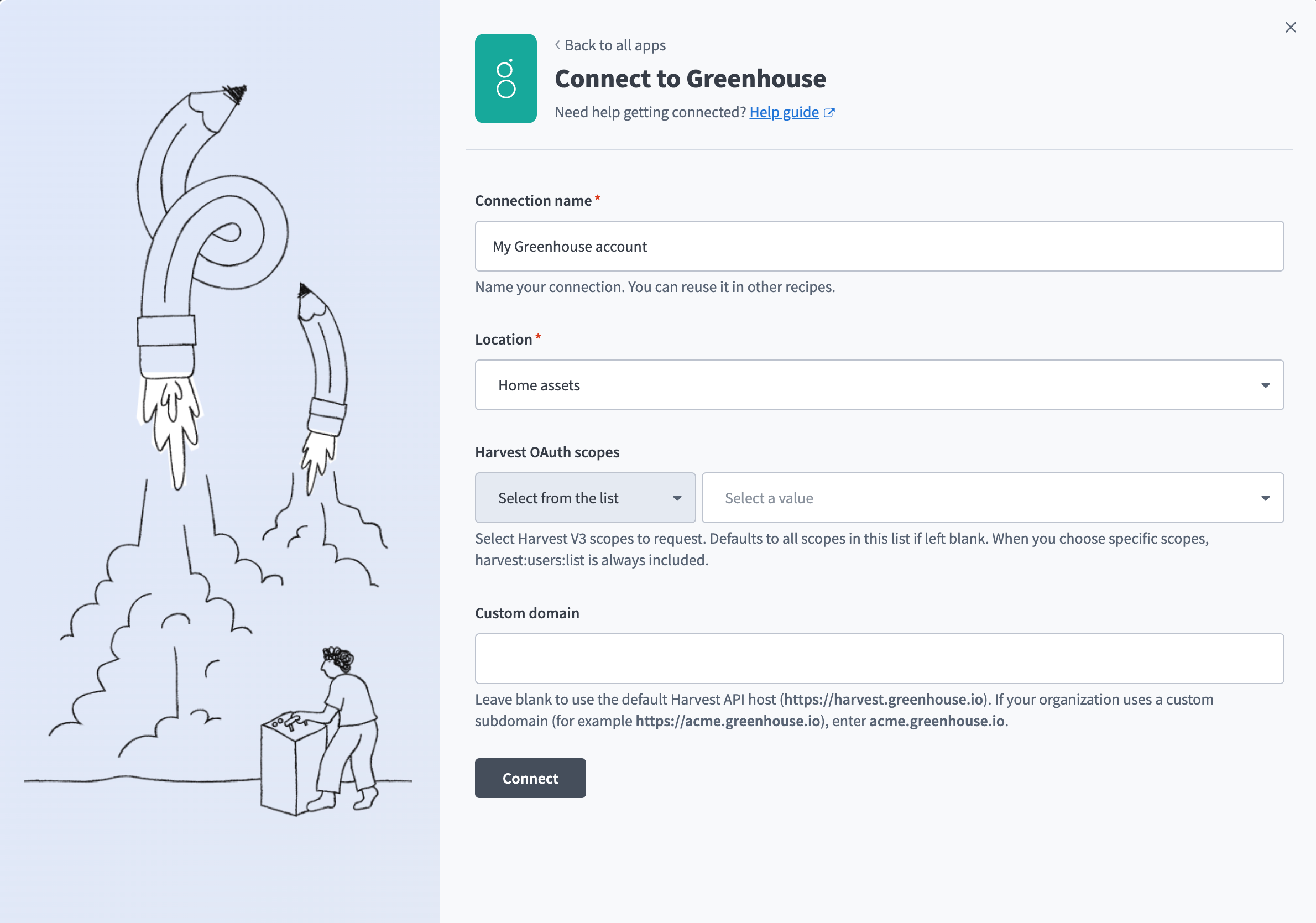 Authentication using OAuth 2.0
Use the Location drop-down menu to select the project where you plan to store the connection.
Optional. Select the required Harvest OAuth scopes. Refer to Minimum and default scopes for more information.
Optional. Enter a value in the Custom domain field. Leave blank to use the default Harvest API host: https://harvest.greenhouse.io. If your organization uses a custom subdomain, such as https://acme.greenhouse.io, enter acme.greenhouse.io.
Click Connect.
Sign in to your Greenhouse account and authorize access.
API key authentication (v1/v2)
Use API key authentication to manage existing Greenhouse connections that use legacy APIs. API key authentication isn't available for new connections.
DEPRECATED AUTHENTICATION
Greenhouse will remove support for v1 and v2 APIs on August 30, 2026. Use OAuth 2.0 authorization code grant authentication for new connections.
Greenhouse setup for API key authentication
We recommend using an Integration System User (ISU) for integration with Workato. This ensures that permissions are consistent and all operations can be logged on a single account.
Create an API token
Complete the following steps to create an API token in Greenhouse:
Navigate to Settings > Dev Center > API Credential Management.
Select Harvest v3 (OAuth) or Harvest v1/v2 to create a new API key for Workato.
Click Create new API credentials.
Use the API type drop-down menu to select Harvest or Harvest V3 (OAuth).
Use the Partners drop-down menu to select Workato.
Use the Description field to enter an API description.
Click Manage permissions.
Copy and save the API key for use in Workato.
Click Close.
Provide the necessary permissions for this API key. Refer to Minimum permissions for Harvest API for more information.
PERMISSIONS
Ensure that you give this API credential the correct permissions. Incorrect permissions may prevent some Greenhouse connector actions and triggers from working, even if the connection is successful.
Click Save.
Minimum permissions for Harvest API
The Greenhouse connector requires an API key with access to specific Harvest API objects. These permissions ensure all triggers and actions function correctly. For example, the reject application action requires the Applications permission.
Grant the following permissions when you create the Harvest API key for Workato. These permissions support standard connector operations:
ApplicationsCandidatesClose ReasonsCustom Field OptionsCustom FieldsDepartmentsEducationJob OpeningsJob PostsJobsOffersOfficesRejection ReasonsScheduled InterviewsScorecardsSourcesTagsTracking LinksUsersGet: Retrieve UserGet: List Users
You can view and manage the permissions for each API key in the Greenhouse API credential page.
If you encounter 403 Forbidden errors, the API key likely lacks required permissions. Review the API key permissions and ensure all listed objects are selected. Refer to the Greenhouse Harvest API documentation for more information.
Connect to Greenhouse using API key authentication (v1/v2)
Complete the following steps to set up an API key authentication connection to Greenhouse in Workato using legacy APIs:
Click Create > Connection or press C twice.
Search for Greenhouse and select it as your app.
Enter a name for your connection in the Connection name field.
Use the Location drop-down menu to select the project where you plan to store the connection.
Enter the Greenhouse API token in the API key field. Refer to Create an API token for more information.
Use the On-Behalf-Of user drop-down menu to select the Greenhouse user for the On-Behalf-Of header. Options include User email and User ID.
Enter the email address or user ID associated with this API token in the User email / User ID field.
Optional. Enter a value in the Custom domain field. Leave blank to use the default Harvest API host: https://harvest.greenhouse.io. If your organization uses a custom subdomain, such as https://acme.greenhouse.io, enter acme.greenhouse.io.
Click Connect.
Last updated: