Linear
Linear is a project management and issue-tracking tool for software development teams. The Linear connector allows you to automate the process of creating and tracking issues, helping your team organize and manage work more efficiently.
Prerequisites
To establish a Linear connection in Workato, complete the steps that correspond to the authentication method you plan to use:
- If you plan to use OAuth 2.0, register an OAuth application.
- If you plan to use an API key, create an API key.
Register an OAuth app
Complete the following steps to register an OAuth app in Linear:
Sign in to your Linear account.
Select your workspace name, then click Settings.
Select API in the sidebar.
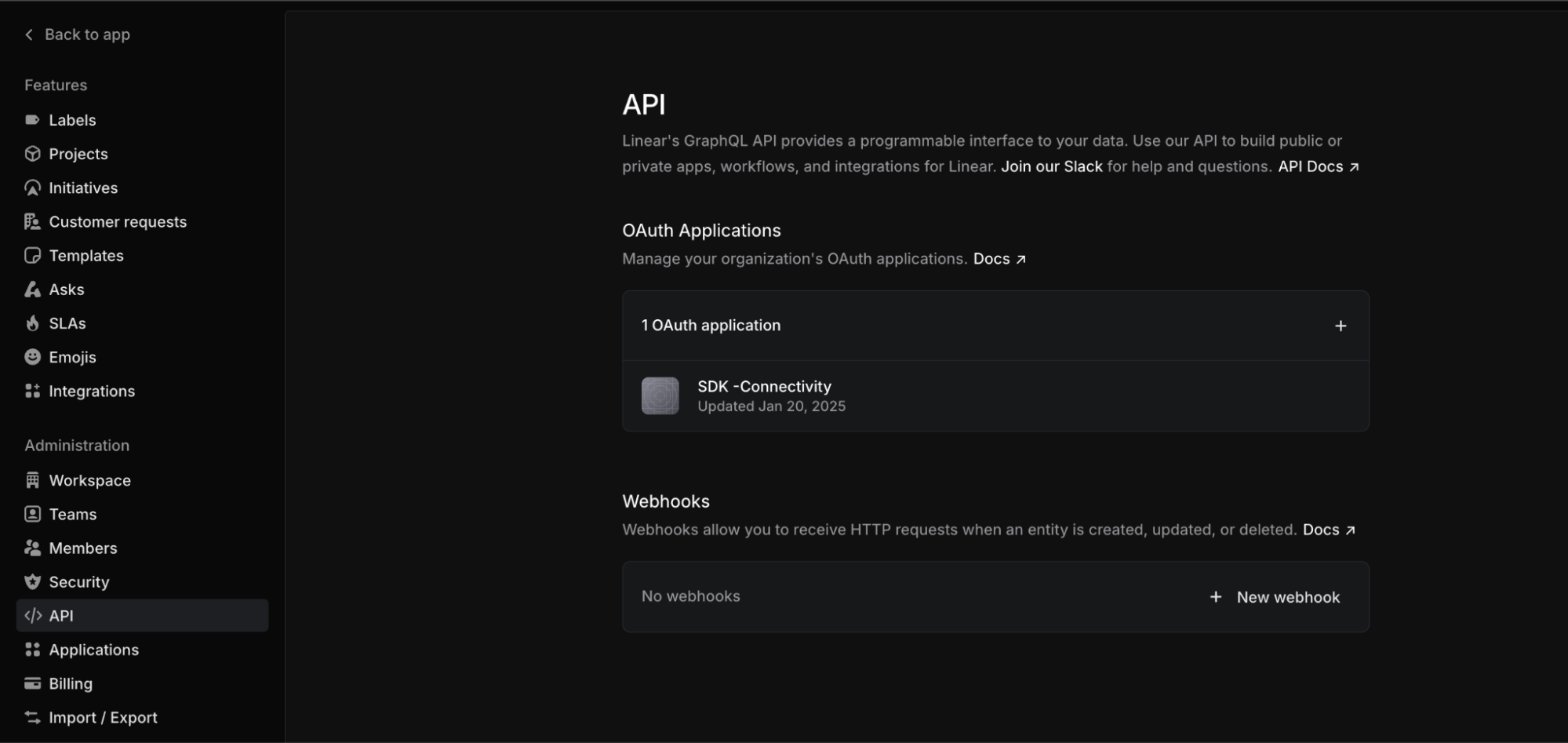 API administration page
Click + New OAuth application to add a new OAuth application.
Enter a name for your application in the Application name field. For example, Workato.
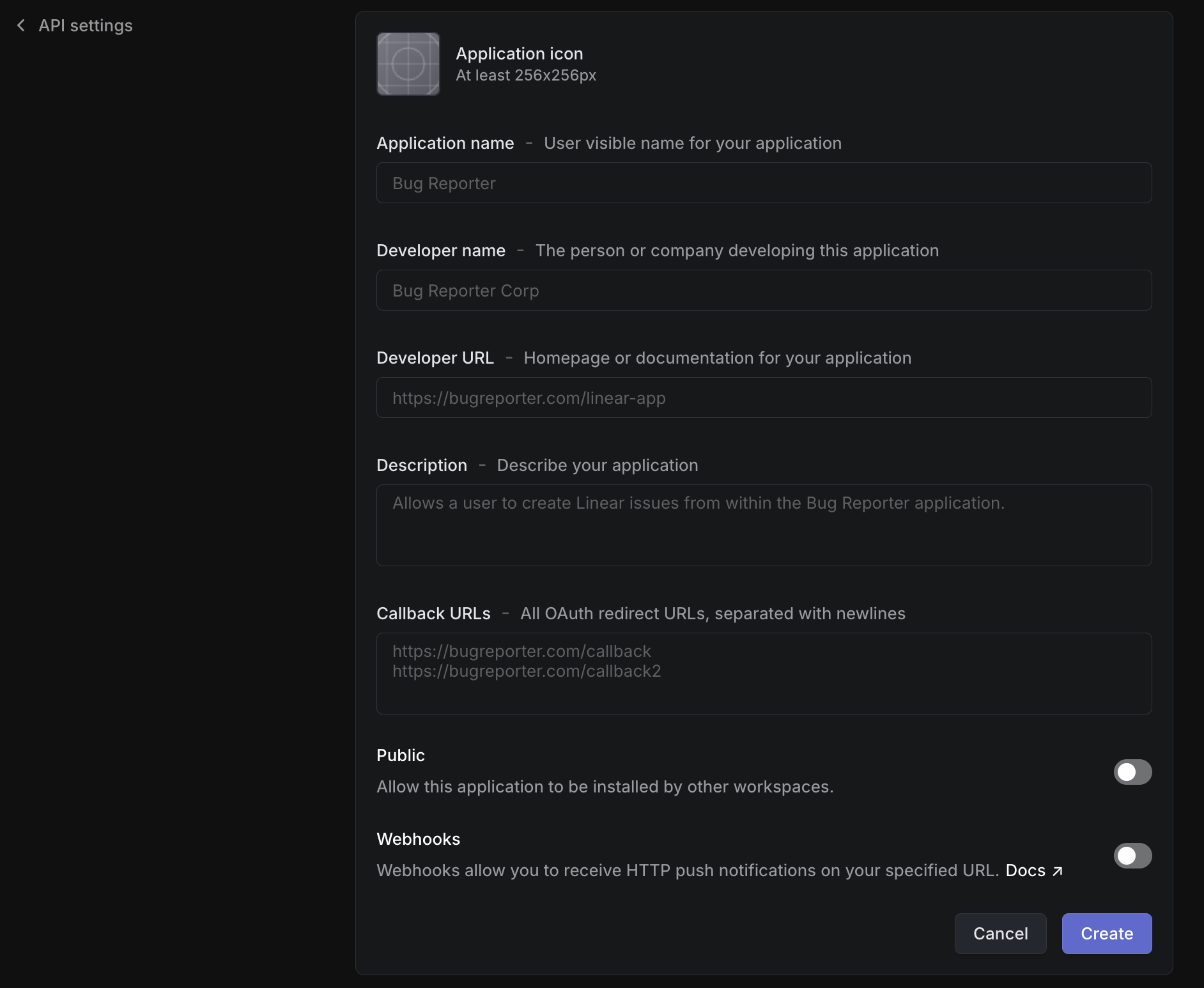 Registering application
Enter the Developer name and a valid Developer URL.
Enter https://www.workato.com/oauth/callback in the Callback URLs field. Refer to the Callback URL documentation for more information.
Click Create to register the OAuth app.
Copy the Client ID and Client Secret and store them in a secure location. These values are required to establish the connection in Workato.
Create an API key
Complete the following steps to create an API key in Linear:
Sign in to your Linear account.
Select your workspace name, then click Settings.
Select Security & access in the sidebar.
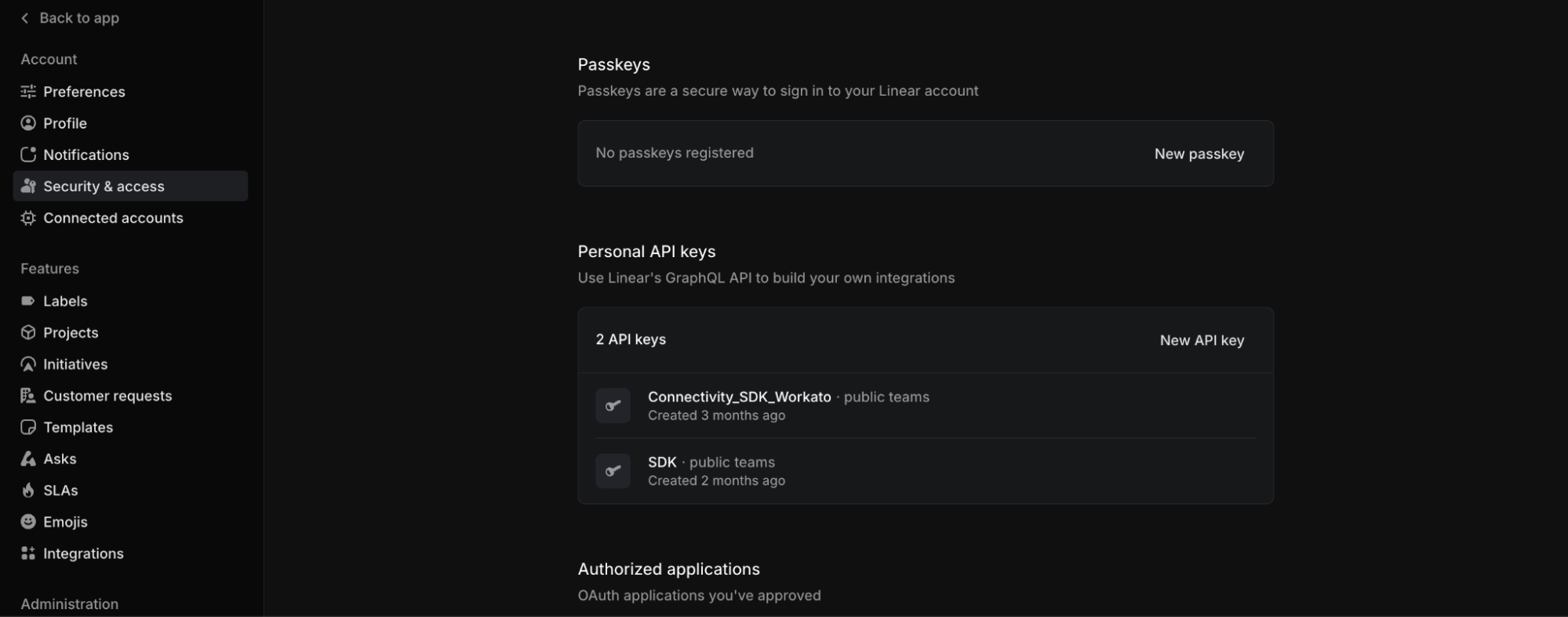 Personal API keys
Click New API key.
Enter a name for the API key in the Key name field.
Specify permissions for the API key in the Permissions field.
Click Create to create the API key.
Copy the API key and store it in a secure location. This value is required to establish the connection in Workato. Refer to the Linear documentation for more information.
How to connect to Linear
The Linear connector supports the following authentication methods:
OAuth 2.0
Complete the following steps to establish a Linear connection using OAuth 2.0 authentication:
Click Create > Connection or press C twice.
Search for and select Linear as your connection on the New connection page.
Enter a name for your connection in the Connection name field.
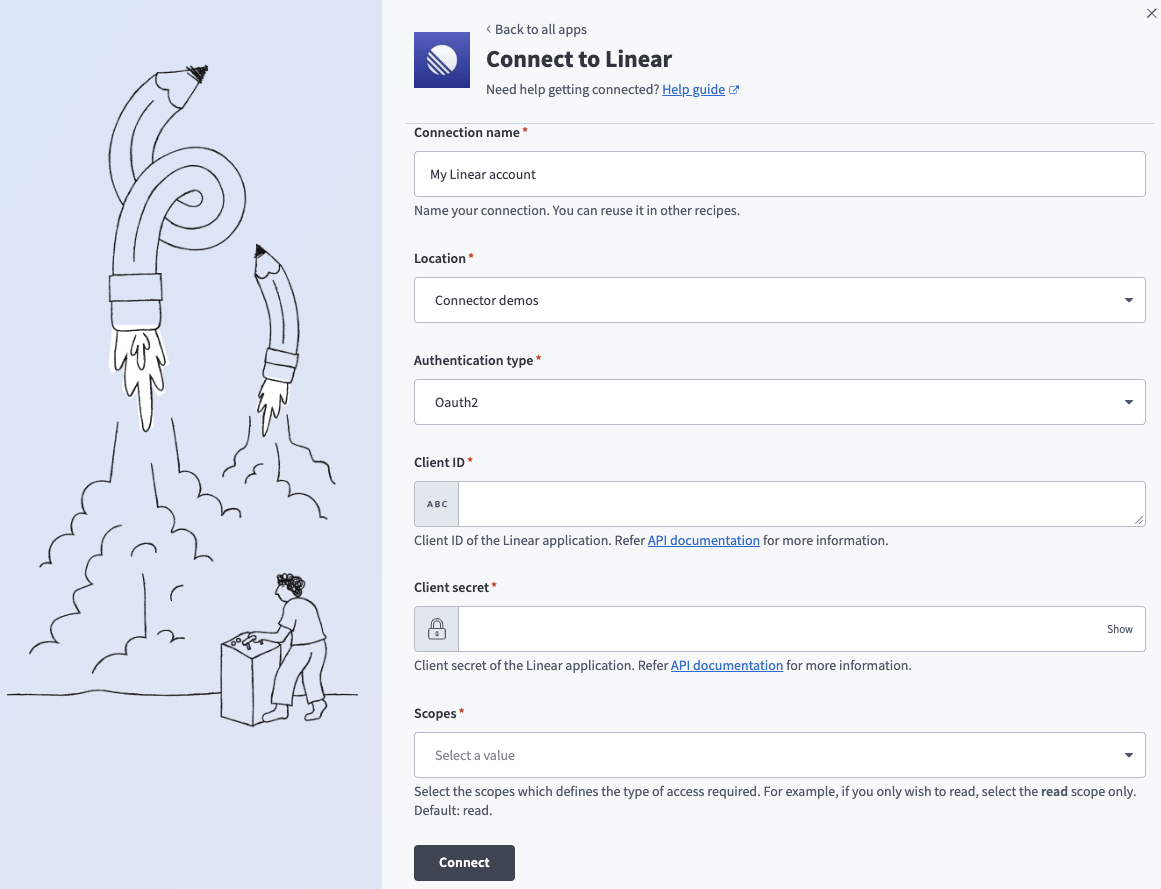 Connect to Linear using OAuth 2.0 authentication
Use the Location drop-down menu to select the project or folder where you plan to store the connection.
Enter the Client ID and Client secret for your Linear account.
Select the necessary OAuth scopes required for your integration.
Click Connect.
API key
Complete the following steps to establish a Linear connection using API key authentication:
Click Create > Connection or press C twice.
Search for and select Linear as your connection on the New connection page.
Enter a name for your connection in the Connection name field.
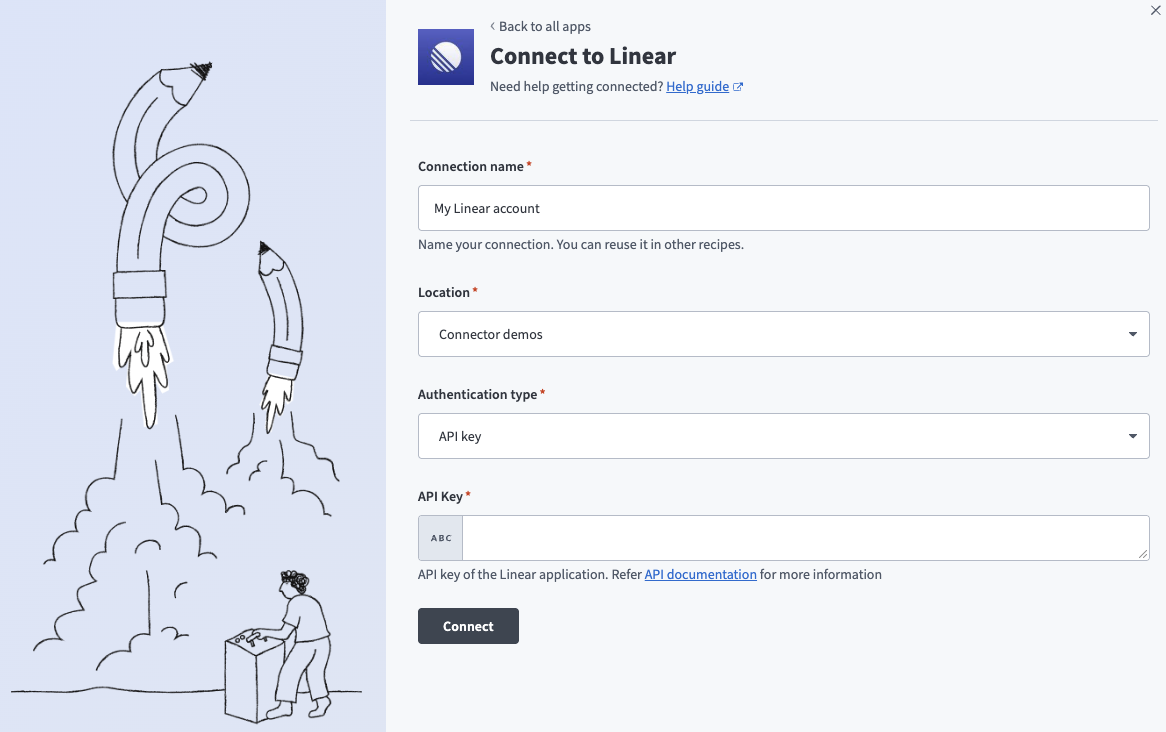 Connect to Linear using API key authentication
Use the Location drop-down menu to select the project or folder where you plan to store the connection.
Enter the API key for your Linear account.
Click Connect.
Last updated: