On-prem files
Workato's On-prem files connector allows you to access files within a secure network, such as files behind a corporate firewall that can't be accessed directly.
CONTROL ON-PREM FILE ACCESS
Use the On-prem files privilege to manage who can access, create, edit, and delete on-prem files using this connector.
How to connect to On-prem files
Complete the following steps to connect to the On-prem files connector:
PREREQUISITES
This connector requires an active on-prem agent. Refer to the following guides to set up an on-prem agent:
Click Create > Connection or press C twice.
Search for and select On-prem files on the New connection page.
Provide a name for your connection in the Connection name field. 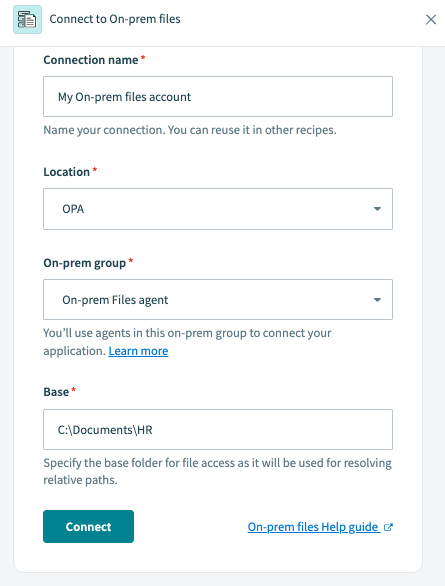 On-prem files connection using on-prem agent
Use the Location drop-down menu to select the project where you plan to store the connection.
Use the On-prem group drop-down menu to select the on-prem group you plan to use.
Specify the folder to use as the starting location for relative paths in the Base field.
Click Connect to complete the setup.
Working with the On-prem files connector
File paths
Inputs for this connector use relative paths. You can define the starting point for these paths in your agent's config.yml file or when you configure your connection in Workato.
Absolute path
Specifies the full location of a file or folder, starting from the root file. For example:
C:\folder1\folder2\filename.csv.Relative path
Specifies the location of a file or folder in relation to the location of another file or folder. For example:
..\folder2\filename.csv.
Usage example
The following config.yml file defines the base path as /Users/admin/projects:
files:
  projects:
    base: /Users/admin/projects
To point to /Users/admin/projects/engineering/2018_roadmap.csv using this base path, use the relative path /engineering/2018_roadmap.csv.
File name wildcards
Wildcard characters are supported in this connector.
Single character wildcard
?Represents one instance of any character. For example,
Report_draft_?.pdfcan representReport_draft_1.pdf,Report_draft_2.pdforReport_draft_3.pdf.Multiple character wildcard
*Represents zero or more instances of any character. For example,
Report_draft*.pdfcan representReport_draft.pdf,Report_draft_1.pdf,Report_draft_2.pdforReport_draft_3.pdf.
REGEX FORMULAS
Alternatively, you can switch the inputs field to formula mode to use Regex.
Usage example
For example, a single folder may contain multiple files following different naming conventions:
- :open_file_folder: ProductHour
- :page_facing_up: Attendees_2018_10_29.csv
- :page_facing_up: Attendees_2018_11_01.csv
- :page_facing_up: Mailing_list.csv
- :bar_chart: Slides_2018_10_29.pptx
- :bar_chart: Slides_2018_11_01.pptx
You can use wildcard characters to filter the files in this folder :
| Use case | Filter | Output |
|---|---|---|
| Return all csv files with attendee information | Attendees*.csv |
|
| Return all presentation slides from November | Slides_2018_11_??.pptx |
|
Long query error
You may encounter the following error when using the On-prem files connector with a database connector, such as MySQL:
Long query error: java.lang.IllegalArgumentException: Missing files profile laws rds cxThis error occurs when the On-prem files connector and a database connector use different on-prem groups. Set both connections to use agents in the same on-prem group to resolve this error.
Last updated: