SAP SuccessFactors - Use navigation fields
Navigation fields are a powerful way to either retrieve records related to the one you're retrieving, or create associations between records when you create or update them. For example, use navigation fields in the SuccessFactors connector to retrieve records related to a user, such as their manager or biographical information. You can also use navigation fields when creating or updating a user to associate them with a new manager or set of biographical information. The following steps describe how to configure navigation fields.
Pull information from SuccessFactors
The following actions support navigation fields:
- Search records (OData V2 connections only)
- Search records using OData query (OData V2 connections only)
- Get record details
The navigation fields drop-down list appears when you select an object that has navigation properties.
TRIGGERS DON'T SUPPORT NAVIGATION FIELDS
The New or updated object and New or updated objects in batch triggers don't support navigation fields. Pair the trigger with the Get record details action to retrieve related records for a trigger event. Map the trigger's key datapill to the action's record key properties, then select the navigation fields on the action. Map each key property for objects with composite keys (such as Position, which requires both code and effectiveStartDate).
You can also pair triggers with the Search records or Search records using OData query actions on OData V2 connections. For Search records, filter on the object's key under additional attributes. For Search records using OData query, add the key to the Query field (for example, userId eq '...'). Then select the navigation fields.
Select the related records that you want to retrieve together with the object.
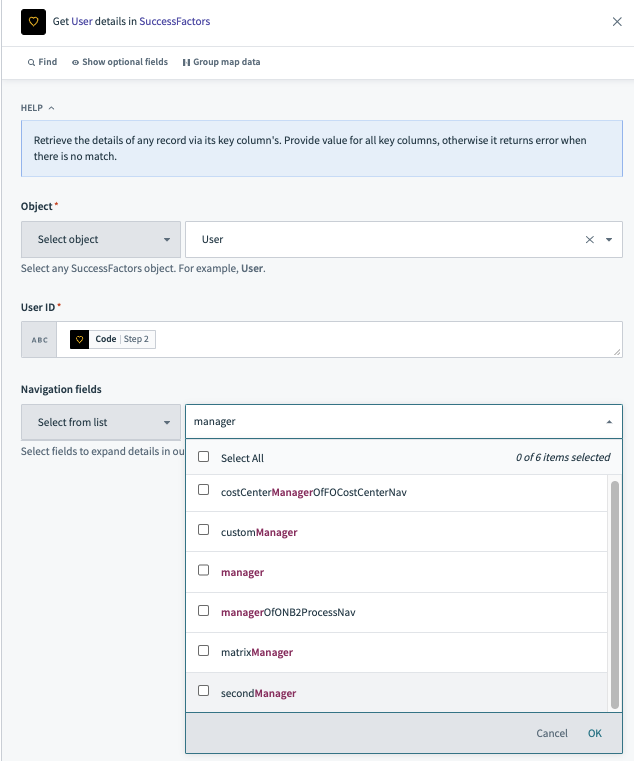 Use the navigation field to select the user's manager.
After you select the related navigation field, the output datatree of the action updates with new datapills.
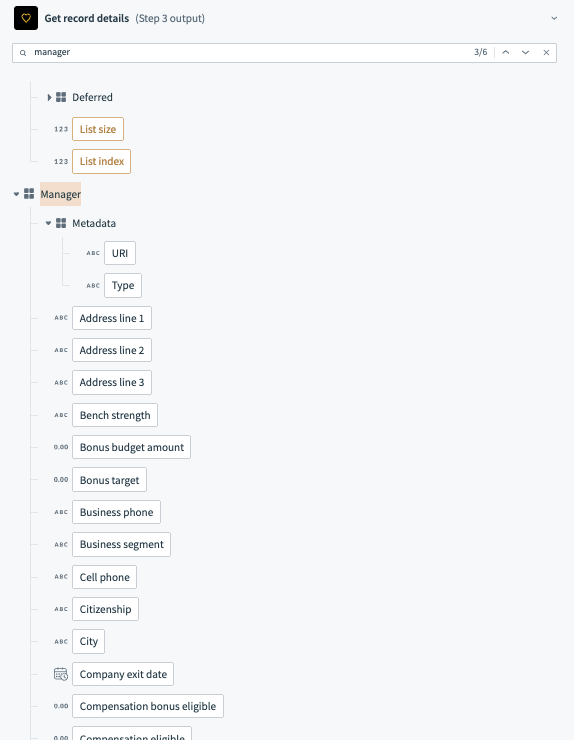 The datatree now contains datapills related to the user's manager.
Push information into SuccessFactors
In actions that push information into SuccessFactors, navigation properties appear as input fields where you provide the link to the related records.
To link one record to another, you must know the target record's key properties. It consists of one or more properties that make it unique across your entire SuccessFactors instance. These properties change from object to object in SuccessFactors.
To find the key properties of an object, use the Get record details action.
When selecting a specific object, the required fields in the action indicate the object's key properties. There are two types of objects: with one key property, or with two key properties.
Here are examples of each situation:
Objects with one key property
When working with objects that have only one key property, you can enter the value of the key property surrounded by single quotation marks(').<
Example: the User object has one key property,
userId.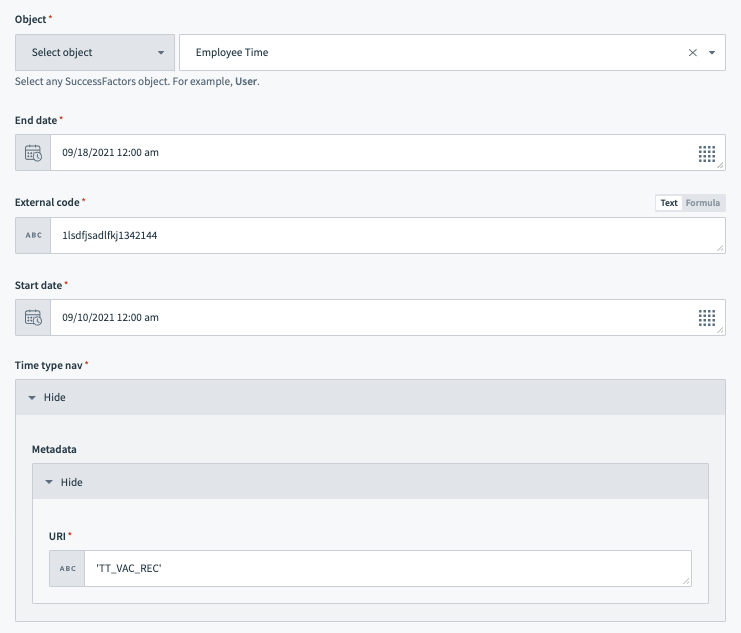 To relate a specific Time Type record, enter the key property 'External code' in the input field. Remember to wrap it in single quotation marks(').
Objects with two key properties
For objects with more than one key property, you must specify the key properties along with the entered value.
Example: the Position object has two key properties,
codeandeffectiveStartDate.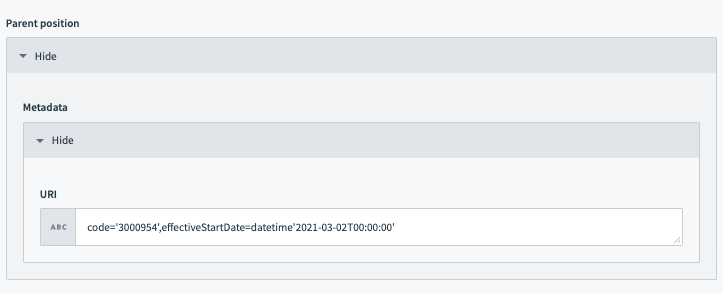 To relate a specific Position record, provide the key properties
codeandeffectiveStartDateand their values in the input field. Remember to wrap values in single quotation marks(').
Last updated: