Configure the ELT Pipeline for Snowflake accelerator
Before you start this accelerator, you must configure your lookup tables, custom OAuth profile, and an OPA and OPG.
Set up your lookup tables
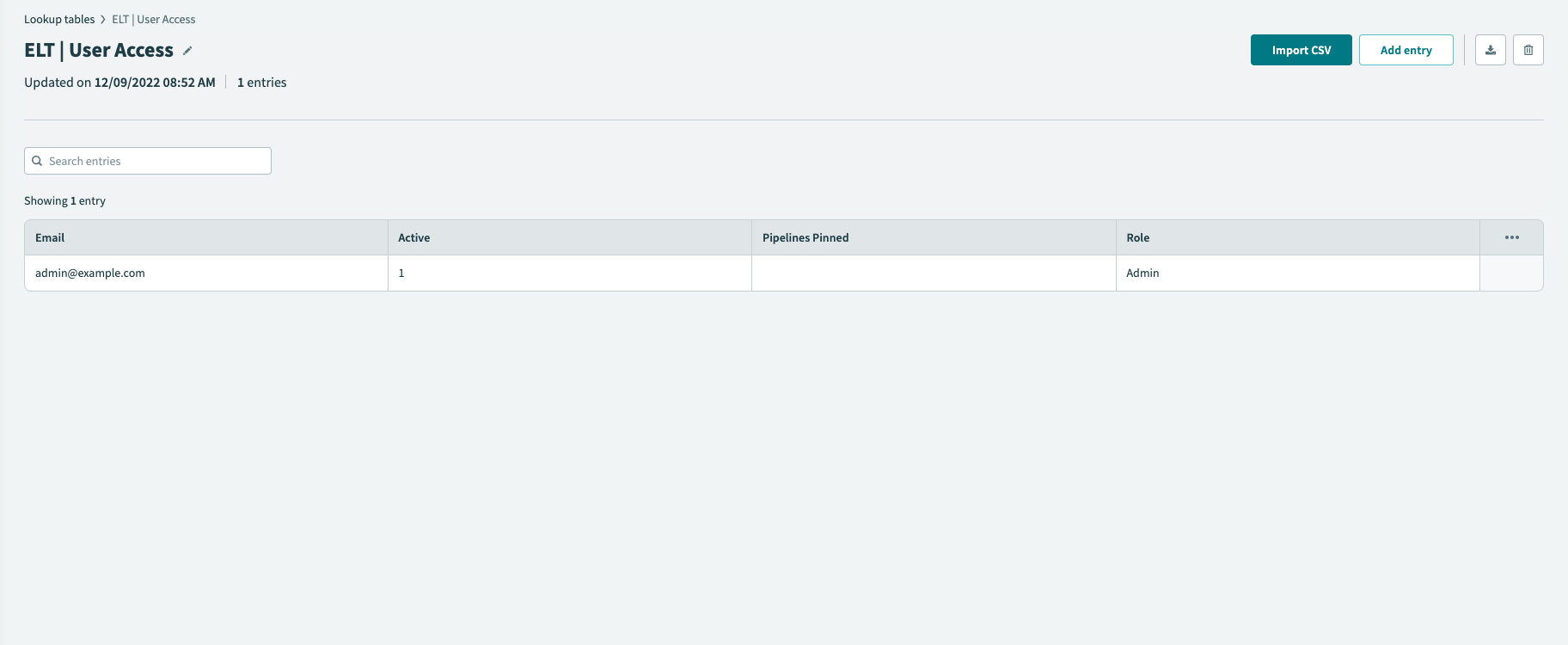
You must set up the ELT | User Access lookup table and ELT | System Access lookup table before starting the accelerator.
Set up the ELT | User Access lookup table
Navigate to Tools > Lookup tables.
Select ELT | User Access from the list of available lookup tables.
Add a user to your lookup table. Assign them to an Admin role.
Set up the ELT | Systems lookup table
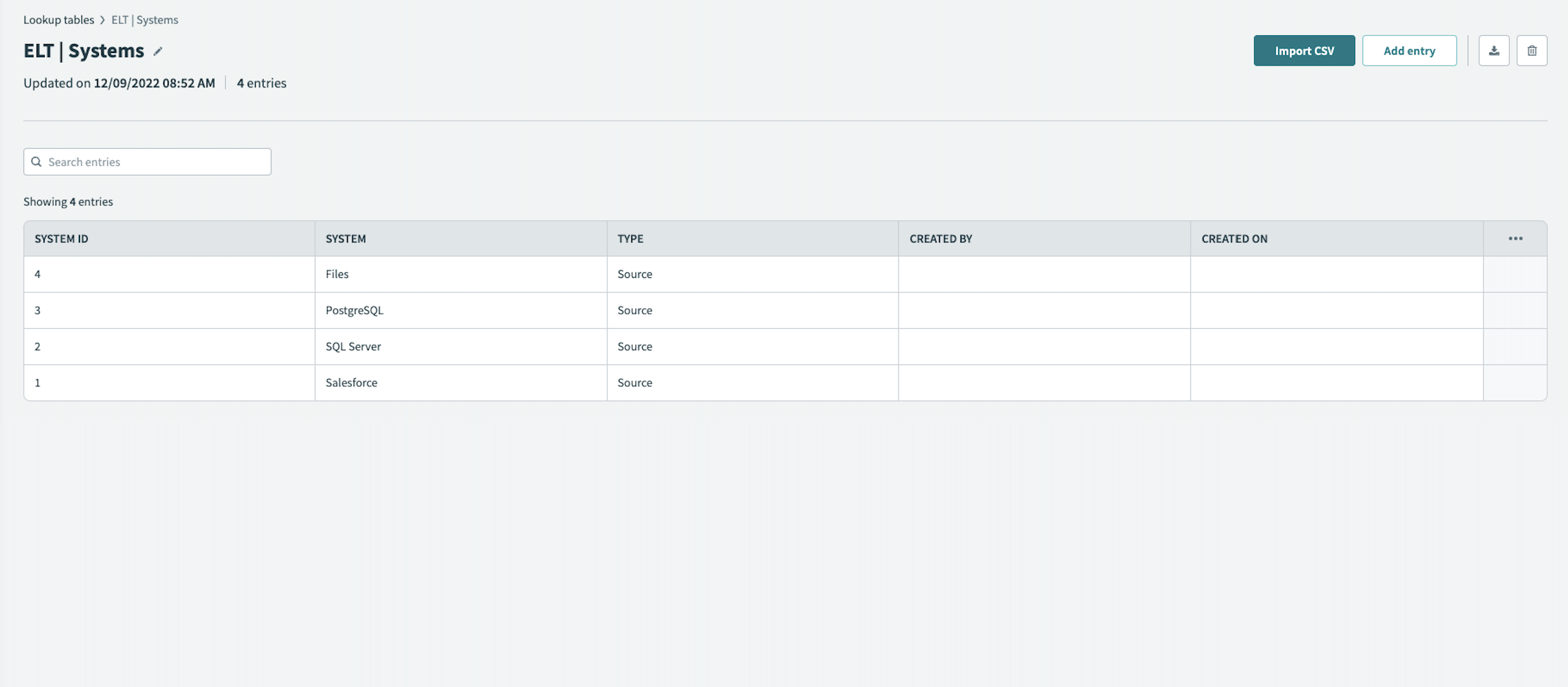
Workato preconfigures the ELT | Systems lookup table with four sources:
- Salesforce
- SQL Server
- PostgreSQL
- On-prem files
If you don't need to use some of these sources, you can remove them by editing this lookup table.
Navigate to Tools > Lookup tables.
Select ELT | System Access from the list of available lookup tables.
Edit or remove sources, as necessary.
Set up an OPA and OPG
See our On-prem connectivity documentation for instructions on setting up your on-prem agent (OPA) and on-prem group (OPG).
When setting up an OPA, you must create a connection profile for each application. The application profile uniquely identifies each application and contains the configuration information required to connect. See the ELT pipeline accelerator connections documentation for a list of profiles you must create.
Set up a Custom OAuth Profile for Workbot
The ELT Pipeline Workbot requires a Custom OAuth profile. Create the profile before connecting to Slack or Microsoft Teams. See our Setting up a Slack Enterprise Workbot or Setting up an Microsoft Teams Workbot documentation for instructions.
Last updated: