Edit your blueprint
You can continue refining a blueprint after AIRO generates it. Describe the change in the AIRO chat, such as adding a requirement, removing an unneeded asset, or reorganizing the automation.
Update your requirements
Describe the new or changed requirements and any implementation constraints in the AIRO chat. For example:
The Onboarding Genie should also verify that IT has provisioned the new hire's equipment before marking onboarding complete.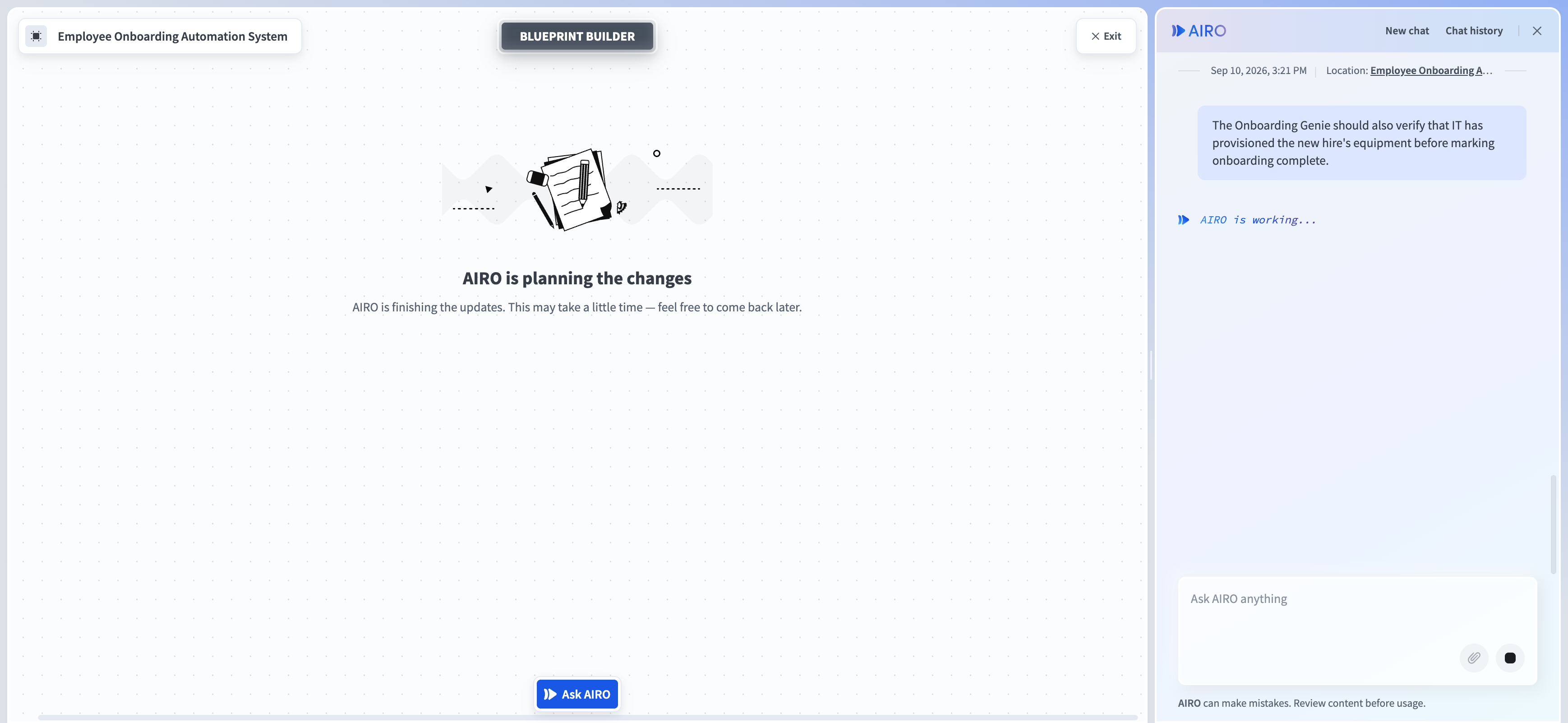 AIRO planning changes to the blueprint
Refer to Best practices for writing requirements for guidance on writing clear requirements.
Rename an asset
Ask AIRO to rename any asset in the blueprint. For example:
Rename the "Meeting Scheduling" skill to "Schedule Meeting".For a built asset, AIRO asks how you want to handle it:
- Renaming it in the blueprint only relabels the asset in the blueprint without renaming the workspace asset itself.
- Renaming it in your workspace only renames the real asset, leaving the blueprint out of sync until you sync it.
- Renaming it in both renames the real asset and updates the blueprint together.
Add an asset
Ask AIRO to add a new asset to the blueprint. For example:
Add a skill that sends new hires a welcome email with their first-day schedule.AIRO adds the new asset to the blueprint, marked with a badge such as Skill to build.
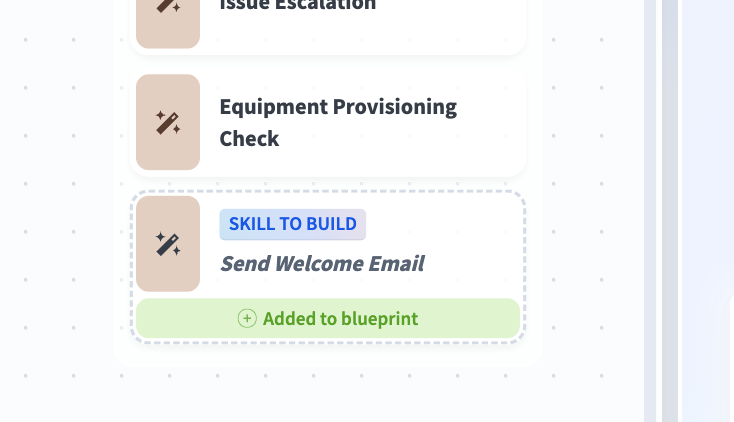 New skill added to the blueprint
Remove an asset
Ask AIRO to remove an asset you no longer need. For example:
Remove the Onboarding Status and Guidance skill.AIRO marks the asset Removed from blueprint while the change is pending. When you apply the update, AIRO removes the asset from the blueprint. If the removed asset covered a requirement that's no longer addressed by anything else in the blueprint, AIRO calls that out instead of dropping the requirement silently.
Removing an asset from the blueprint doesn't delete it from your workspace. If the asset is already built, you must delete it manually.
Combine assets
Ask AIRO to combine related assets into one asset. For example:
Combine the Meeting Scheduling and Access Request Management skills into one skill.AIRO can't combine assets that have different trigger requirements without a trade-off. It explains the constraint and suggests alternatives, such as moving shared steps into a reusable recipe function while keeping the skills separate, or combining them into a single skill that polls both sources instead of triggering on events.
Split an asset
Ask AIRO to split an asset into smaller, reusable parts. For example:
Split the Issue Escalation and Ticket Creation skill into recipe functions.AIRO can add a recipe function for shared logic and update the original recipe to call it.
Review and apply proposed changes
AIRO proposes changes before updating the blueprint. It labels each affected asset as Added to blueprint, Changed in blueprint, or Removed from blueprint so you can review the changes.
After reviewing the proposed changes, click Save changes to save the updated blueprint. AIRO may instead offer Build and update all assets to save the blueprint and rework any affected assets.
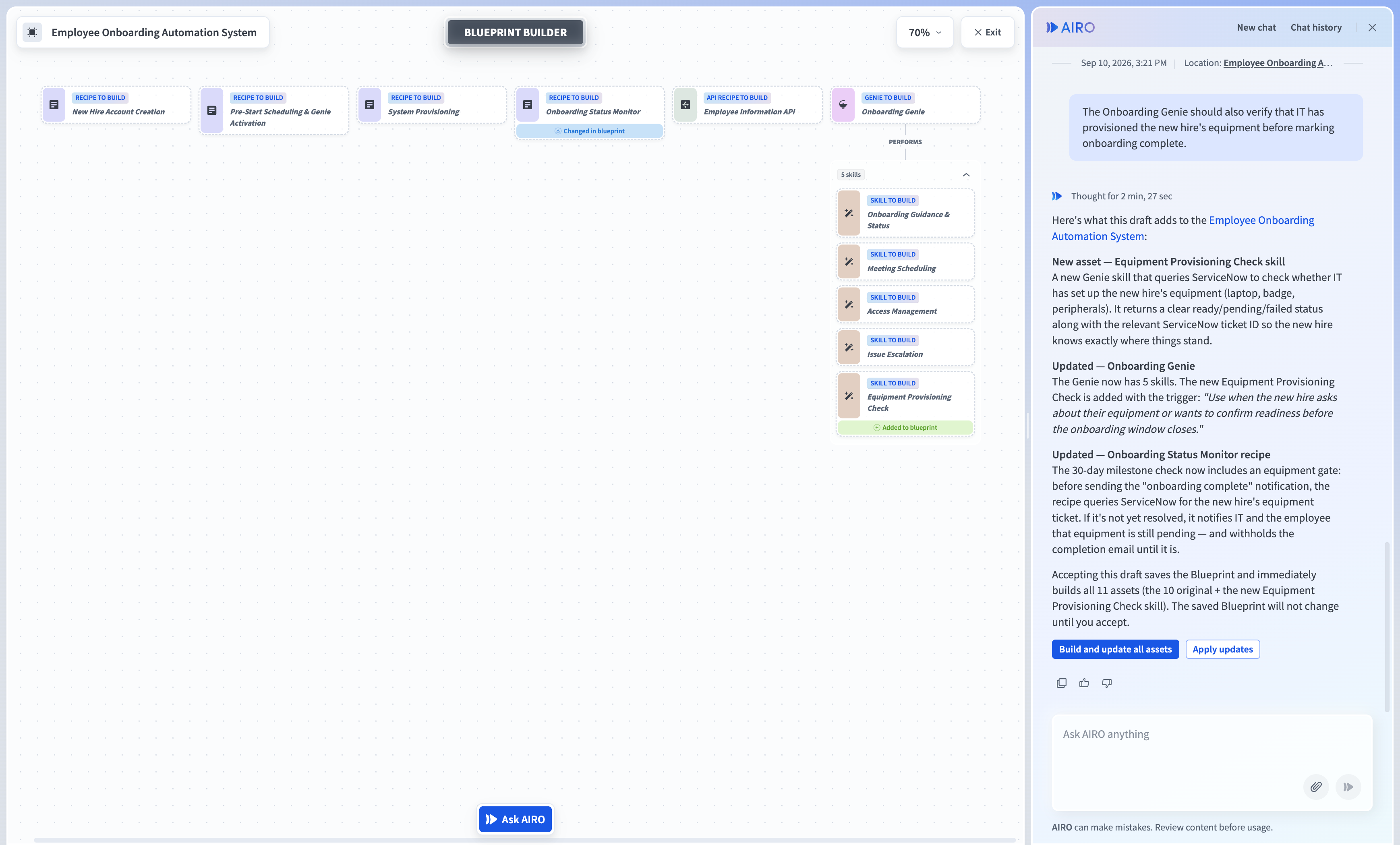 Review and apply the proposed changes
Sync a drifted blueprint
An asset in your blueprint can drift from what AIRO built, for example if it's edited or deleted directly (by you or AIRO), or if your access to it changes. When this happens, a banner prompts you to sync the blueprint.
 Banner prompting you to sync the blueprint
Click Sync blueprint to bring the blueprint up to date. AIRO explains what changed for each asset in the chat and marks its status on the blueprint.
Last updated: