# Conga
Conga (opens new window) is a platform for contract lifecycle management and document automation. Conga lets you streamline, automate, and optimize commercial operations. Conga provides end-to-end capabilities for generating documents, managing contracts, enabling eSignatures, and supporting revenue lifecycle processes.
This connector has the following capabilities:
- Create records such as contacts, contracts, proposals, accounts, opportunities, and line items.
- Retrieve and list data from Conga for objects including accounts, cart line items, contracts, contacts, opportunities, product configurations, price lists, document information, document metadata, and documents as PDF.
- Query records for key entities such as accounts, contacts, documents, and opportunities.
- Update records including accounts, contacts, contracts, and opportunities.
- Generate documents using Conga templates and automation capabilities.
- Download documents for further processing or archival.
- Send emails directly through Conga workflows.
# Prerequisites
To establish a connection to Conga, you must have the following:
- Client ID
- Client secret
- User ID
- Token URI
- Base URI
# How to connect to Conga
Workato supports API to API authentication connections to Conga.
# API to API connection authentication
API to API connection authentication consists of the following steps:
ADMINISTRATOR ACCESS REQUIRED
This authentication method requires administrator access in your Conga account.
# Create an API to API connection
Complete the following steps to set up API to API Conga authentication:
Log into your Conga account.
Click the App Launcher icon from the top-left corner of the Conga platform.
Click Admin Console > Organization.
Click the Conga API Connections tab.
Click API to API Connection.
Enter values for the fields on the API to API Connection screen.
Refer to the Conga documentation (opens new window) for descriptions of each field.
Click Save & Generate Client Secret to generate the Client ID and Client Secret.
Copy the Client ID and Client Secret.
Regenerate Client secret
You cannot recover the Client Secret after copying. You must regenerate the Client Secret instead.
Regenerate the client secret by clicking External Identifier > Save & Regenerate Client Secret. After regenerating the Client Secret, you must update the secret in all your connected API solutions.
Return to Workato to finish setting up your connection.
# Complete setup in Workato
Complete the following steps to set up the Conga connection in Workato.
Click Create > Connection.
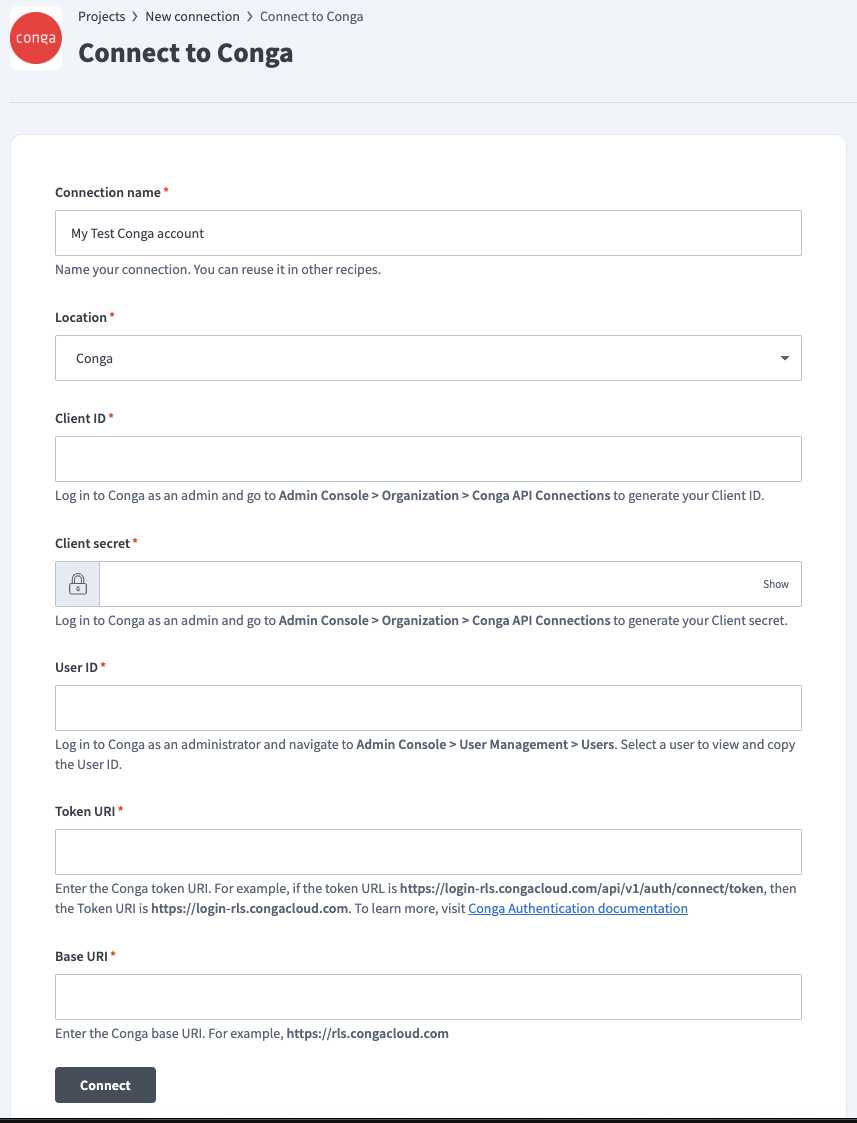 Create your Conga connection
Search for and select Conga as your connection in the New connection page.
Provide a name for your connection in the Connection name field.
Use the Location drop-down menu to select the project where you plan to store the connection.
Enter the Conga Client ID.
Enter the Conga Client secret.
Enter the Conga User ID.
Enter the Conga Token URI.
Enter the Conga Base URI.
Click Connect.
Last updated: 2/4/2026, 8:00:00 PM