Workday Asor
Workday ASOR is a cloud-based Human Capital Management (HCM) and financial management platform. The Workday Agent System of Record (ASOR) connector enables you to manage agent definitions in Workday's Agent-to-Agent (A2A) framework. You can register and configure AI agent capabilities to integrate with Workday's intelligent automation ecosystem.
This connector has the following capabilities:
- Create agent definitions when deploying new AI agents that integrate with Workday
- Retrieve all registered agents to monitor and manage your agent ecosystem
- Get agent details by ID to verify agent configurations, capabilities, and skills
Install Workday ASOR from the community library
Complete the following steps to install the Workday ASOR connector from the community library:
Complete the following steps to install the Workday ASOR connector from the community library:
Open the recipe editor and search for a connector. Alternatively, you can search for a connector in the community library.
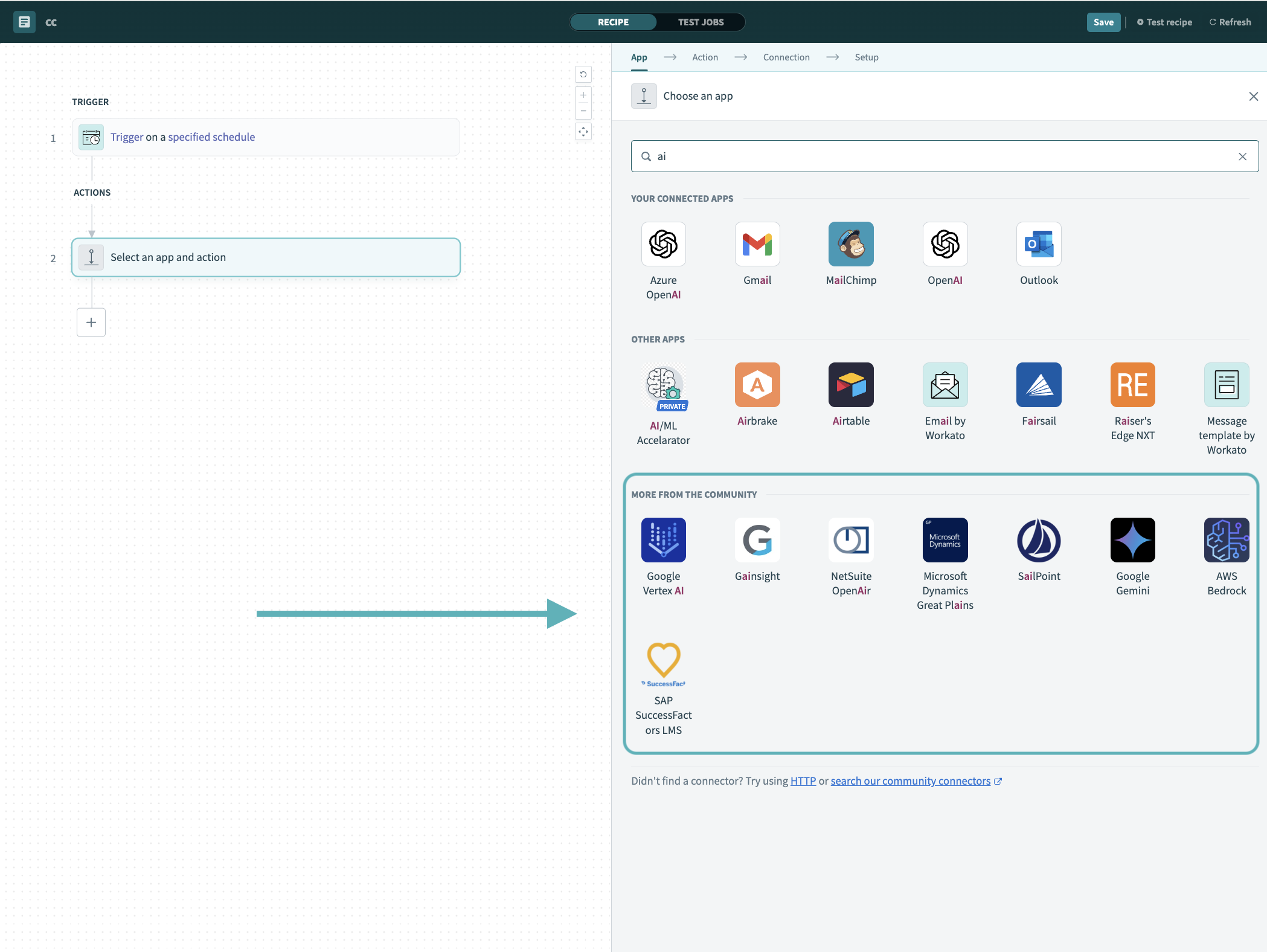 Search for community connectors in the recipe editor
Select the community connector you plan to install.
Click Install to install the connector from the community library.
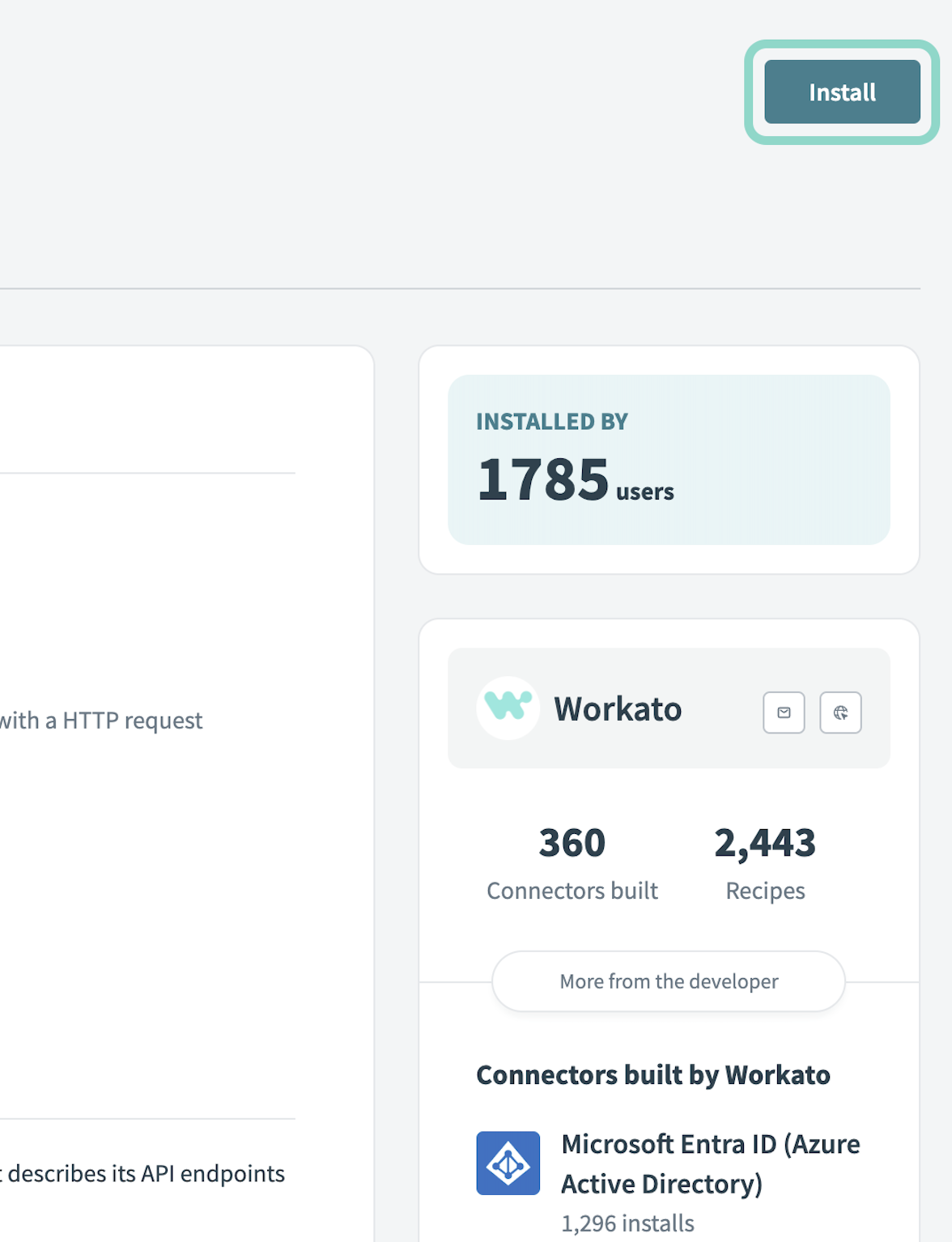 Click Install
Select Release connector. Alternatively, select Review code to review and modify the connector code before releasing it to the workspace.
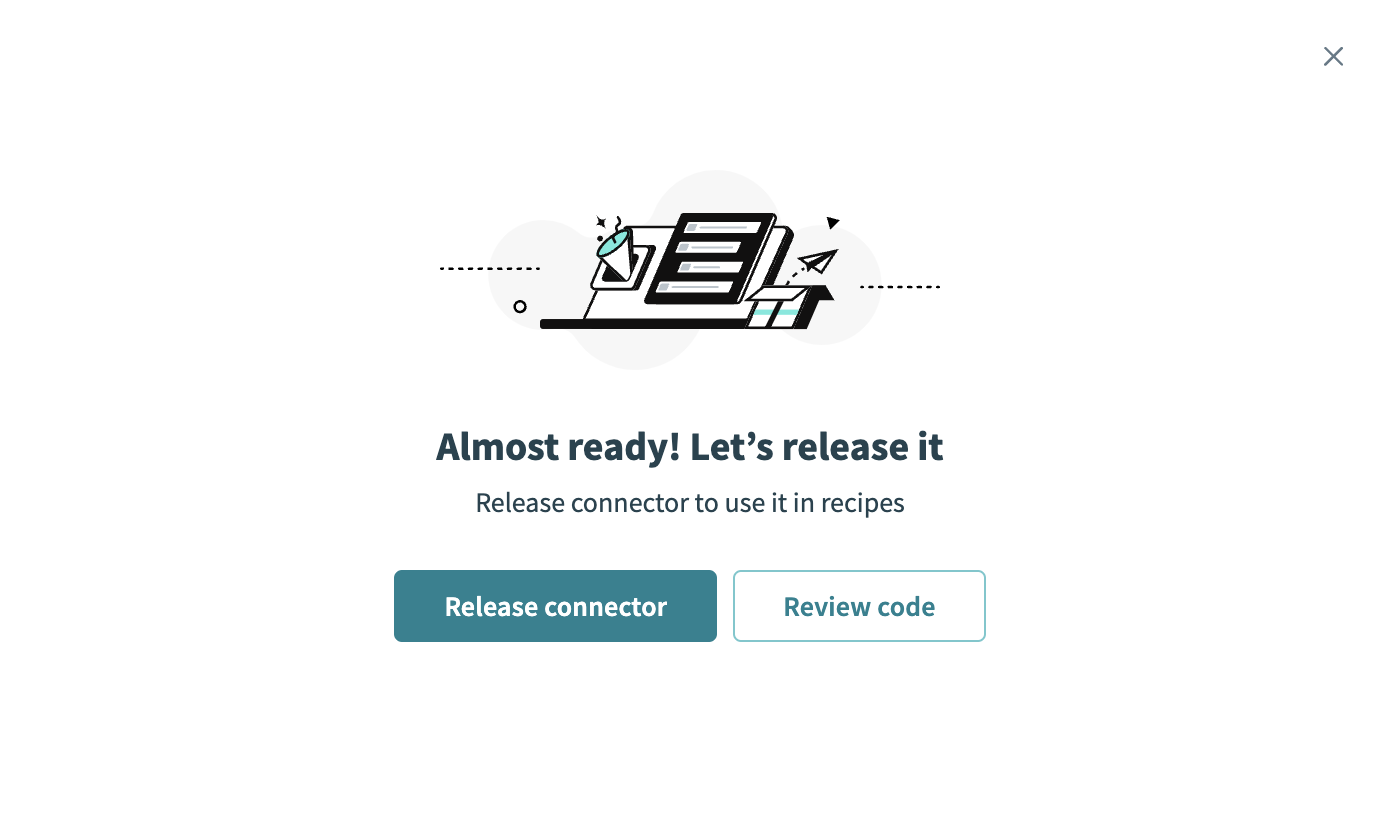 Release the connector
Summarize any changes you made to the connector, then click Release to allow workspace collaborators to use the connector in recipes.
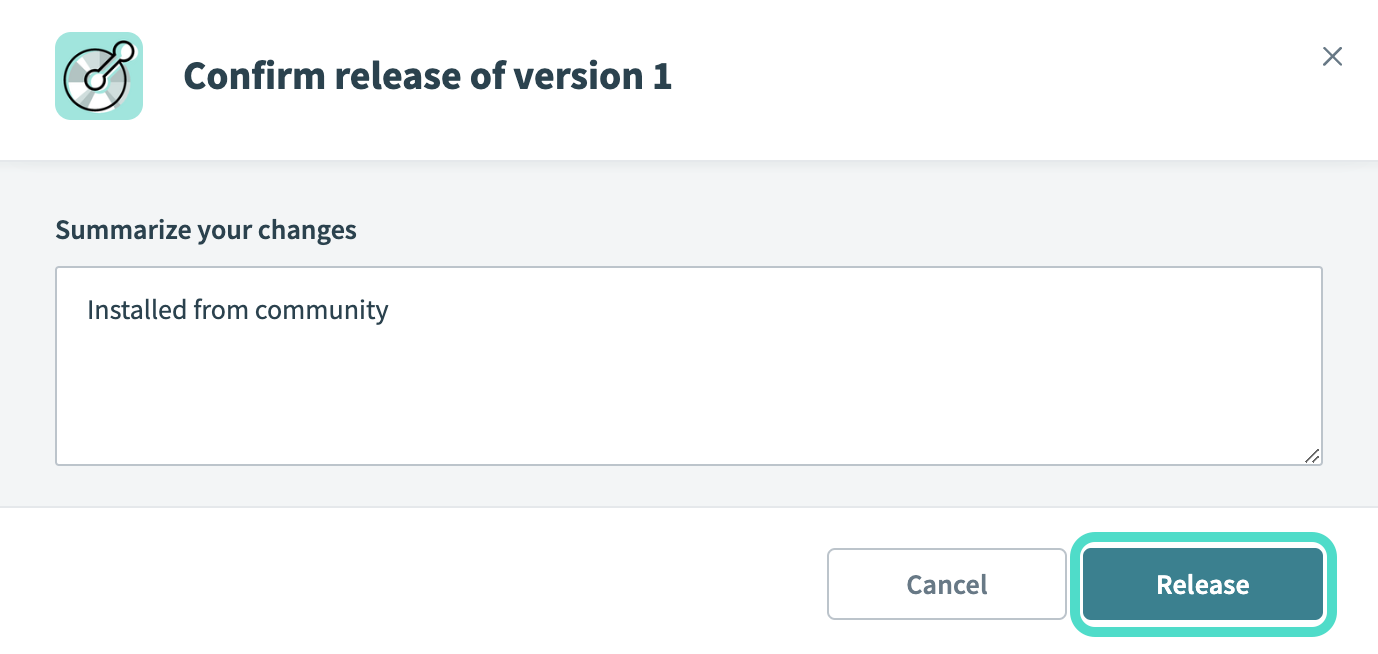 The Confirm release dialog
Connection setup
The Workday ASOR connector uses OAuth 2.0 authentication.
Workday ASOR setup for OAuth 2.0 authentication
You must create an API client to generate a client ID, client secret, and Workday tenant for OAuth 2.0 authentication.
Sign into your Workday account.
Use an existing API client.
Search for View API Clients in the search bar.
Select an existing API client, if available.
Create a new API client.
Search for Register API Client in the search bar.
Enter a Client Name.
Select Authorization Code Grant for Client Grant Type.
Select Bearer for Access Token Type.
Enter https://www.workato.com/oauth/callback in Redirection URL.
Select Agent System Of Record in Scope (Functional Areas).
Save your Client ID and Client Secret to use in Workato.
Connect to Workday ASOR with OAuth 2.0
Complete the following steps to connect to Workday ASOR in Workato:
Click Create > Connection.
Search for Workday ASOR and select it as your app.
Enter a name for your connection in the Connection name field.
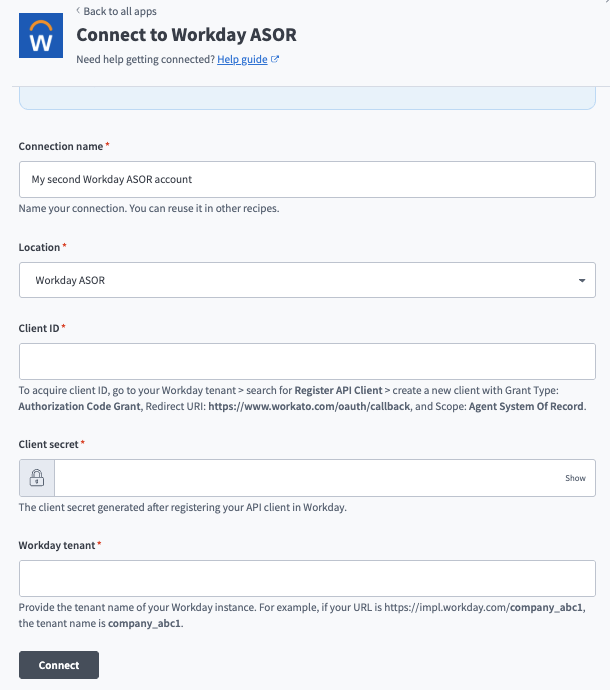 Set up your Workday ASOR connection--->
Use the Location drop-down menu to select the project where you plan to store the connection.
Enter your Client ID and Client secret.
Enter your Workday tenant. For example, if your Workday URL is https://impl.workday.com/company_abc1, the tenant name is company_abc1.
Click Connect.
Sign in to Workday when prompted.
Click Allow to grant access.
Last updated: