Configure Asana as a data pipeline source
Set up Asana as a data pipeline source to extract work-management data, such as tasks, projects, portfolios, goals, and their related records, from the Asana REST API and sync it to your destination.
Use this guide to review the features and prerequisites, connect Asana as a data pipeline source, configure the pipeline, and understand the supported objects, sync modes, schema handling, and limitations.
Features supported
The following features are supported when you use Asana as a pipeline source:
- Cloud connectivity: Connects to the Asana REST API over https. An on-prem agent is not required.
- Object-level selection: Choose the supported objects you plan to sync when you configure the pipeline.
- Sync modes: The
tasksobject and the objects derived from it sync incrementally. All other objects use full sync. - Custom field support: Workspace-level custom fields sync as dynamic columns on the
tasks,projects,portfolios, andgoalsobjects. - Schema drift handling: Choose to auto-sync or block newly added fields in the source.
- Field-level data protection: Replicate field values as is or hash sensitive values before they reach your destination.
- Configurable sync frequency: Schedule syncs with time-based or cron-based schedules. The minimum interval is 15 minutes.
Prerequisites
Complete the following requirements before you configure Asana as a data pipeline source.
- An Asana account with access to the workspaces you plan to sync.
- Permission to authorize a third-party application through the Asana OAuth flow.
PLAN AND WORKSPACE REQUIREMENTS
Some objects require a specific Asana plan or workspace type. The portfolios, goals, portfolio_memberships, and goal_relationships objects require a Business or Enterprise plan. The teams and team_memberships objects require an organization workspace, which is a workspace tied to a verified email domain. Refer to Plan and workspace requirements for more information.
Supported connection types
Asana data pipelines support OAuth 2.0 authentication:
- OAuth 2.0: Authorizes Workato to read data from the Asana workspaces your account can access. Asana access tokens are long-lived and don't expire until you revoke them.
Connect to Asana
Complete the following steps to connect to Asana:
Connect to Asana
Select Create > Connection or press C twice.
Search for and select Asana on the New connection page.
Enter a name in the Connection name field.
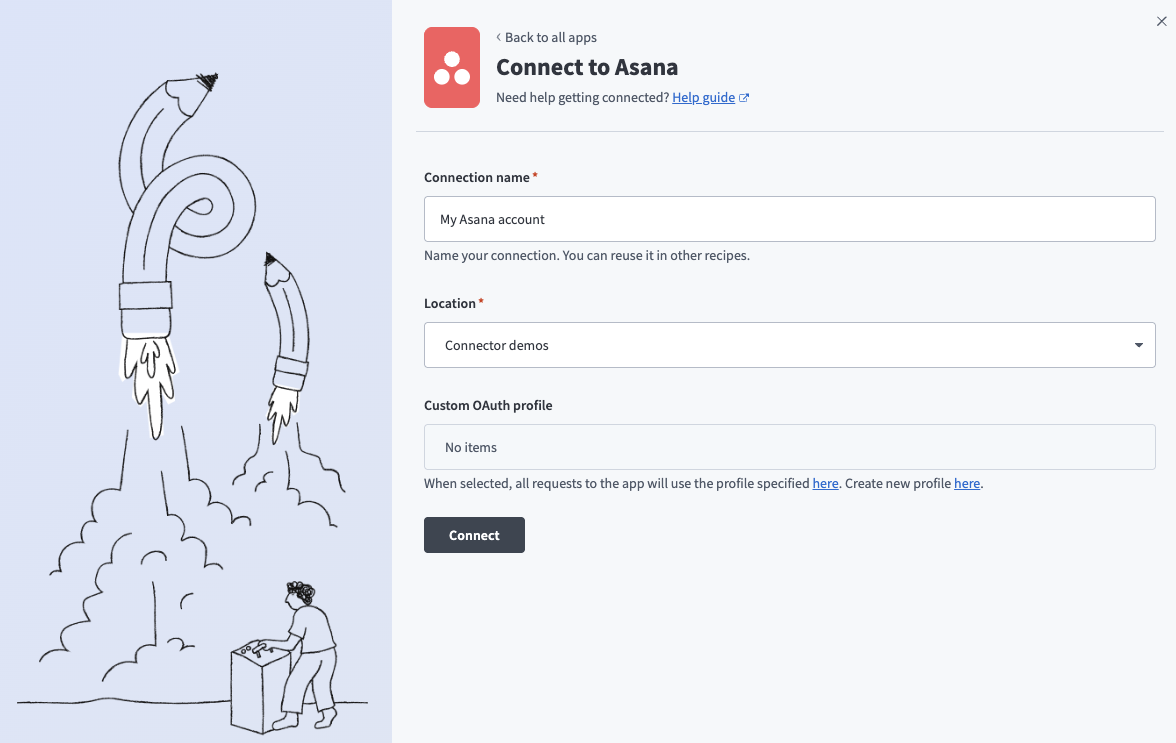 Connect to Asana
Use the Location drop-down menu to select the project or folder where you plan to store the connection.
Optional. Use the Custom OAuth profiles drop-down menu to select a custom OAuth profile for this connection.
Click Connect.
Sign in to Asana using your default login method to authorize Workato. Workato displays a success message after Asana authorizes the connection.
Configure the pipeline
Complete the following steps to configure Asana as your data pipeline source:
Select Create > Data pipeline.
Enter a name for the data pipeline in the Data pipeline name field.
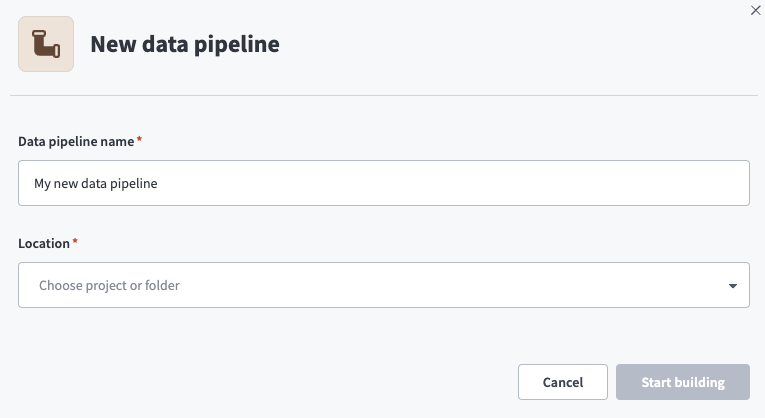 Data pipeline setup
Use the Location drop-down menu to select the project where you plan to store the data pipeline.
Click Start building.
Click the Extract new/updated records from source app trigger. This trigger defines how the pipeline retrieves data from Asana.
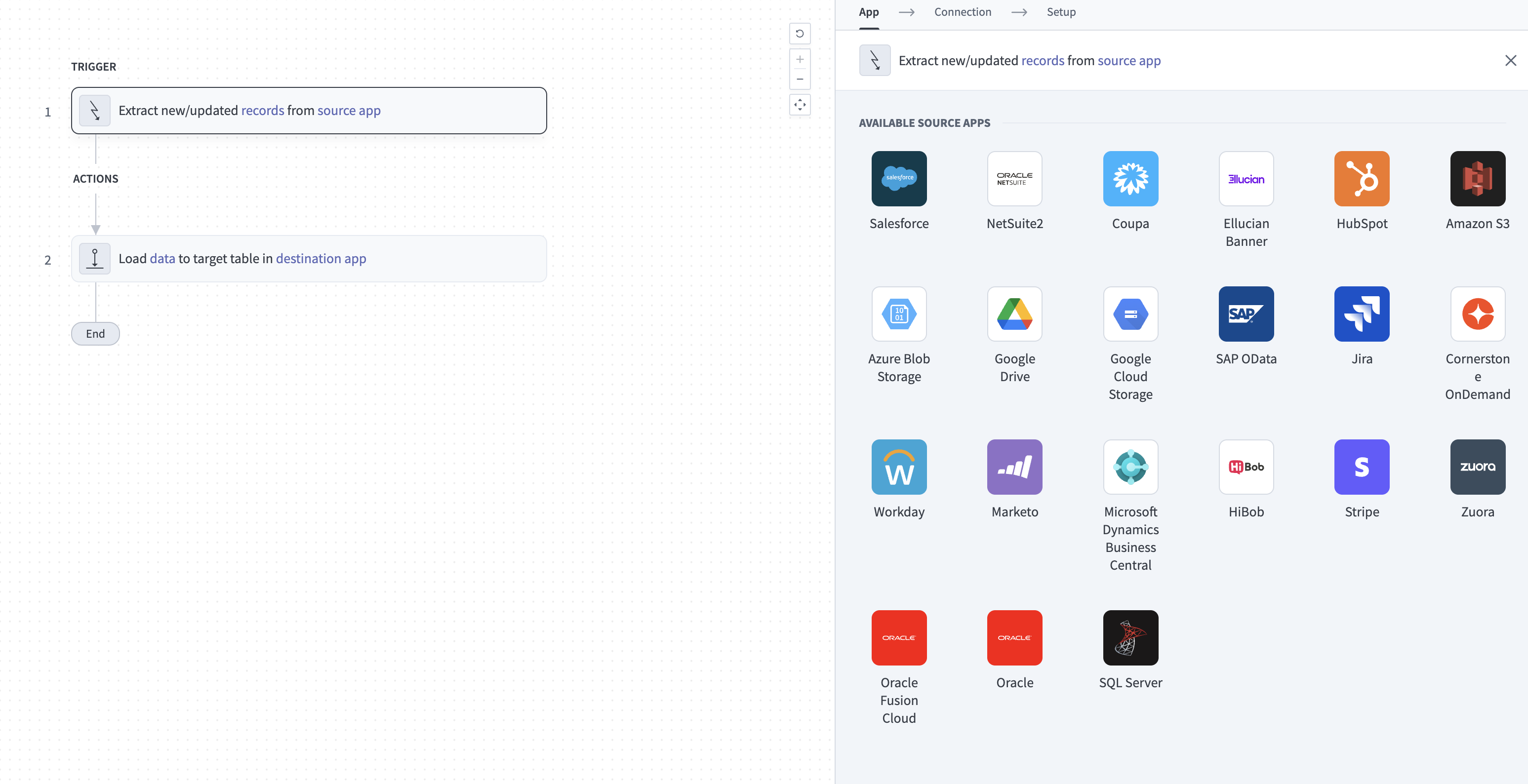 Configure the Extract new/updated records from source app trigger
Use the Your Connected Source Apps drop-down menu to select Asana.
Choose the Asana connection you plan to use for this pipeline. Alternatively, click + New connection to create a new connection.
Click Add object to open the Add new objects panel.
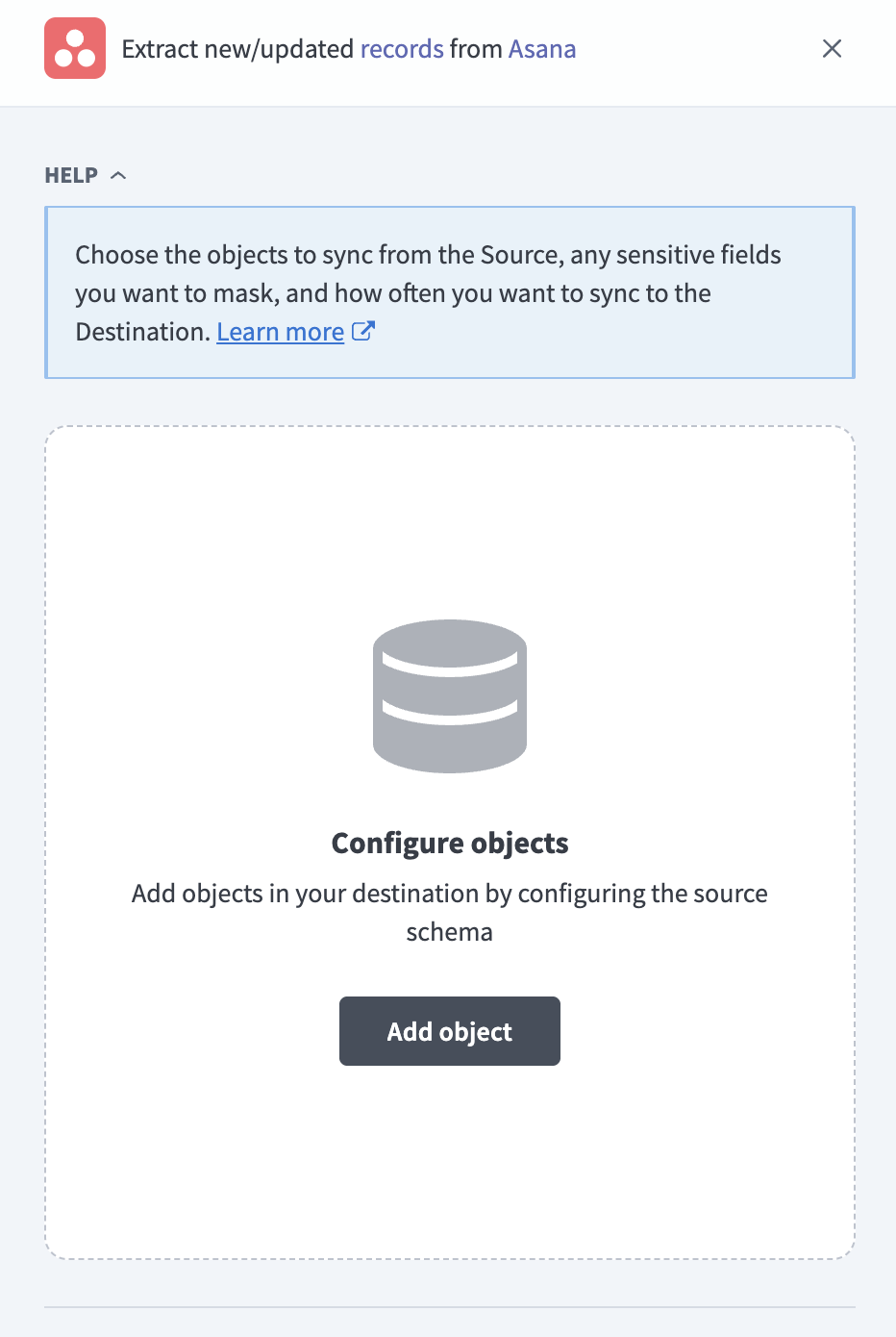 Add objects
Search or browse the list of available Asana objects, select the objects you plan to sync, and click Add.
SYNC MODE IS DETECTED PER OBJECT
Asana detects the sync mode for each object automatically. Refer to Sync modes for more information.
Review and customize the schema for each selected object. The pipeline automatically fetches the object schema you select to ensure the destination matches the source.
Expand an object to view its fields. Keep all fields selected to extract all available data, or deselect specific fields to exclude data from extraction and schema replication.
Optional. Configure field-level data protection by expanding an object and choosing how to handle each field:
- Replicate as is: Data values at the source replicate identically to the destination.
- Hash: Hash sensitive data values in the field before syncing to your destination.
Workato recommends hashing personally identifiable information (PII) and other sensitive fields. Refer to Sensitive data handling for a list of fields that commonly contain PII.
Click Add object again to add more objects. Repeat this step to include additional Asana objects in your pipeline.
Use the Choose how to handle schema changes drop-down menu to select a schema drift handling option:
- Auto-sync new fields: Automatically detects and syncs new fields added in the source.
- Block new fields: Keeps the schema fixed after the pipeline starts. You must add new fields manually.
Workato recommends Auto-sync new fields for Asana, because admins frequently add custom fields to workspaces.
Optional. Enter a value in the Concurrency limit field to limit the number of concurrent operations. Leave this field blank to use the default quota set by Workato. The value can't exceed the Workato default quota of 100.
Configure how often the pipeline syncs data from Asana to the destination in the Frequency field. Choose either a standard time-based schedule or define a custom cron expression.
Supported objects
Asana data pipelines sync data from the Asana REST API. The following tables list supported objects, grouped by category. Each object syncs as a separate table in your destination.
Workspaces and people
These objects describe the workspaces the connection can access and the people and tags within them.
| Object | Sync mode | Notes |
|---|---|---|
workspaces | Full sync | Top-level container. Required to scope all other objects. |
users | Full sync | Workspace members. Contains PII. |
teams | Full sync | Requires an organization workspace. |
team_memberships | Full sync | Syncs with the parent teams object. Requires an organization workspace. |
tags | Full sync | Workspace-level tags. |
Projects
These objects describe projects and their structure and membership.
| Object | Sync mode | Notes |
|---|---|---|
projects | Full sync | Core container for tasks. |
sections | Full sync | Syncs with the parent projects object. |
project_memberships | Full sync | Syncs with the parent projects object. Maps users to their project access level. |
Custom fields
These objects describe the custom field definitions in Asana and the projects they're enabled on.
| Object | Sync mode | Notes |
|---|---|---|
custom_fields | Full sync | Custom field definitions. |
custom_field_settings | Full sync | Syncs with the parent projects object. Maps custom field definitions to the projects they're enabled on. |
Tasks
These objects describe tasks and the records derived from them. All objects in this category sync as part of the task extraction, so they inherit the incremental behavior of the tasks object.
| Object | Sync mode | Notes |
|---|---|---|
tasks | Incremental | Core work unit. Uses the modified_at timestamp as the incremental cursor. Contains PII. |
milestones | Incremental | Syncs as a filtered view of the tasks object where the task subtype is a milestone. |
stories | Append-only | Syncs with the parent tasks object. Comment and activity history for each task. Contains PII. |
task_projects | Incremental | Syncs with the parent tasks object. Maps tasks to their project memberships. |
task_sections | Incremental | Syncs with the parent tasks object. Maps tasks to their section within each project. |
task_tags | Incremental | Syncs with the parent tasks object. Maps tasks to their tags. |
task_followers | Incremental | Syncs with the parent tasks object. Maps tasks to their followers. |
task_dependencies | Incremental | Syncs with the parent tasks object. Maps tasks to the tasks they depend on. |
Portfolios and goals
These objects describe cross-project portfolios and organizational goals. They require a Business or Enterprise plan.
| Object | Sync mode | Notes |
|---|---|---|
portfolios | Full sync | Collections of projects. Requires a Business or Enterprise plan. |
portfolio_memberships | Full sync | Syncs with the parent portfolios object. Maps portfolios to their projects. |
goals | Full sync | Organizational objectives. Requires a Business or Enterprise plan. |
goal_relationships | Full sync | Syncs with the parent goals object. Maps goals to their supporting sub-goals. |
Sync modes
Asana data pipelines support full sync and incremental sync. Asana detects the sync mode for each object automatically.
Full sync
Full sync reads all available records for an object on each run. Every object except tasks and the objects derived from it uses full sync, including projects.
Incremental sync
Incremental sync reads only the records created or updated since the previous run. The tasks object and the objects derived from it sync incrementally. The stories object is append-only.
Refer to the Supported objects tables to see the sync mode for each object.
Delete tracking
Objects that sync in full support delete tracking. The pipeline compares each full sync against the previous run and marks records that no longer exist in Asana with a _workato_is_deleted column in your destination.
The tasks object and the objects derived from it sync incrementally and don't support delete tracking, because an incremental run reads only the records changed since the previous run and never observes a deletion.
Schema and data type handling
The connector applies specific handling to certain Asana field types when it replicates data to your destination.
Rich text fields
Several objects expose both a plain-text field and an HTML-formatted counterpart, such as notes and html_notes on tasks and projects. Both variants sync as separate columns, because the HTML variant carries formatting the plain-text variant doesn't.
Custom field columns
Asana workspaces maintain a library of custom field definitions that admins apply to projects. The connector handles custom field values on the tasks, projects, portfolios, and goals objects as follows:
- The
custom_fieldscolumn contains a JSON object of all custom field values on the record, whether the field is scoped to the workspace or to an individual project, portfolio, or goal. - Workspace-scoped custom fields also receive their own column, prefixed with
cf_, so you can query them directly without unpacking the JSON. Locally-scoped fields appear only in thecustom_fieldsJSON. When two locally-scoped fields share the same name, they collide in the JSON object and only the last value is retained.
Sensitive data handling
Asana objects can contain personally identifiable information (PII). The following objects commonly contain sensitive fields:
| Object | Sensitive fields |
|---|---|
users | name, email, photo |
tasks | name, notes, html_notes |
stories | text, html_text |
projects | name, notes, html_notes |
The notes and html_notes fields on tasks and projects are free-text and carry the highest risk, because users can enter phone numbers, addresses, or other personal data in descriptions. Custom fields of the people type also reference user records that include names and email addresses.
Use the Hash option in field-level data protection during pipeline configuration to protect PII before it reaches your destination. Workato recommends hashing user email addresses and free-text description fields for pipelines operating under GDPR or CCPA. Refer to the Configure the pipeline steps for more information.
Limitations
The following limitations apply when you use Asana as a data pipeline source:
Incremental sync is limited to tasks
Only the tasks object and the objects derived from it sync incrementally. All other objects, including projects, re-fetch their full record set on every run. Account for the full re-fetch when you set the sync frequency for large non-task objects.
Container read quota
Asana limits API reads to approximately 50,000 items within a single container, such as the tasks in a project or section. The quota applies to all objects, but you're most likely to reach it with tasks and their related objects. If a container exceeds the quota, Asana returns an error and the sync for that object fails.
The pipeline reduces the risk by reading tasks per section rather than per project, but a single section that holds more than 50,000 tasks still fails. The count includes completed tasks, because the pipeline extracts tasks regardless of completion status. Keep the number of tasks in any one section below this quota to avoid sync failures.
Refer to the Asana API quotas documentation for more information.
Plan and workspace requirements
Certain objects require a specific Asana plan or workspace type:
| Object | Requirement |
|---|---|
portfolios, portfolio_memberships, goals, goal_relationships | Business or Enterprise plan |
teams, team_memberships | Organization workspace (tied to a verified email domain) |
Select only the objects your plan and workspace support. If you select a portfolio_memberships, goal_relationships, or team_memberships object without the required plan or workspace type, the sync fails with an error.
Minimum sync frequency
The minimum supported sync interval is 15 minutes. You can't trigger syncs more frequently than this.
Last updated: