Permissions
The roles that you assign to users in your workspace determine the permissions to create/view/edit records/delete data tables/modify data table structure.
Similar to other Workato features, you can define granular access permissions to data tables by creating or editing a custom role.
Set up data tables permissions with RBAC
Data tables permissions are available in the Recipe development section of the Collaborator roles interface.
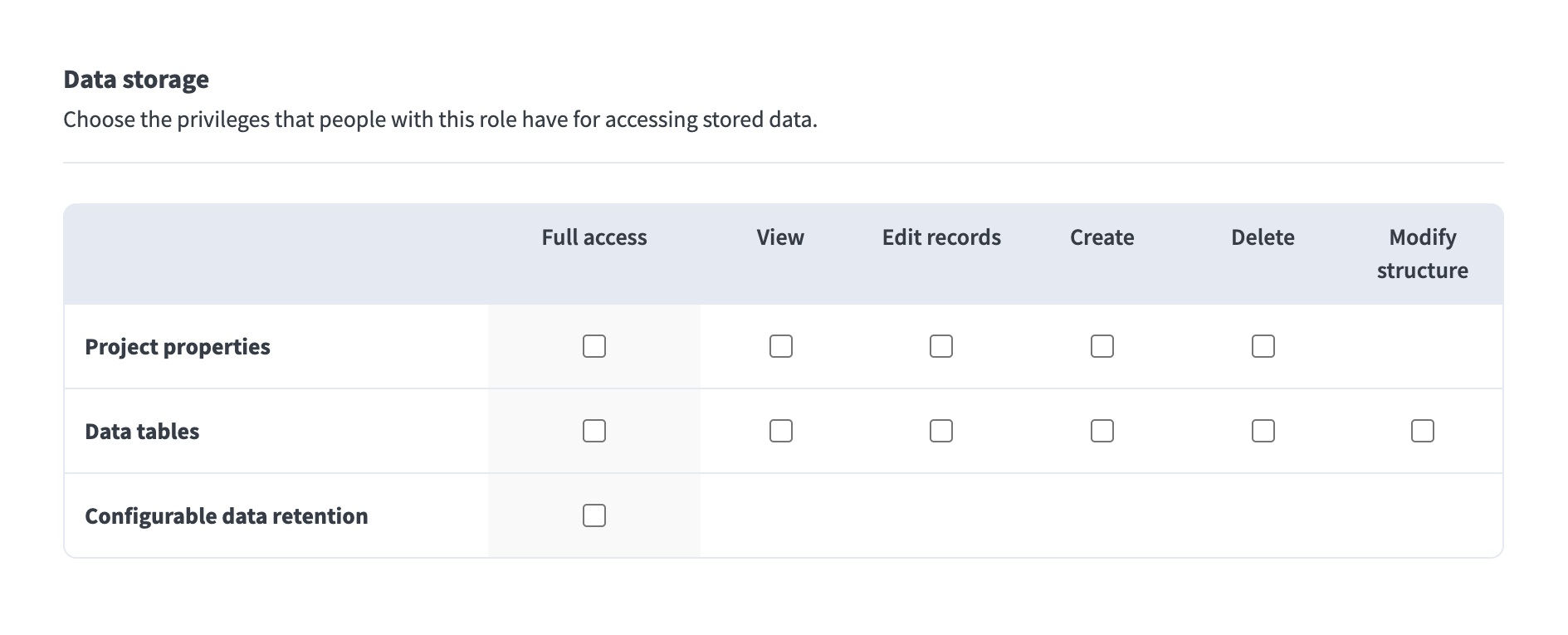 Assign data tables permissions
Complete the following steps to configure data tables permissions:
Sign in to your Workato account.
Go to Workspace admin > Access control > Collaborator roles and click + Add collaborator role. Alternatively, you can modify an existing role.
Determine which projects the role has access to. You can give this role access to all projects, or only projects you specify.
Navigate to Recipe development > Data storage > Data tables.
Determine the privileges to assign to this role.
Click Save changes.
Assign roles
After you have determined permissions for the new/edited role, you must assign the role to a user. You must assign roles to a user when you invite them to a team. You can also edit a user’s role at any time.
To invite a user to a team:
Sign in to your Workato account.
Go to Workspace admin > Access control > Collaborators.
Click Invite Collaborator.
Enter the Full name and Email address of the collaborator.
Using the Collaborator role menu, select the role you plan to assign to the collaborator.
Click Send invitation.
To edit an existing user’s role:
Sign in to your Workato account.
Go to Workspace admin > Access control > Collaborators.
Select the collaborator you plan to modify. This opens the Edit collaborator interface.
Select a new role from the Role drop-down.
Click Update.
Last updated: