Salesforce Sales Explorer MCP server
The Salesforce Sales Explorer MCP server enables LLMs to work with leads, accounts, contacts, opportunities, tasks, events, and products in Salesforce. It provides tools to search for records, retrieve details, create new entries, and update existing information through natural conversation.
Uses
Use the Salesforce Sales Explorer MCP server when you plan to perform the following actions:
- Search for leads, accounts, contacts, opportunities, tasks, and products
- Retrieve detailed information about specific sales records
- Create new leads, accounts, contacts, opportunities, tasks, and events
- Update existing sales records with new information or status changes
- Add product line items to opportunities
- Execute SOQL queries for custom data retrieval
- Retrieve schema information for Salesforce objects
Example prompts
Use the following example prompts to invoke Salesforce Sales Explorer MCP server tools:
Find all qualified leads from last month.Show me opportunities closing this quarter over $100k.Get details on the Acme Corp account.Create a lead for Jane Smith at TechCo.Update the Acme renewal opportunity to Negotiation stage.Schedule a call with the customer for tomorrow at 2pm.Add the Enterprise subscription product to this opportunity.What are my high-priority tasks due this week?
Salesforce Sales Explorer MCP server tools
The Salesforce Sales Explorer MCP server provides the following tools:
| Tool | Description |
|---|---|
| search_leads | Searches for leads matching specified criteria. |
| search_accounts | Searches for accounts matching specified criteria. |
| search_contacts | Searches for contacts matching specified criteria. |
| search_opportunities | Searches for opportunities matching specified criteria. |
| search_tasks | Searches for tasks matching specified criteria. |
| search_products | Searches for products in the Salesforce product catalog. |
| upsert_lead | Creates a new lead or updates an existing lead. |
| upsert_account | Creates a new account or updates an existing account. |
| upsert_contact | Creates a new contact or updates an existing contact. |
| upsert_opportunity | Creates a new opportunity or updates an existing opportunity. |
| upsert_task | Creates a new task or updates an existing task. |
| upsert_event | Creates a new calendar event or updates an existing event. |
| add_opportunity_line_item | Adds a product line item to an existing opportunity. |
| retrieve_semantic_model | Retrieves schema information for a specified Salesforce object. |
| execute_soql_query | Executes SOQL queries in Salesforce. |
Install the Salesforce Sales Explorer MCP server
Complete the following steps to install a prebuilt MCP server to your project:
Sign in to your Workato account.
Go to AI Hub > Enterprise MCP.
Click + Create MCP server.
Go to the Start with pre-built MCP Servers using your connected apps section and select the prebuilt MCP server you plan to use.
Click Use this server.
Provide a name for your MCP server in the Server name field.
Use the Location drop-down menu to select the project for the MCP server.
Go to the Connections section and connect to your app account.
Select the connection type you plan to use for the MCP server template.
- User's connection: MCP server tools perform actions based on the identity and permissions of the user who connects to the application. Users authenticate with their own credentials to execute the skill.
- Your connection: This option uses the connection established by the recipe builder and follows the same principles as normal app connections.
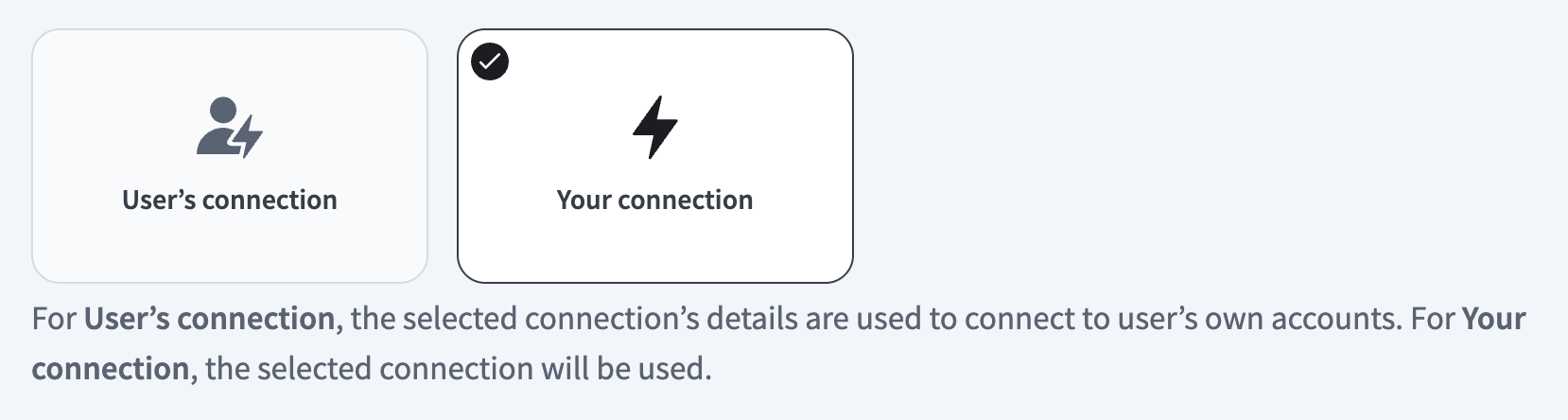 Select your connection type
VERIFIED USER ACCESS AUTHENTICATION REQUIREMENTS
Only app connections that use OAuth 2.0 authorization code grant are available for user's connection. Refer to Verified user access for more information.
Complete the app-specific connection setup steps in the following section.
Salesforce connection setup
View Salesforce connection setup steps
Workato supports OAuth 2.0 authentication and JWT bearer authentication connections for Salesforce Sales Explorer.
OAuth 2.0 authentication
View OAuth 2.0 authentication steps
Connect to Salesforce using OAuth 2.0 (Authorization Code Grant)
Complete the following steps to set up an OAuth 2.0 (Authorization Code Grant) connection to Salesforce in Workato:
OAUTH RESTRICTIONS
As of early September 2025, Salesforce restricts the use of uninstalled Salesforce Connected Apps. Refer to OAuth restrictions for required actions if you encounter errors when you create a new connection. These steps are required for all new Salesforce connections starting September 17, 2025.
Click Create > Connection or press C twice.
Search for Salesforce and select it as your app.
Enter a name in the Connection name field.
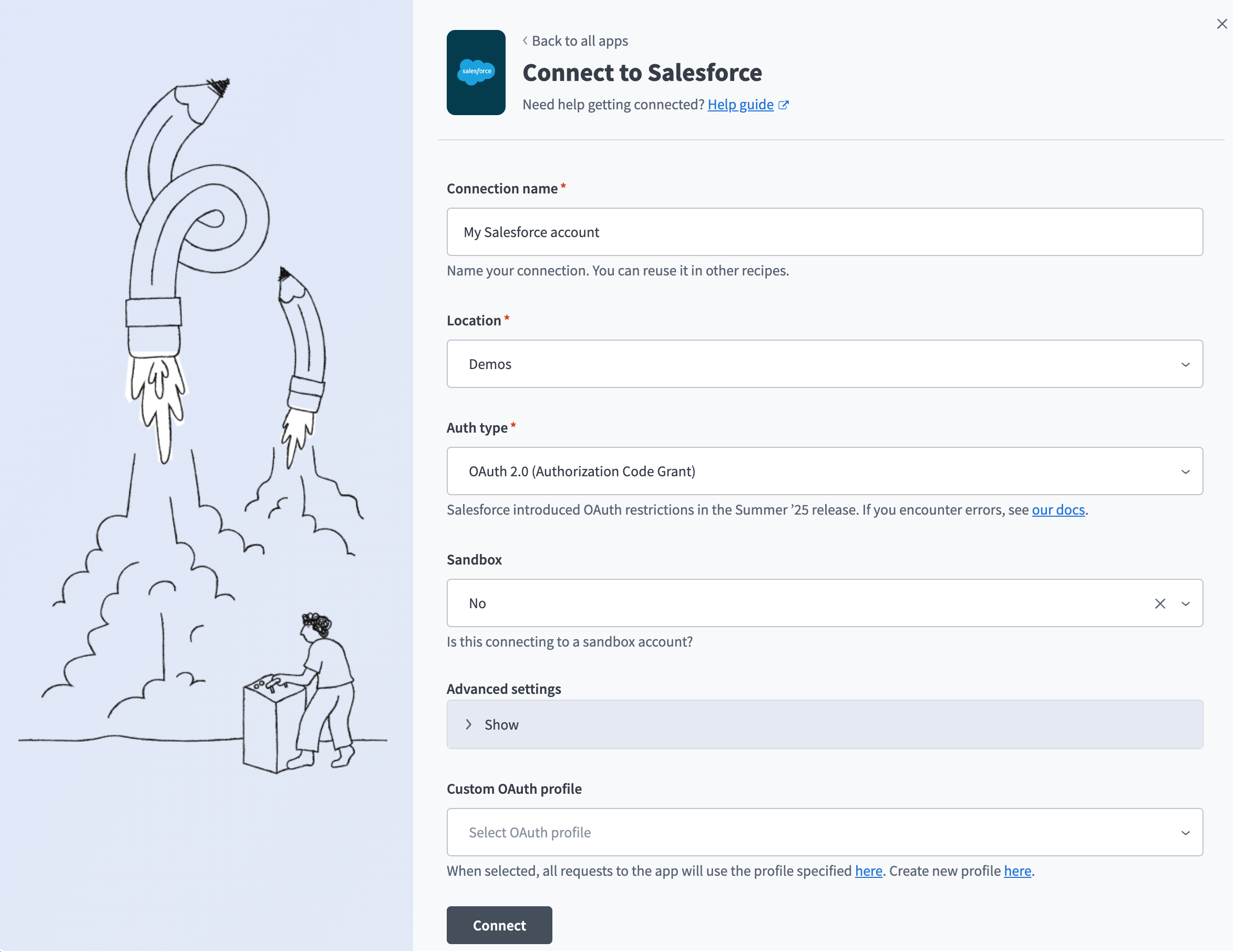 OAuth2.0 Salesforce connection setup
Use the Location drop-down menu to select the project where you plan to store the connection.
Use the Auth type drop-down menu to select OAuth 2.0 (Authorization Code Grant).
Use the Sandbox drop-down menu to specify whether the Salesforce account is a sandbox account.
Optional. Expand Advanced settings to configure the following options:
Advanced settings
- Organization/community custom domain URL: Enter the URL to your Salesforce community's custom domain. Required for community connections with unique domains.
- Requested permissions: Select permissions to request for this connection. Refer to Minimum and default scopes for the scopes Workato requests by default.
- Verified user access configuration: Configure custom auth for personal connections. Refer to Runtime user connections for more information.
REFRESH TOKEN SCOPE IS REQUIRED
The Perform requests at any time scope is one of Workato's minimum scopes for OAuth 2.0 connections, but whether Salesforce actually grants this scope depends on the Connected App's own OAuth policies, not on the Workato connection's settings. Refer to Salesforce connection disconnects repeatedly if your connection later disconnects when the access token expires. A Refresh Token Policy or IP Relaxation setting can cause the same symptom.
Optional. Use the Custom OAuth profile drop-down menu to select a custom OAuth profile for your connection. Refer to Create a custom OAuth profile for Salesforce for more information.
Click Connect.
Optional. If your Salesforce organization or community uses a custom domain, complete the following in the sign-in modal:
- Click Use Custom Domain.
- Enter your Custom domain, then click Continue.
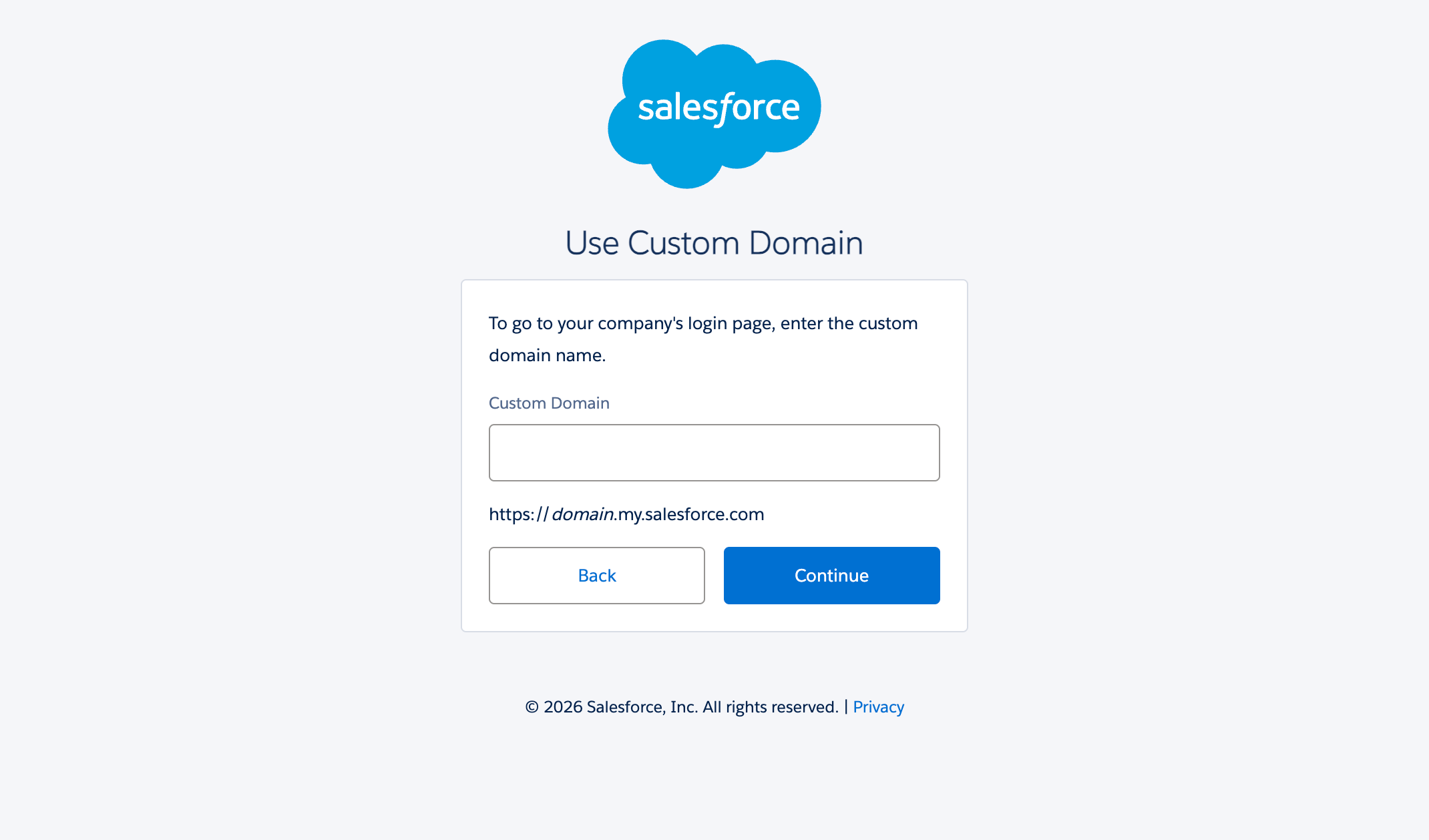 Enter your Custom domain.
Enter your Salesforce Username and Password.
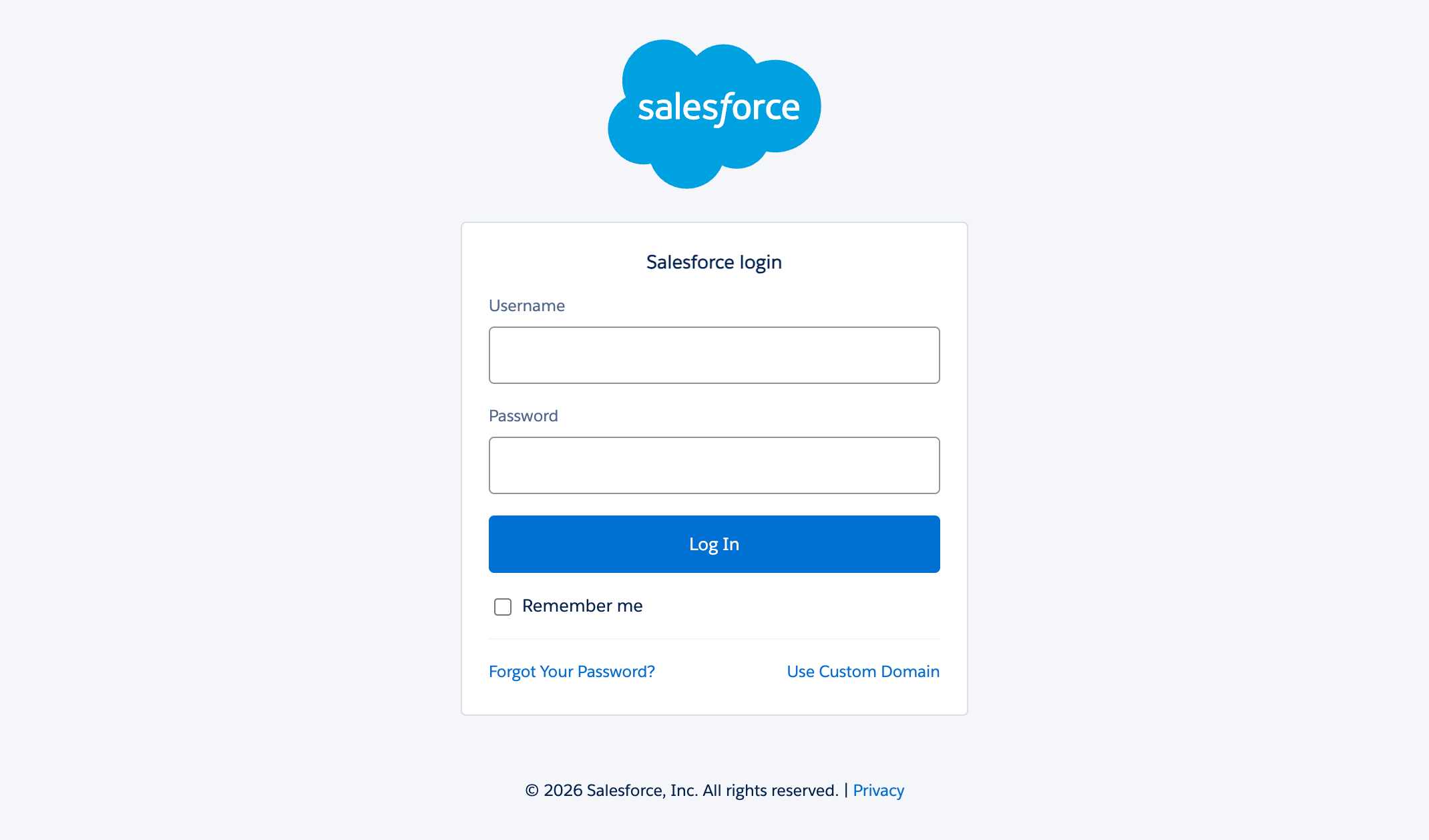 Log in to your Salesforce account
Click Log In to complete the setup.
OAUTH_APPROVAL_ERROR_GENERIC
If you see this error, Salesforce is restricting the Workato app because it isn't installed. A Salesforce admin must install the app in Connected Apps OAuth Usage or assign the Salesforce permissions. Refer to OAuth restrictions for details.
JWT bearer authentication
View JWT bearer authentication steps
ACTIONS ON BEHALF OF USER
JWT connections can perform actions on behalf of a user you specify using the On-behalf-of-user email field. Contact your Workato Customer Success Manager to enable this feature.
How it works
JWT bearer authentication connects using a digital certificate that signs a JWT request. Workato sends a JWT to the Salesforce OAuth token endpoint, where Salesforce processes the JWT and issues an access token based on prior approval of Workato in Salesforce.
Although JWT bearer skips interactive sign-in, Salesforce still evaluates every request against the permissions of the user specified in the connection and attributes any changes to that user. Use a dedicated integration user rather than a personal account.
Refer to Required roles and permissions for the Salesforce permissions the connected user needs.
Generate a private key and certificate
JWT bearer authentication requires a private key and a certificate. The following command generates both using OpenSSL. Replace the -subj values with your own:
openssl req -x509 -sha256 -nodes -newkey rsa:2048 \
  -keyout server.key \
  -out server.crt \
  -days 365 \
  -subj "/CN=Your App Name/O=Your Organization/C=US"
This generates two files:
| File | Description |
|---|---|
server.key | Your private key for Workato. Keep this secret. |
server.crt | Your public certificate for Salesforce. |
Refer to Salesforce's documentation for more information:
- OAuth 2.0 JWT Bearer Flow for Server-to-Server Integration: Details on how Salesforce uses this certificate to sign and validate JWTs.
- Create a Private Key and Self-Signed Digital Certificate: Other ways to generate a private key and certificate.
Create an external client app for JWT bearer
JWT bearer authentication also requires a registered external client app in Salesforce. Complete the following steps before creating your connection in Workato. Refer to Salesforce's Create an External Client App documentation for more information.
Sign in to Salesforce.
Go to Setup > Apps > External Client Apps > External Client App Manager.
Click New External Client App.
Enter a name in the External Client App Name field, such as Workato.
Enter a name in the API Name field that meets the following requirements:
- Contains only underscores and alphanumeric characters.
- Is unique.
- Starts with a letter.
- Doesn't include spaces.
- Doesn't end with an underscore.
- Doesn't contain consecutive underscores.
Enter the contact email address for your app in the Contact Email field.
Use the Distribution State drop-down menu to select either Local or Packaged.
Expand API (Enable OAuth Settings) and select the Enable OAuth checkbox. Refer to Salesforce's Configure the External Client App OAuth Settings documentation for more information.
Enter https://www.workato.com/oauth/callback in the Callback URL field.
Select your OAuth scopes in the OAuth Scopes field based on the actions and triggers you plan to use, then click the Move selection to Selected OAuth Scopes arrow to apply them.
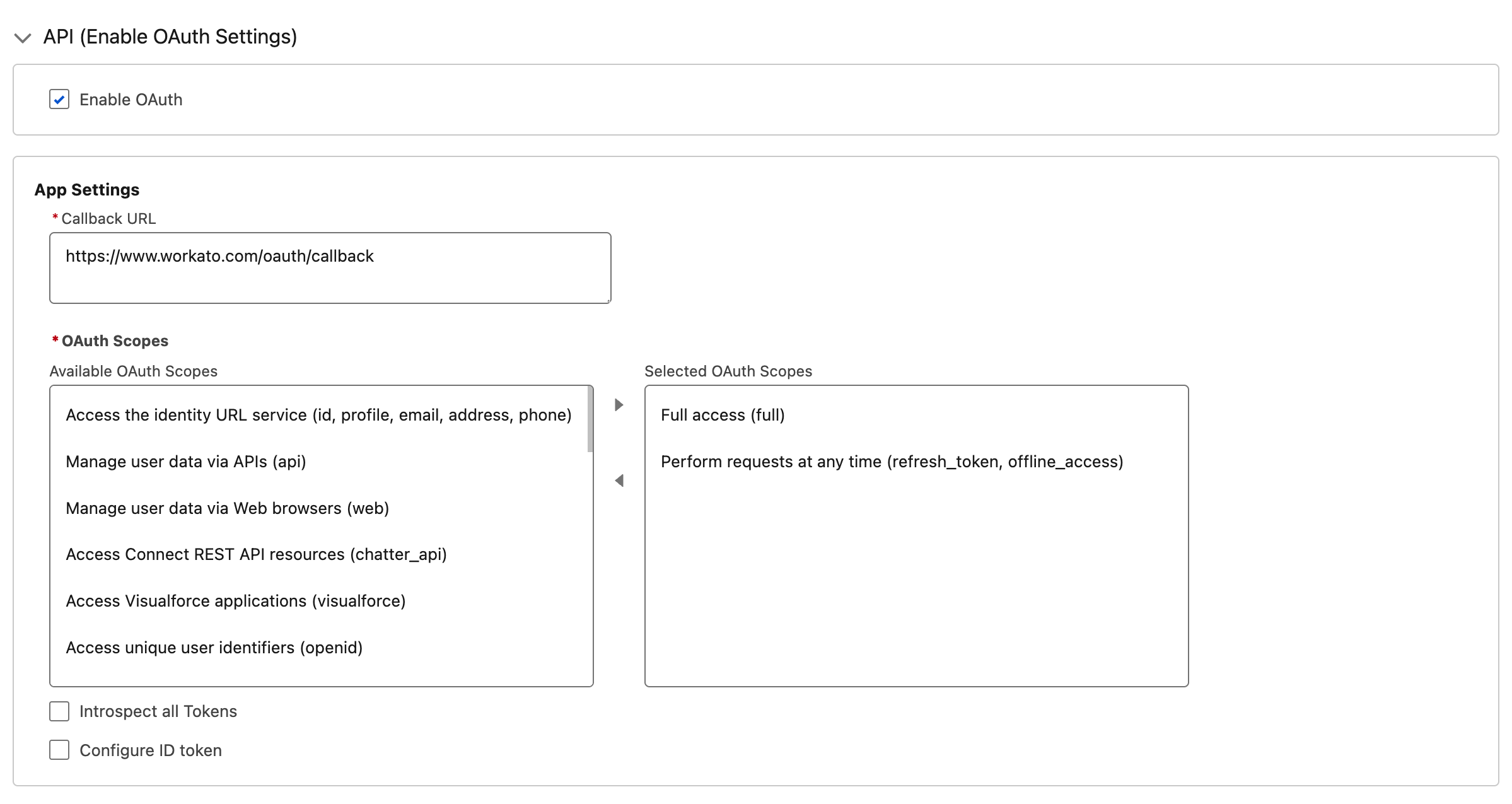 Configure scopes for your external client app
REFRESH_TOKEN SCOPE IS REQUIRED
If you see the error refresh_token scope is required and the connected app should be installed and preauthorized, add Perform requests at any time (refresh_token, offline_access) to your OAuth scopes. If you then see an invalid session error, also add Manage user data via APIs (api).
Select Enable JWT Bearer Flow in the Flow Enablement section. Refer to Salesforce's Configure a JWT Bearer Flow documentation for more information.
Upload server.crt as the digital certificate.
Click Create.
Click the Policies tab, then click Edit.
Expand the OAuth Policies section and set Permitted Users to Admin approved users are pre-authorized.
USER HASN'T APPROVED THIS CONSUMER
If you see this error when connecting, this step was likely missed.
Locate the App Policies section. Add either the profile or permission set assigned to the Salesforce user Workato connects as to the Select Profiles or Select Permission Sets list. Refer to Salesforce's Preauthorize User App Access Through External Client App Policies documentation for more information.
USER IS NOT ADMIN APPROVED TO ACCESS THIS APP
If you see this error when connecting, this step was likely missed.
Click Save.
Click the Settings tab for your external client app.
Expand the OAuth Settings section.
Click Consumer Key and Secret.
Verify your identity when prompted.
Copy the Consumer Key. You'll enter this as the Issuer when connecting in Workato.
Connect to Salesforce using JWT bearer
Complete the following steps to connect to Salesforce using JWT bearer authentication:
Click Create > Connection or press C twice.
Search for Salesforce and select it as your app.
Enter a name in the Connection name field.
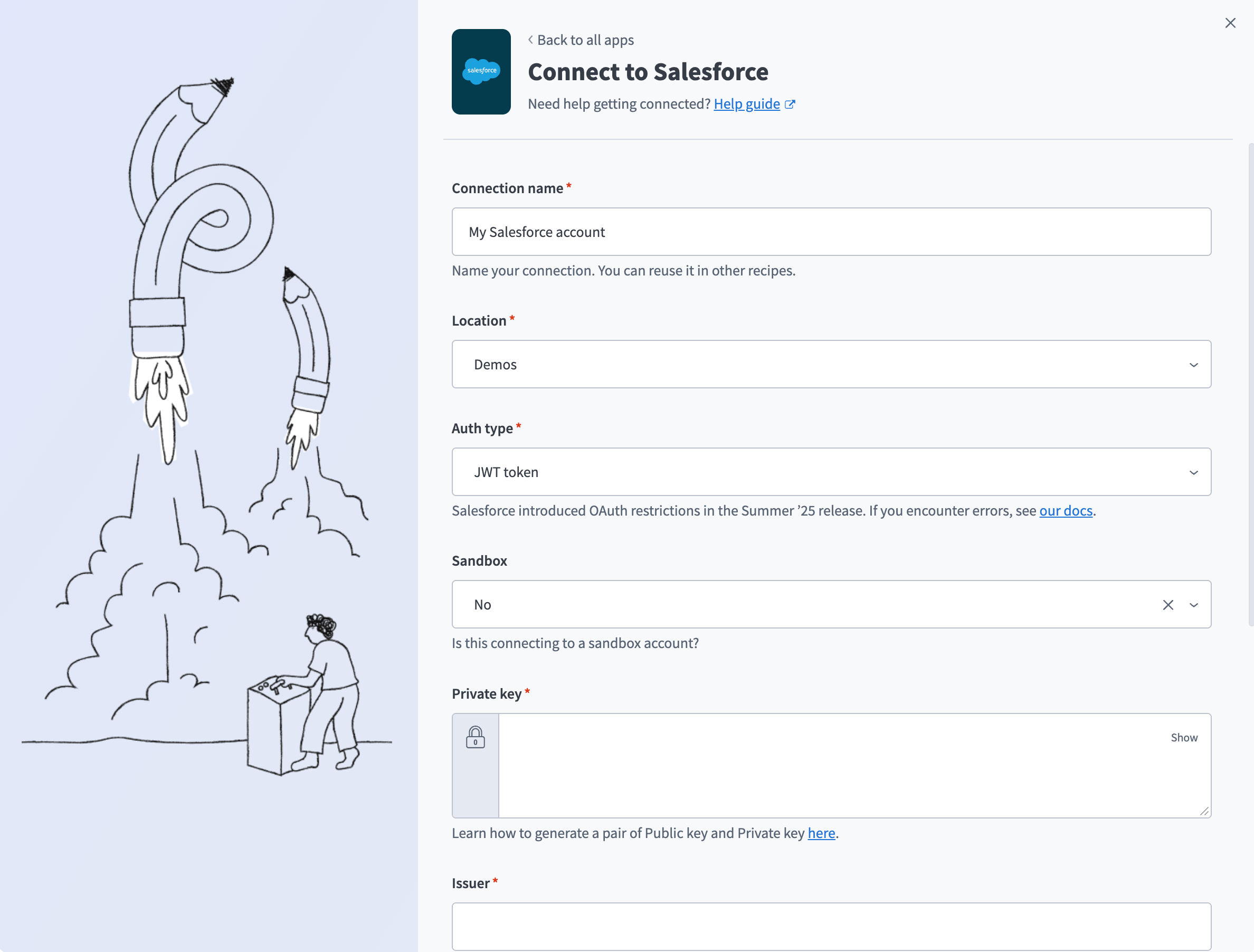 Configure Salesforce JWT Bearer connection
Use the Location drop-down menu to select the project where you plan to store the connection.
Use the Auth type drop-down menu to select JWT token.
Use the Sandbox drop-down menu to specify whether the Salesforce account is a sandbox account.
Paste the full contents of server.key in the Private key field, including the -----BEGIN PRIVATE KEY----- and -----END PRIVATE KEY----- lines.
Enter the Consumer Key from your external client app in the Issuer field.
Enter the Subject for the JWT connection. This is the username of the Salesforce user you want Workato to authenticate as, or a valid Experience Cloud username if you're connecting to an Experience Cloud site. You can use principal (prn) in place of subject (sub) for backward compatibility. If you specify both, Workato uses prn.
Enter your Salesforce Subdomain. For example, if your Salesforce URL is yourInstance.salesforce.com, the subdomain is yourInstance.
Optional. Use the Custom OAuth profile drop-down menu to select a custom OAuth profile for your connection. Refer to Create a custom OAuth profile for Salesforce for more information.
Click Connect.
How to use Salesforce Sales Explorer MCP server tools
Refer to the following sections for detailed information on available tools:
search_leads tool
The search_leads tool searches for leads matching the criteria you specify. Your LLM uses this tool when you need to find, list, filter, or retrieve leads by ID, status, source, owner, company, or date ranges.
Try asking:
Find leads from last week.Show me all open leads.Find leads from Acme Corp.Show me qualified leads assigned to me.Find leads from the trade show.Show me leads created this month.
search_accounts tool
The search_accounts tool searches for accounts matching criteria you specify. Your LLM uses this tool when you need to find, list, filter, or retrieve accounts by ID, name, type, industry, owner, or parent account.
Try asking:
Find accounts in the technology industry.Show me all customer accounts.Find Acme Corp account.Show me prospect accounts owned by Sarah.Find child accounts of Acme Corp.Show me accounts created this quarter.
search_contacts tool
The search_contacts tool searches for contacts matching criteria you specify. Your LLM uses this tool when you need to find, list, filter, or retrieve contacts by ID, name, account, title, email, or owner.
Try asking:
Find contacts at Acme Corp.Find Jane Smith in Salesforce.Show me all VP-level contacts.Find contact with email jane@acme.com.Show me contacts owned by John.Get Jane Smith's contact information.
search_opportunities tool
The search_opportunities tool searches for opportunities matching criteria you specify. Your LLM uses this tool when you need to find, list, filter, or retrieve opportunities by ID, name, account, stage, close date, amount, or owner.
Try asking:
Find deals closing this quarter.Find the Acme Corp renewal opportunity.Show me all opportunities in negotiation stage.Find deals over $100k.Show me opportunities I'm working on.Show me deals closing next month.
search_tasks tool
The search_tasks tool searches for tasks matching criteria you specify. Your LLM uses this tool when you need to find, list, filter, or retrieve tasks by ID, subject, status, priority, due date, owner, or related records.
Try asking:
Find my tasks for this week.Find tasks about contract review.Show me open tasks.Show me high-priority tasks.What tasks are due today?Show me tasks for the Acme Corp account.
search_products tool
The search_products tool searches for products in the Salesforce product catalog. Your LLM uses this tool when you need to find, list, or retrieve products by ID, name, product code, or active status.
Try asking:
Find products in our catalog.Find the Enterprise subscription product.Find product SKU-12345.Show me software products.Show me discontinued products.What products can I add to this opportunity?
upsert_lead tool
The upsert_lead tool creates a new lead if it doesn't exist, or updates an existing lead if you provide the lead ID. Your LLM uses this tool when you need to create a new prospect or update lead information.
Try asking:
Create a lead for Josh Hernandez at Acme Corp.Log this person as a lead.Update the lead status to Qualified.I met Jade Anderson from TechCo at the conference - create a lead.Assign this lead to Sarah.Update the lead - they're interested in the enterprise plan.
upsert_account tool
The upsert_account tool creates a new account if it doesn't exist, or updates an existing account if provided with account ID. Your LLM uses this tool when you need to create a new company record or update account information.
Try asking:
Create an account for Acme Corp.Update Acme Corp's industry to Technology.Add this company to Salesforce.Update the account - their revenue is $50M.Reassign this account to John.
upsert_contact tool
The upsert_contact tool creates a new contact if it doesn't exist, or updates an existing contact if you provide the contact ID. Your LLM uses this tool when you need to create a new person record or update contact information.
Try asking:
Create a contact for Jane Smith.Update Jane's email address.Add John Doe as a contact at Acme Corp.Save this person's information as a contact.
upsert_opportunity tool
The upsert_opportunity tool creates a new opportunity if it doesn't exist, or updates an existing opportunity if you provide the opportunity ID. Your LLM uses this tool when you need to create a new sales deal or update opportunity information.
Try asking:
Create an opportunity for Acme Corp renewal.Update the Acme deal amount to $100k.Move this opportunity to Negotiation stage.Push the close date to end of quarter.Create an opportunity for what we just discussed.
upsert_task tool
The upsert_task tool creates a new task if it doesn't exist, or updates an existing task if you provide the task ID. Your LLM uses this tool when you need to create a to-do item or update task information, and can link tasks to leads, accounts, contacts, or opportunities.
Try asking:
Create a task to follow up with Acme Corp.Remind me to call them next week.Make a task for what we discussed.Create a task for this opportunity to send the proposal.Mark that task as completed.Push the task due date to Friday.
upsert_event tool
The upsert_event tool creates a new calendar event if it doesn't exist, or updates an existing event if you provide the event ID. Your LLM uses this tool when you need to schedule a meeting, call, or calendar activity with specific date and time.
Try asking:
Schedule a call with Acme Corp for tomorrow at 2pm.Put a meeting on my calendar for Friday at 10am.Move that meeting to next Tuesday.Schedule a demo for this opportunity on Wednesday.
add_opportunity_line_item tool
The add_opportunity_line_item tool adds a product line item to an existing opportunity. Your LLM uses this tool when you need to add products or services to a sales deal.
Try asking:
Add the Enterprise subscription to this opportunity.Add 5 licenses to the Acme deal.Add the product at $1000 per unit to this opportunity.Add the Professional Services package to the renewal deal.
retrieve_semantic_model tool
The retrieve_semantic_model tool retrieves schema information for a Salesforce object you specify, including field names, field types, field labels, relationships to other objects, and field-level permissions. Your LLM uses this tool when you need to understand object structure before building queries or creating records.
Try asking:
What fields are available on the Lead object?Show me the schema for Opportunity.What are the field types for Account?Get the object structure for Contact.
execute_soql_query tool
The execute_soql_query tool executes SOQL queries in Salesforce. Your LLM uses this tool after reviewing semantic models to build custom queries that answer specific questions about your Salesforce data.
Try asking:
Query all opportunities with amount greater than $50k closing this quarter.Find accounts in the technology industry with annual revenue over $10M.Get all contacts associated with closed-won opportunities.Query tasks due this week for my team members.
Getting started
View and manage your MCP server tools in the Overview page Tools section. Tool management provides the following capabilities:
TOOLS MUST BE STARTED
Your LLM can only access active tools in your MCP server connector.
Last updated: