YouTube Creator MCP server
The YouTube Creator MCP server enables LLMs to research YouTube content and manage your channels through natural conversation. It provides tools to retrieve structured YouTube data, analyze videos and channels, manage comments, organize playlists, and update video metadata without requiring direct interaction with the YouTube interface.
Uses
Use the YouTube Creator MCP server to perform the following actions:
- Search for YouTube videos using keywords and filters
- Retrieve video metadata and public metrics
- Retrieve channel information including subscriber counts and playlists
- List videos published by specific channels
- View and manage comment threads on videos
- Reply to comments on your videos
- Access video caption tracks and transcripts
- List and manage playlists for your channel
- Create new playlists and add videos to them
- Update video titles, descriptions, and tags
Example prompts
Search for videos about Python tutorials from this month.Get the details for video dQw4w9WgXcQ.Show me information about the Workato YouTube channel.List the recent videos from this channel.Show me the top comments on my latest video.Reply to that comment thanking them for the feedback.Get the captions for this video.Create a new playlist called 'Product Demos'.Add this video to my Tutorials playlist.Update the title of my latest video.
YouTube Creator MCP server tools
The YouTube Creator MCP server provides the following tools:
| Tool | Description |
|---|---|
| search_videos | Searches YouTube videos using keywords and optional filters. |
| get_video_details | Retrieves metadata and public metrics for a YouTube video you specify. |
| get_channel_info | Retrieves metadata and public metrics for a YouTube channel. |
| list_channel_videos | Lists videos published by a YouTube channel you specify. |
| list_video_comment_threads | Retrieves top-level comment threads for a YouTube video. |
| list_thread_replies | Retrieves replies within a comment thread you specify. |
| reply_to_comment | Posts a reply to an existing YouTube comment. |
| list_video_caption_tracks | Lists available caption tracks for a YouTube video. |
| download_caption_track | Retrieves transcript content for a caption track you specify. |
| list_playlists | Lists playlists for a YouTube channel. |
| get_playlist_items | Retrieves videos contained within a playlist you specify. |
| create_playlist | Creates a new playlist in the authenticated creator's channel. |
| update_playlist | Updates metadata for an existing playlist. |
| add_to_playlist | Adds a video to a playlist. |
| remove_from_playlist | Removes a video from a playlist. |
| update_video_metadata | Updates metadata for a YouTube video owned by the authenticated creator. |
Install the YouTube Creator MCP server
Complete the following steps to install a prebuilt MCP server to your project:
Sign in to your Workato account.
Go to AI Hub > Enterprise MCP.
Click + Create MCP server.
Go to the Start with pre-built MCP Servers using your connected apps section and select the prebuilt MCP server you plan to use.
Click Use this server.
Provide a name for your MCP server in the Server name field.
Use the Location drop-down menu to select the project for the MCP server.
Go to the Connections section and connect to your app account.
Select the connection type you plan to use for the MCP server template.
- User's connection: MCP server tools perform actions based on the identity and permissions of the user who connects to the application. Users authenticate with their own credentials to execute the skill.
- Your connection: This option uses the connection established by the recipe builder and follows the same principles as normal app connections.
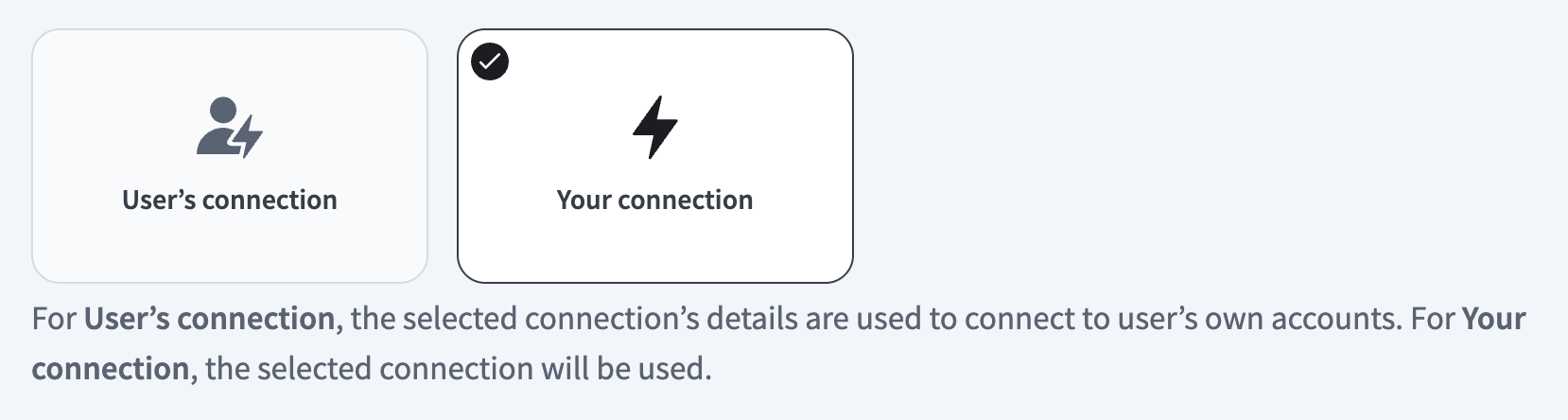 Select your connection type
VERIFIED USER ACCESS AUTHENTICATION REQUIREMENTS
Only app connections that use OAuth 2.0 authorization code grant are available for user's connection. Refer to Verified user access for more information.
Complete the app-specific connection setup steps in the following section.
YouTube connection setup
You can connect to YouTube with an API key or OAuth 2.0 authorization.
View YouTube connection setup steps
API key
View API key connection set up steps
YouTube setup for API key authentication
Complete the following steps to set up for API key authentication:
PREREQUISITES
You must have a project in the Google Cloud Console. Refer to the Google Create a Google Cloud project guide for more information.
Sign in to your Google Cloud Console.
Open the navigation menu and select APIs & Services > Library.
Search for YouTube Data API v3 and select the API.
Click Enable.
Use the project drop-down menu next to the Google Cloud logo to select the project for which you plan to create credentials.
Go to APIs & Services > Credentials.
Select + Create credentials > API key.
Enter a name for the API key.
Use the Select API restrictions drop-down menu to select YouTube Data API v3. This restriction allows the key to call only the YouTube Data API v3.
Click OK.
Optional. Select the Authenticate API calls through a service account checkbox to bind the key to a service account.
Optional. Select an application type to restrict where you can use the key.
Click Create.
Copy and save the API key for use in Workato.
Connect to YouTube with API key authentication
Complete the following steps to set up an API key connection to in Workato:
Click Create > Connection.
Search for YouTube and select it as your app.
Enter a name for your connection in the Connection name field.
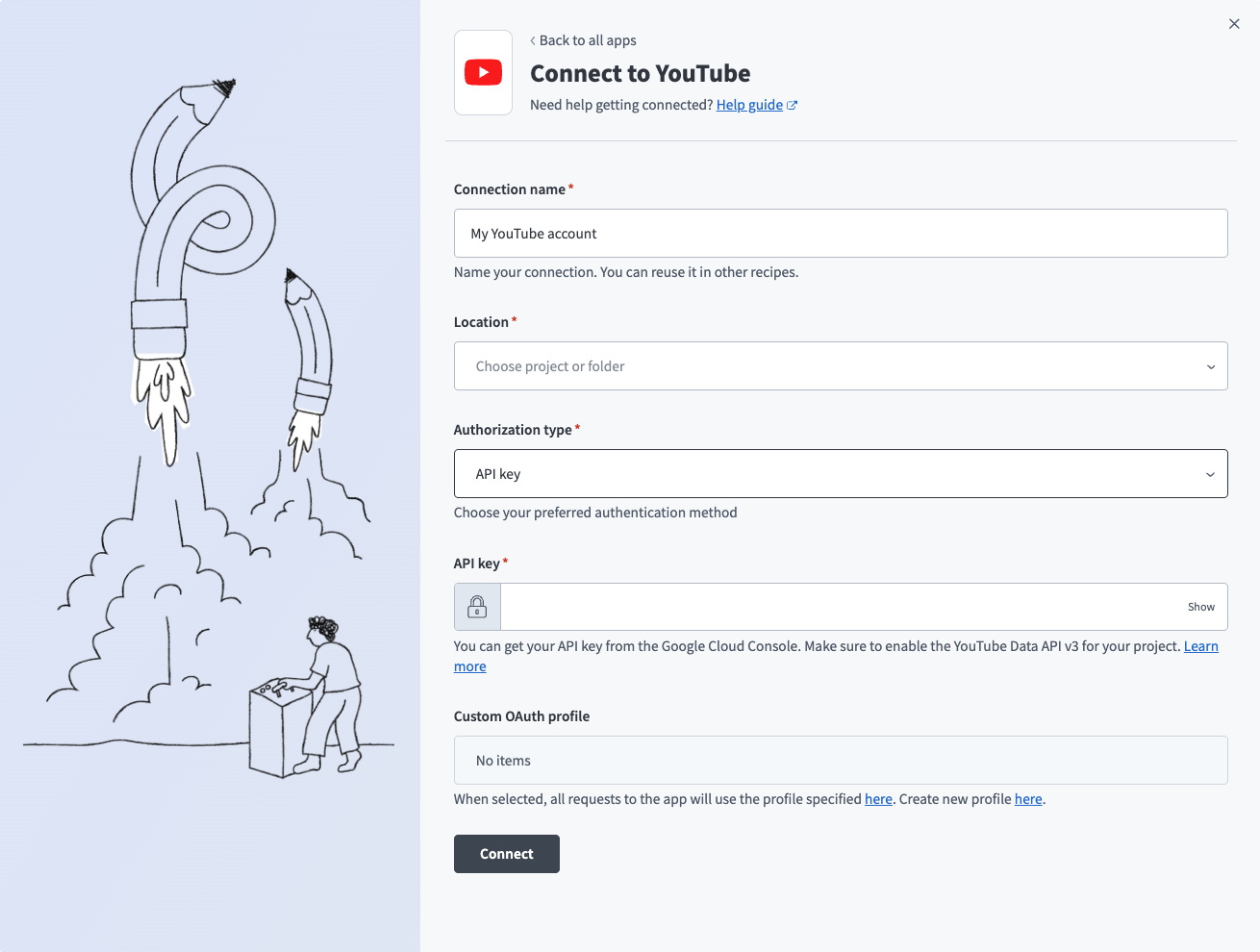 YouTube API key connection setup
Use the Location drop-down menu to select the project where you plan to store the connection.
Use the Authorization type drop-down menu to select API key.
Enter the API key. Refer to YouTube setup for API key authentication for more information.
Optional. Use the Custom OAuth profile drop-down menu to select a custom OAuth profile for your connection.
Click Connect.
OAuth 2.0
View OAuth 2.0 connection set up steps
Default scopes
You can customize the OAuth scope that Workato requests in the Scopes field. Workato requests read-only access by default. The following scopes are available:
Read-only access (search, comments)Force SSL (secure access)YouTube Analytics reportsYouTube Analytics monetary reportsManage YouTube accountYouTube Partner access
YouTube setup for OAuth 2.0 authentication
Complete the following steps to set up for OAuth 2.0 authentication:
PREREQUISITES
You must have a project in the Google Cloud Console. Refer to the Google Create a Google Cloud project guide for more information.
Sign in to your Google Cloud Console.
Use the project drop-down menu next to the Google Cloud logo to select the project for which you plan to create credentials.
Go to Google Auth platform > Clients.
Click Create Client.
Use the Application type drop-down menu to select Web application.
Enter a name for the OAuth 2.0 client. Google Cloud Console only displays this name internally.
Click + Add URI under Authorized redirect URIs.
Enter https://www.workato.com/oauth/callback as the authorized redirect URI.`
Click Create.
Copy and save the Client ID and Client secret for use in Workato.
SAVE YOUR SECRET
Google only displays the client secret once. You must create a new one if you lose the client secret.
Create a custom OAuth profile
You must create a custom OAuth profile with your client ID and secret before you can connect. Complete the following steps to create a custom OAuth profile for your connection:
Go to Tools > Custom OAuth profiles in Workato.
Click + New custom profile.
Search for YouTube and select it as your app.
Provide a Name for this account.
Click Create new app.
Create a new OAuth app in your Google Cloud Console account.
Enter the Client ID and Client secret in Workato. Refer to YouTube setup for OAuth 2.0 authentication for more information.
Click Save.
Click Done.
Connect to YouTube with OAuth 2.0 authentication
Complete the following steps to set up an OAuth 2.0 connection to in Workato:
Click Create > Connection.
Search for YouTube and select it as your app.
Enter a name for your connection in the Connection name field.
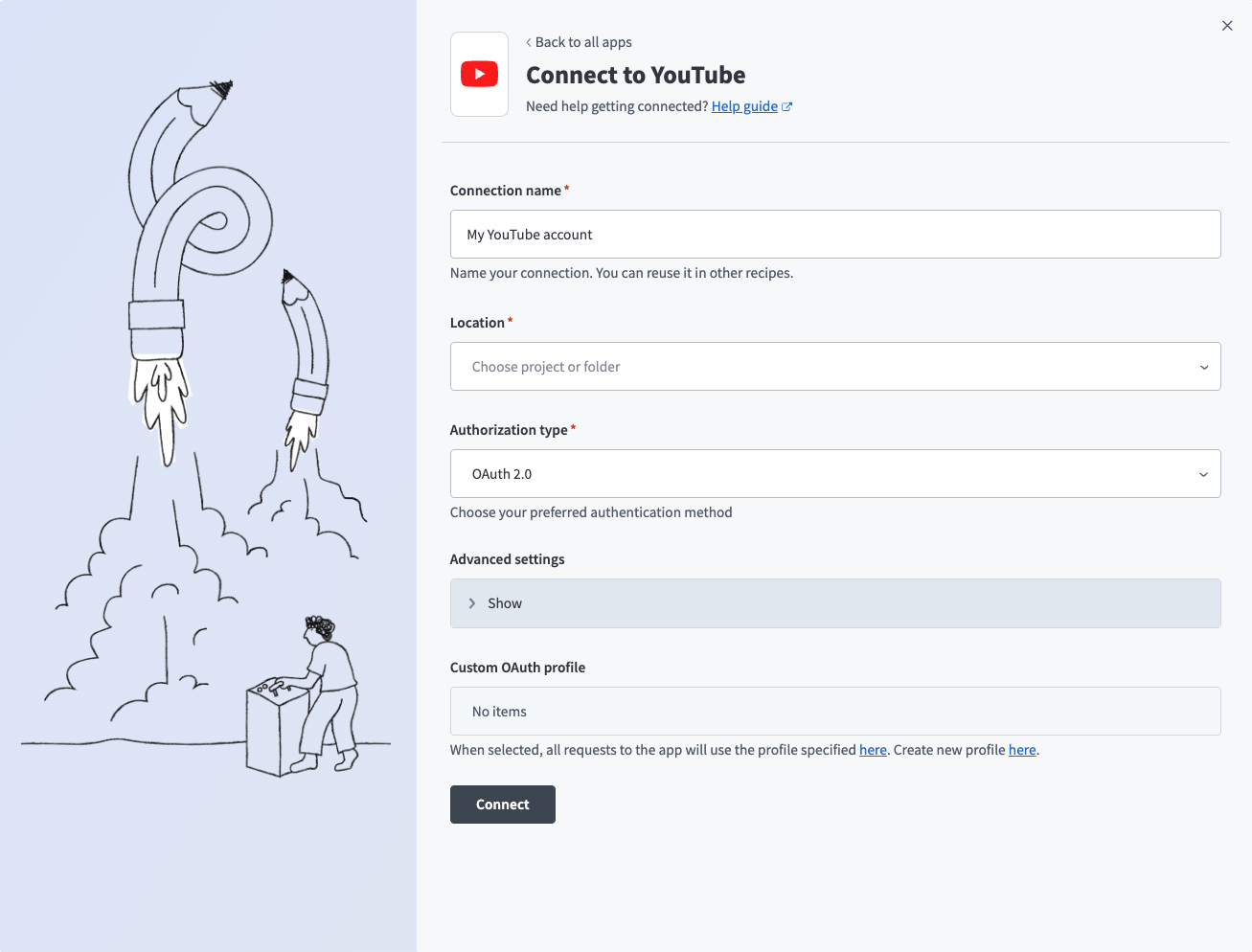 YouTube OAuth 2.0 connection setup
Use the Location drop-down menu to select the project where you plan to store the connection.
Use the Authorization type drop-down menu to select OAuth 2.0.
Optional. Expand the Advanced settings section to configure Scopes for your connection. Defaults to read-only if left empty.
Use the Custom OAuth profile drop-down menu to select a custom OAuth profile for your connection. Refer to Create a custom OAuth profile for more information.
Click Connect.
Select a Google account if prompted.
Click Allow to grant Workato access to your Google account.
How to use YouTube Creator MCP server tools
Refer to the following sections for detailed information on available tools:
search_videos tool
The search_videos tool searches YouTube videos using keywords and optional filters. Your LLM uses this tool to find videos by topic, keyword, or specific criteria, such as upload date or channel.
Try asking:
Search for videos about machine learning from this year.Find Python tutorial videos uploaded this month.Look for videos about web development with high view counts.Search for recipe videos from the Food Network channel.
get_video_details tool
The get_video_details tool retrieves metadata and public metrics for a YouTube video you specify including title, description, tags, publish date, and engagement metrics. Your LLM uses this tool to provide detailed information about a video.
Try asking:
Get the details for video dQw4w9WgXcQ.Show me the metadata for this YouTube video.What are the tags and description for video dK983ksdls9?Get the view count and publish date for this video.
get_channel_info tool
The get_channel_info tool retrieves metadata and public metrics for a YouTube channel, including title, description, subscriber count (if visible), and uploads. Your LLM uses this tool to provide information about a specific channel.
Try asking:
Show me information about the Workato YouTube channel.Get the subscriber count for this channel.What's the description and metadata for this YouTube channel?Get channel details for UCxxxxxxxxxxxxxx.
list_channel_videos tool
The list_channel_videos tool lists videos published by a YouTube channel you specify. Your LLM uses this tool to browse or retrieve a channel's uploaded content.
Try asking:
List the recent videos from the Workato channel.Show me all videos published by this channel.What videos has this creator uploaded recently?Get the video list for channel UCxxxxxxxxxxxxxx.
list_video_comment_threads tool
The list_video_comment_threads tool retrieves top-level comment threads for a YouTube video including comment text, author, timestamp, and reply count. Your LLM uses this tool to review comments on a video.
Try asking:
Show me the top comments on my latest video.Get the comment threads for this YouTube video.What are people saying in the comments on video mawxyl9382?List the comments on my product demo video.
list_thread_replies tool
The list_thread_replies tool retrieves replies within a specific comment thread. Your LLM uses this tool to view the conversation within a comment thread.
Try asking:
Show me the replies to this comment.Get all responses in this comment thread.What did people reply to the top comment?List the conversation in this comment thread.
reply_to_comment tool
The reply_to_comment tool posts a reply to an existing YouTube comment. Your LLM uses this tool to respond to comments on your videos.
Try asking:
Reply to that comment thanking them for the feedback.Respond to this comment with the link to the documentation.Post a reply to the top comment addressing their question.Thank the commenter for their suggestion.
list_video_caption_tracks tool
The list_video_caption_tracks tool lists available caption tracks for a YouTube video, including language and track type metadata. Your LLM uses this tool to view available captions for a video.
Try asking:
What caption tracks are available for this video?List the languages with captions on this YouTube video.Show me the available subtitles for video dWls9s8fgsx5.What caption options does this video have?
download_caption_track tool
The download_caption_track tool retrieves transcript content for a caption track you specify. Your LLM uses this tool to access the full transcript or captions for a video.
Try asking:
Get the English captions for this video.Download the transcript for this YouTube video.Show me the full caption text for this video.Retrieve the subtitles in Spanish for this video.
list_playlists tool
The list_playlists tool lists playlists for a YouTube channel. Your LLM uses this tool to view existing playlists on a channel.
Try asking:
Show me all my YouTube playlists.List the playlists on my channel.What playlists does this channel have?Get all playlists for the Workato channel.
get_playlist_items tool
The get_playlist_items tool retrieves videos contained within a playlist you specify. Your LLM uses this tool to view playlist videos.
Try asking:
Show me the videos in my Tutorials playlist.List all videos in this YouTube playlist.What's in the Product Demos playlist?Get the contents of playlist PLxxxxxxxxxxxxxx.
create_playlist tool
The create_playlist tool creates a new playlist in your channel and returns the playlist ID. Your LLM uses this tool to create a new playlist to organize your content.
Try asking:
Create a new playlist called 'Product Demos'.Make a playlist for my tutorial videos.Create a playlist titled 'Customer Success Stories'.Set up a new playlist for webinar recordings.
update_playlist tool
The update_playlist tool updates metadata for an existing playlist, including title, description, and privacy settings. Your LLM uses this tool to modify playlist details.
Try asking:
Update my Tutorials playlist title to 'Getting Started Guides'.Change the description of this playlist.Make this playlist public.Update the metadata for my Product Demos playlist.
add_to_playlist tool
The add_to_playlist tool adds a video to a playlist. Your LLM uses this tool to organize videos into playlists.
Try asking:
Add this video to my Tutorials playlist.Put video kjdalsfiao91 in the Product Demos playlist.Add my latest video to the Featured Content playlist.Include this video in the Getting Started playlist.
remove_from_playlist tool
The remove_from_playlist tool removes a video from a playlist. Your LLM uses this tool to reorganize playlists or remove outdated content.
Try asking:
Remove this video from the Tutorials playlist.Take video dskji232sd out of the Featured Content playlist.Delete the outdated video from my Getting Started playlist.Remove this from the Product Demos playlist.
update_video_metadata tool
The update_video_metadata tool updates metadata for a YouTube video you own, including title, description, and tags. Your LLM uses this tool to modify video details.
Try asking:
Update the title of my latest video to include 'Tutorial'.Change the description of video aksdfjskd913.Add tags to this video: python, tutorial, beginner.Update my video metadata to improve SEO.
Getting started
View and manage your MCP server tools in the Overview page Tools section. Tool management provides the following capabilities:
TOOLS MUST BE STARTED
Your LLM can only access active tools in your MCP server connector.
Last updated: