Set up a Google Cloud service account
This guide explains how to create a Google Cloud service account and generate credentials that allow Workato to access secrets in Google Secret Manager.
Prerequisites
Ensure you have the following before you begin:
An active Google Cloud project (GCP project) with billing enabled
The following IAM permissions in your GCP project:
serviceusage.services.enableiam.serviceAccounts.createiam.serviceAccountKeys.createresourcemanager.projects.setIamPolicy
Enable the Secret Manager API
Complete the following steps to enable the Secret Manager API in your GCP project:
Sign in to the Google Cloud Console and select your project.
Go to APIs & Services > Library.
Search for and select Secret Manager API.
Click Enable.
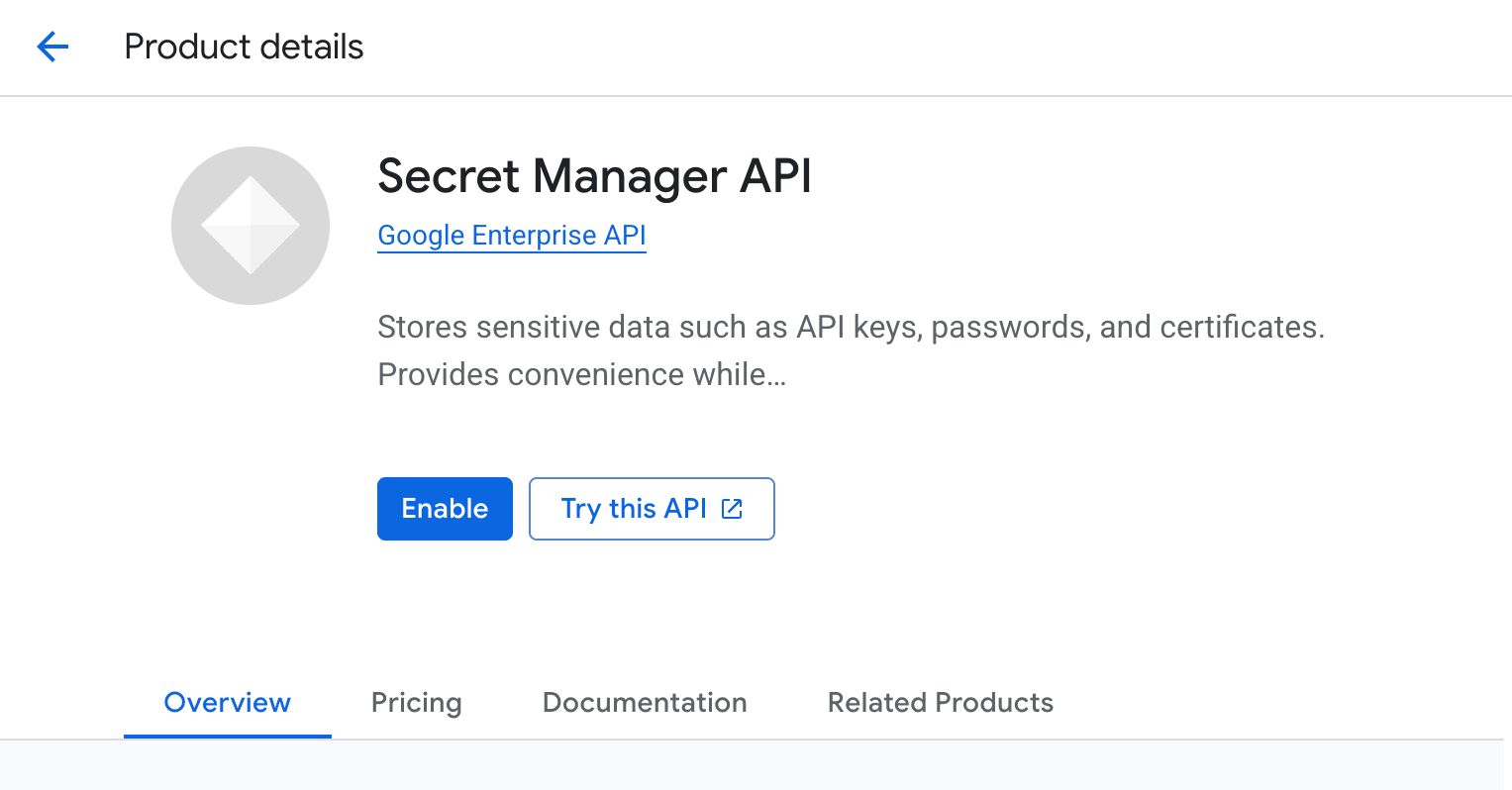 Enable the Secret Manager API
Create a service account
Complete the following steps to create a Google Cloud service account:
Go to IAM & Admin > Service Accounts.
Click Create Service Account.
Enter a descriptive Service account name. For example, Workato Secrets Manager. The Service account ID is auto-generated from the name.
Optionally, enter a Service account description. For example, Service account for Workato to access Secret Manager.
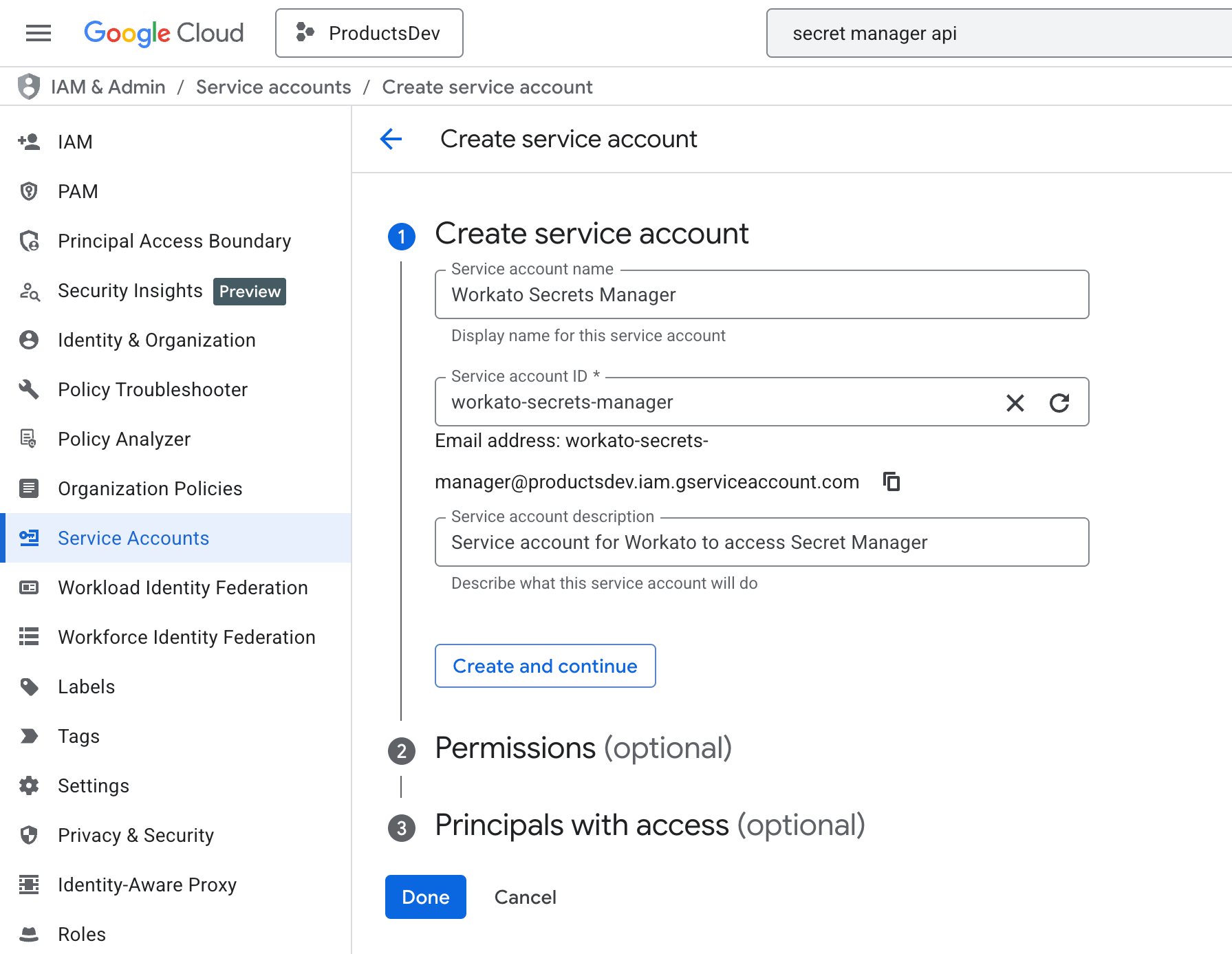 Create the service account
Click Create and continue.
Assign the Secret Manager IAM roles
Complete the following steps to grant the service account permission to access secrets in your project. The service account requires two roles:
- Secret Manager Secret Accessor (
roles/secretmanager.secretAccessor) - Secret Manager Viewer (
roles/secretmanager.viewer)
Click the Select a role drop-down menu in the Permissions section.
Search for and select Secret Manager Secret Accessor (roles/secretmanager.secretAccessor).
Click + Add another role.
Search for and select Secret Manager Viewer (roles/secretmanager.viewer).
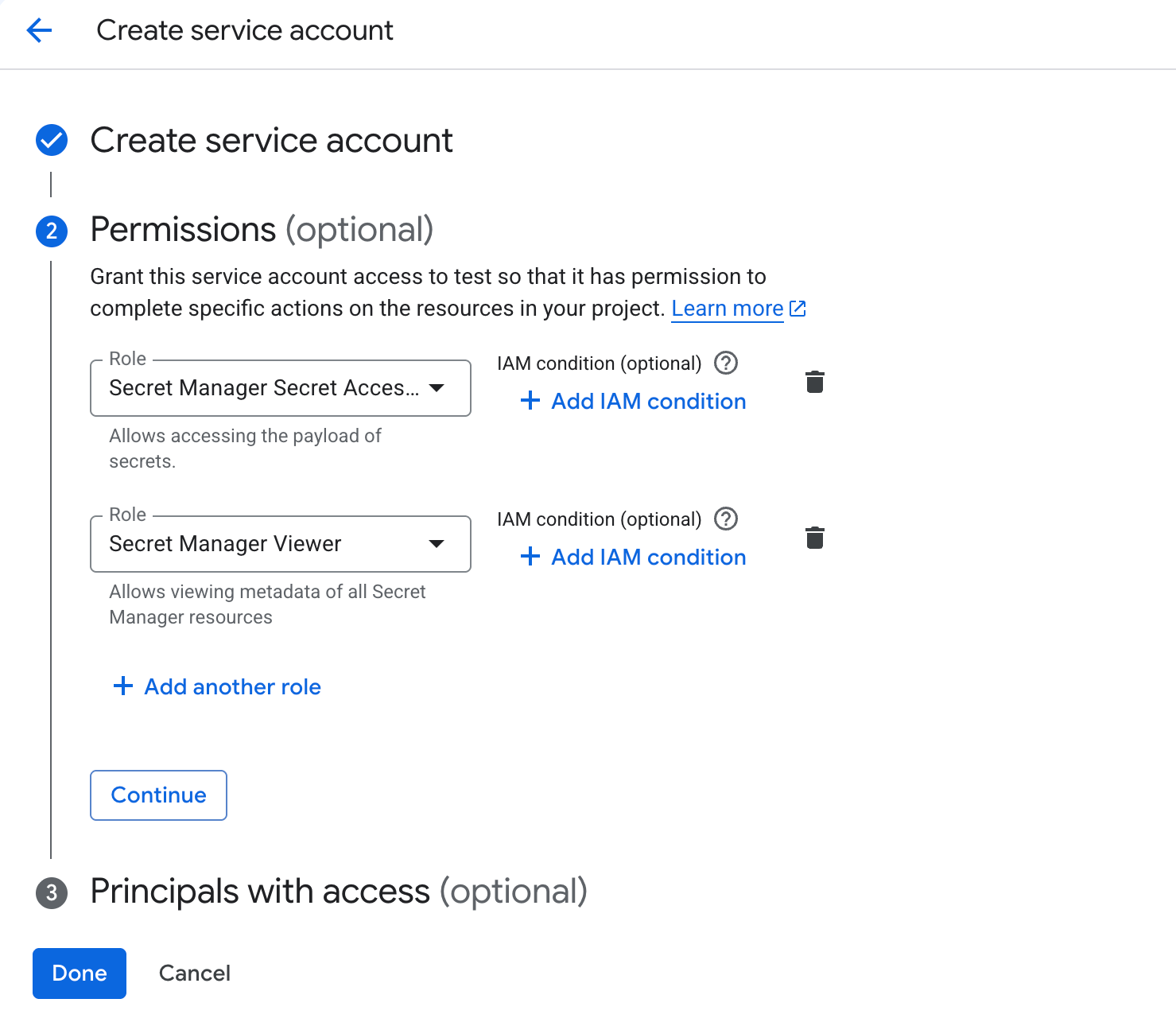 Select the Secret Manager Secret Accessor permission
Click Continue.
Click Done to skip the optional Principals with access section.
Create and download a service account key
Complete the following steps to generate a JSON key file that Workato uses to authenticate as the service account:
Locate the service account you just created on the Service Accounts page.
Click the service account email address to open its details.
Click the Keys tab.
Click Add Key > Create new key.
Select JSON as the key type.
Click Create.
The JSON key file downloads automatically. The file contains the credentials Workato needs to authenticate to Google Secret Manager, including project_id, private_key, and client_email. Store the file securely and restrict access.
Next steps
Refer to the following guides to complete the setup:
Further reading
Last updated: