Set up AWS Secrets Manager for workspaces
This guide explains how to configure secrets management for your Workato account at the workspace level using AWS Secrets Manager.
WARNING
Switching to workspace-specific secrets management causes all previously-configured external secret references to stop working.
Ensure that the IAM role in Workato provides access using the workspace-level external ID, so all secrets currently in use continue working.
After your AWS Secrets Manager successfully connects to Workato, you can start using secrets when configuring connections.
Prerequisites
To complete the steps in this guide, you must have the following:
- Permissions that allow you to create and modify IAM permissions policies
- Permissions that allow you to create and modify IAM roles
Select the scope for secrets management
Sign in to Workato.
Go to Workspace admin > Settings > External secrets manager.
Click the Use external secrets manager toggle.
Select the Set up secrets for the entire workspace option from the Scope drop-down menu.
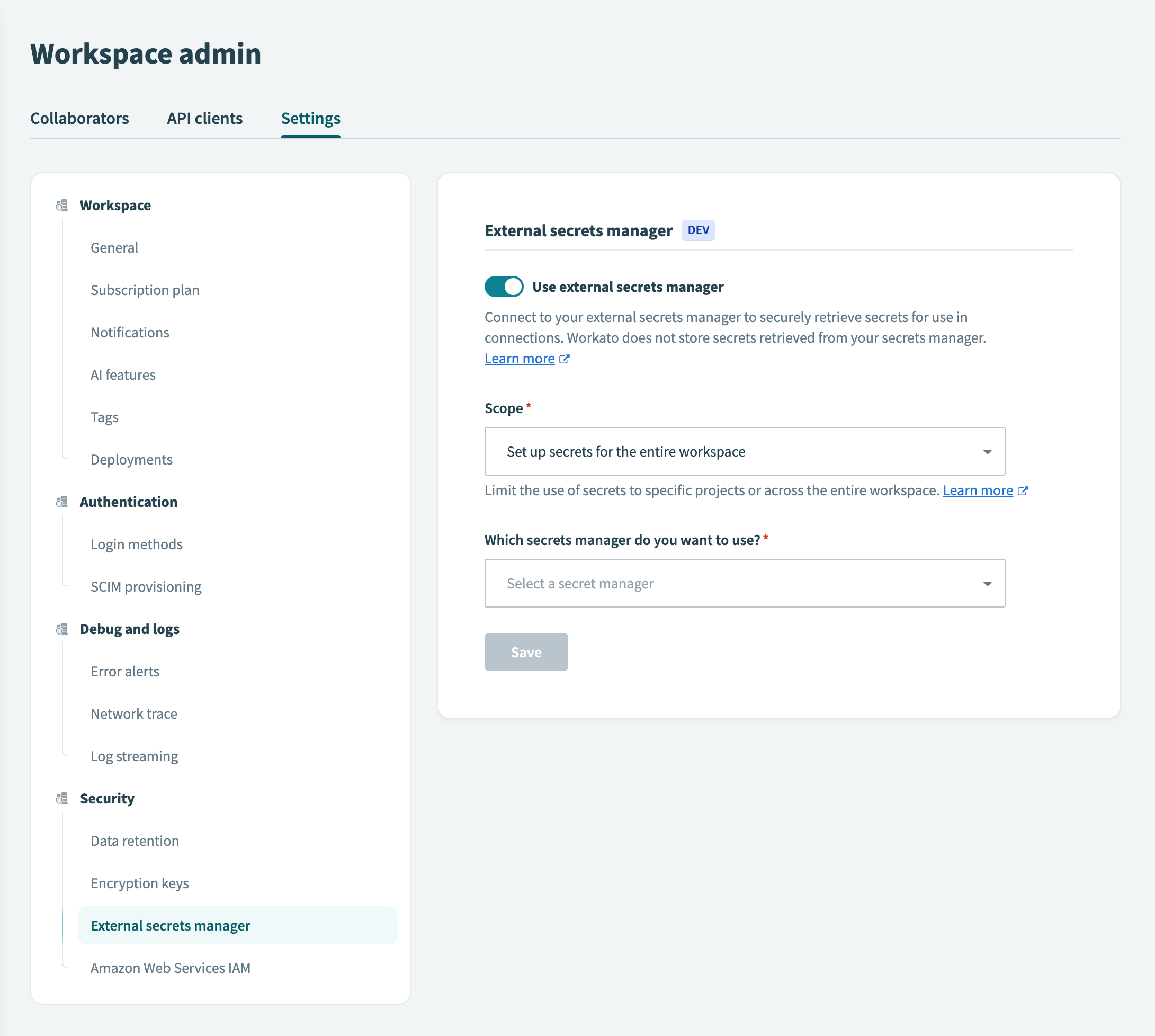 Set up secrets for the entire workspace
Select the secrets manager
In the Which secrets manager do you want to use? field, select AWS Secrets Manager.
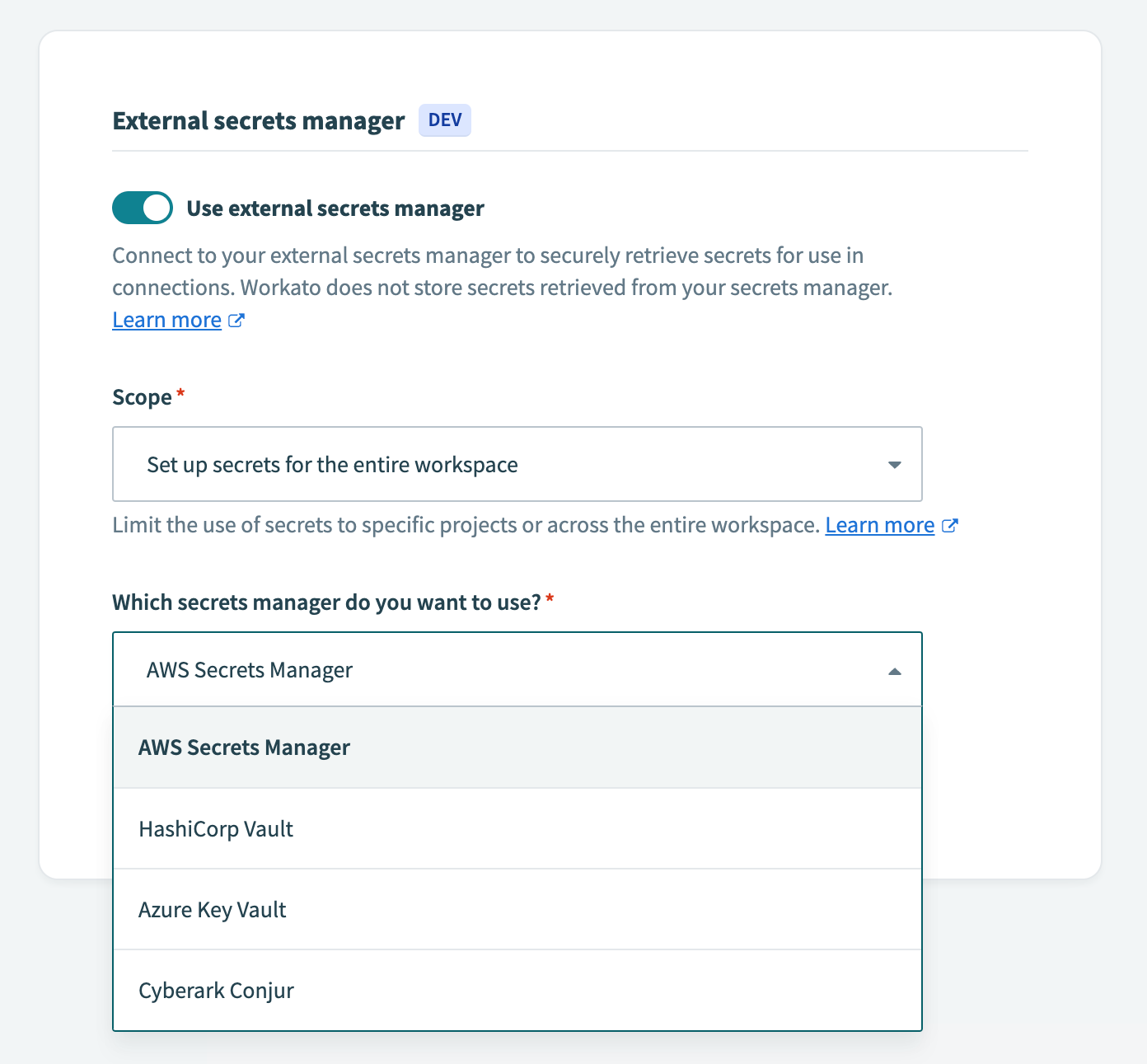
Workato displays guides for the next steps in the process:
- Create a new permission policy and role in AWS
- Add the role to your Workato account

Select the AWS Account ID and external ID
In the Create a new permission policy and role in AWS guide detail, Workato displays the IAM details. Note them to use in the following steps:
- AWS Account ID
- Copy the AWS Account ID for use in the ongoing secrets manager configuration.
- External ID
- Copy the External ID for use in the ongoing secrets manager configuration. The value should be in the format
workato_iam_external_id_wwwww, wherewwwwwis the ID of the workspace.
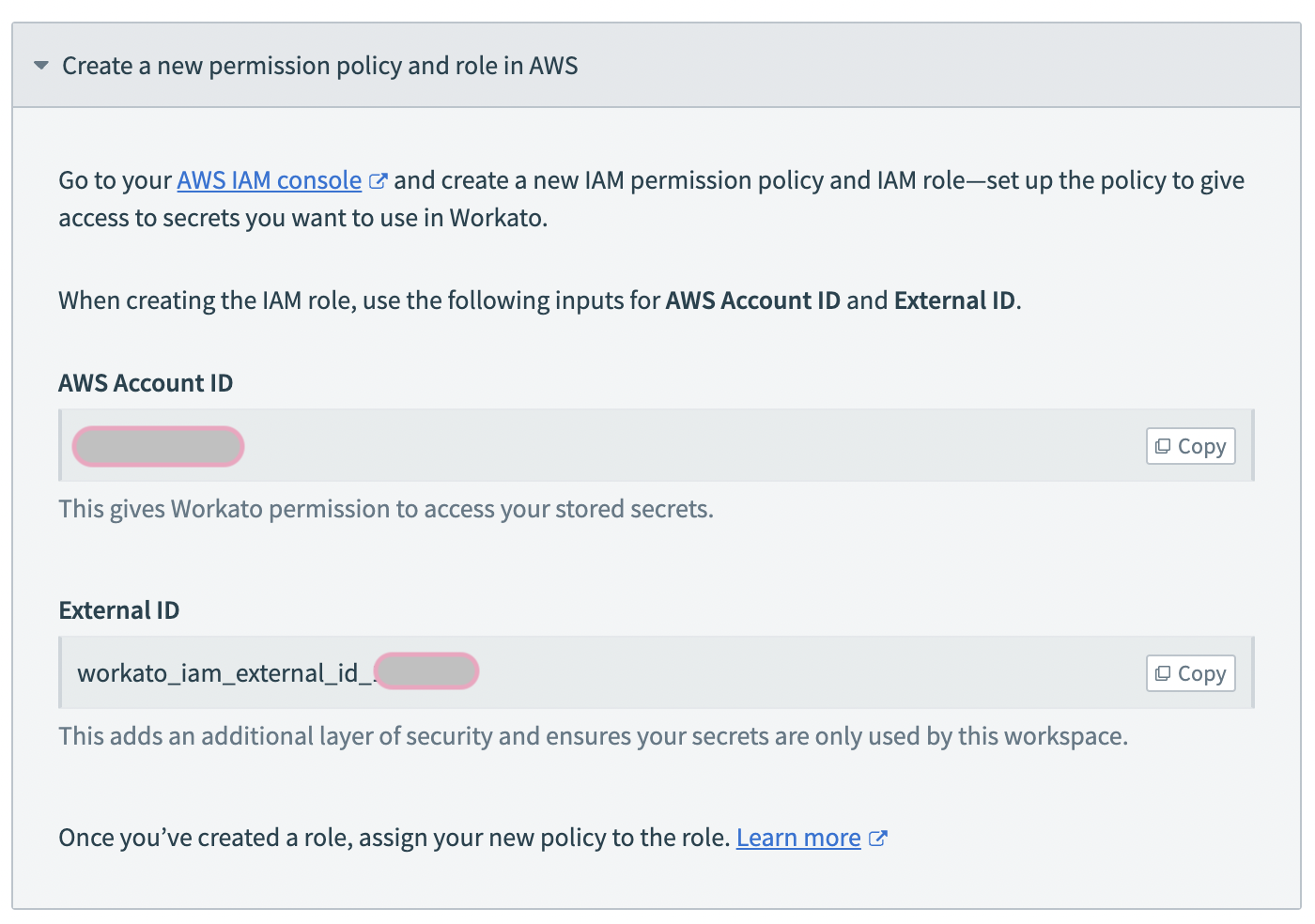
Create IAM role and ARN retrieval
Refer to the IAM role-based authentication for AWS page for instructions on how to create an IAM role for Workato, create an IAM permissions policy, and retrieve your Amazon resource name (ARN).
Last updated: