AgentX Support - Add-on nodes
Add-ons extend the capabilities of your AI agent beyond core conversation handling. These add-ons enable your AI agent to perform various actions, including:
- Connecting with external systems
- Triggering live agent handovers
- Guiding users through policy-driven flows
- Looking up structured data from data tables
- Verifying user identities
Agent Actions - Apply Macro
The Agent Actions - Apply Macro add-on applies predefined macros to automate actions like tagging or closing tickets.
Answer Feedback - Conversation Flow
The Answer Feedback - Conversation Flow add-on thanks the user for providing feedback.
Autonomous Agent
The Autonomous Agent add-on enables autonomous multi-step execution by the AI agent to achieve user goals.
Business Email Checker
The Business Email Checker add-on validates if an email address you provide belongs to a business domain. You can use this node with a Rule node to check if the parameter isBusinessEmail is true or false, and route the customer accordingly.
Business Hours
The Business Hours add-on checks if the current time falls within your defined business hours. Specify the timezone and set rules for each day of the week.
Use this node to route customers based on when they contact support. For example, direct customers to a live agent during business hours or to a self-service path after hours.
Capture Variable via Input
The Capture Variable via Input add-on prompts the user for input and store their response in a parameter.
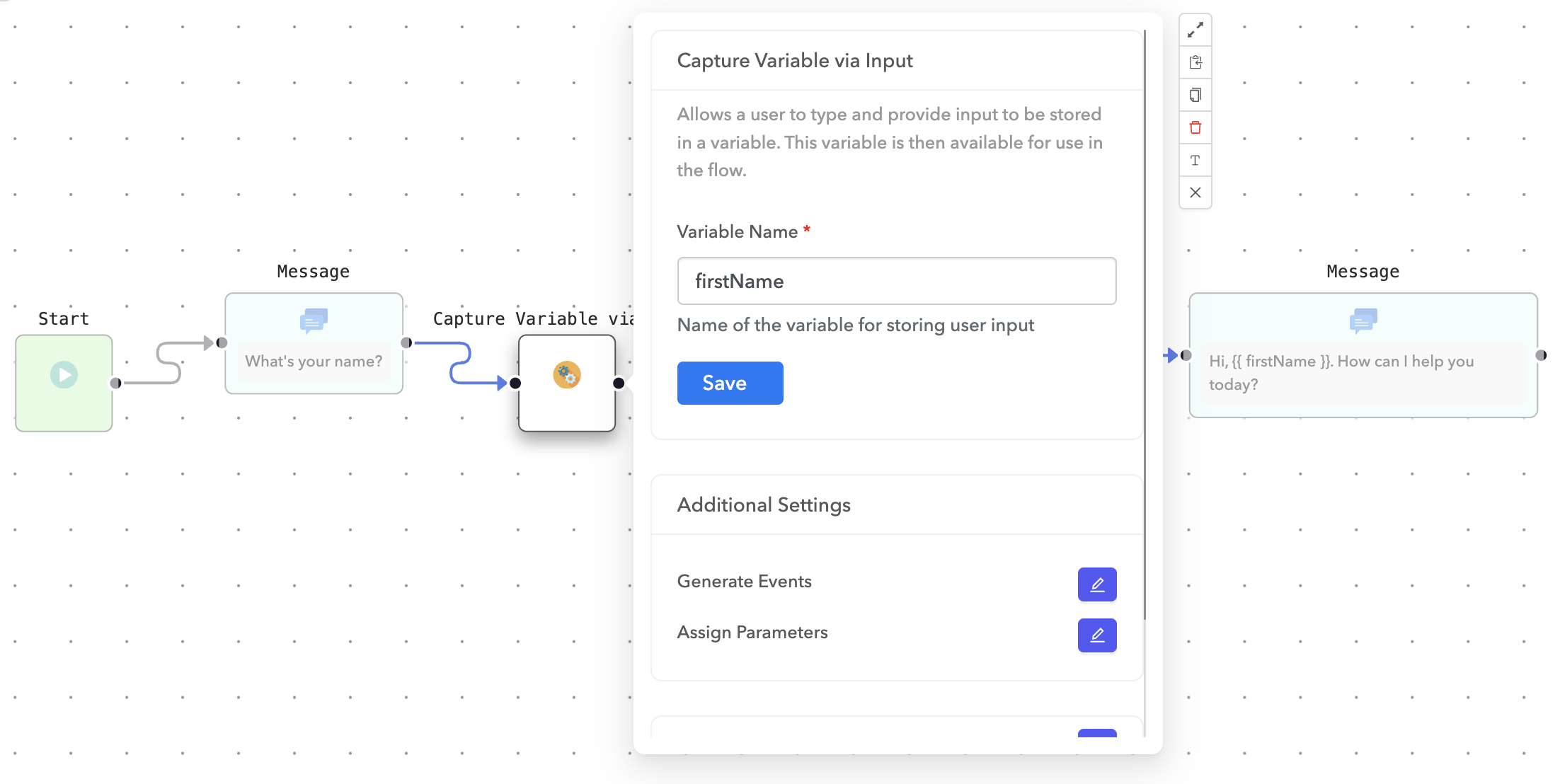 Capture Variable via Input
You can combine this node with Message or Question nodes to guide the interaction. For example, use a Message or Question node to ask, "What's your name?", then follow up with a personalized message like:
Hi, {{ firstName }}. How can I help you today?This lets you create more natural, contextual conversations using stored user input.
Chat Conversation CSAT
The Chat Conversation CSAT add-on collects customer satisfaction (CSAT) feedback after a conversation.
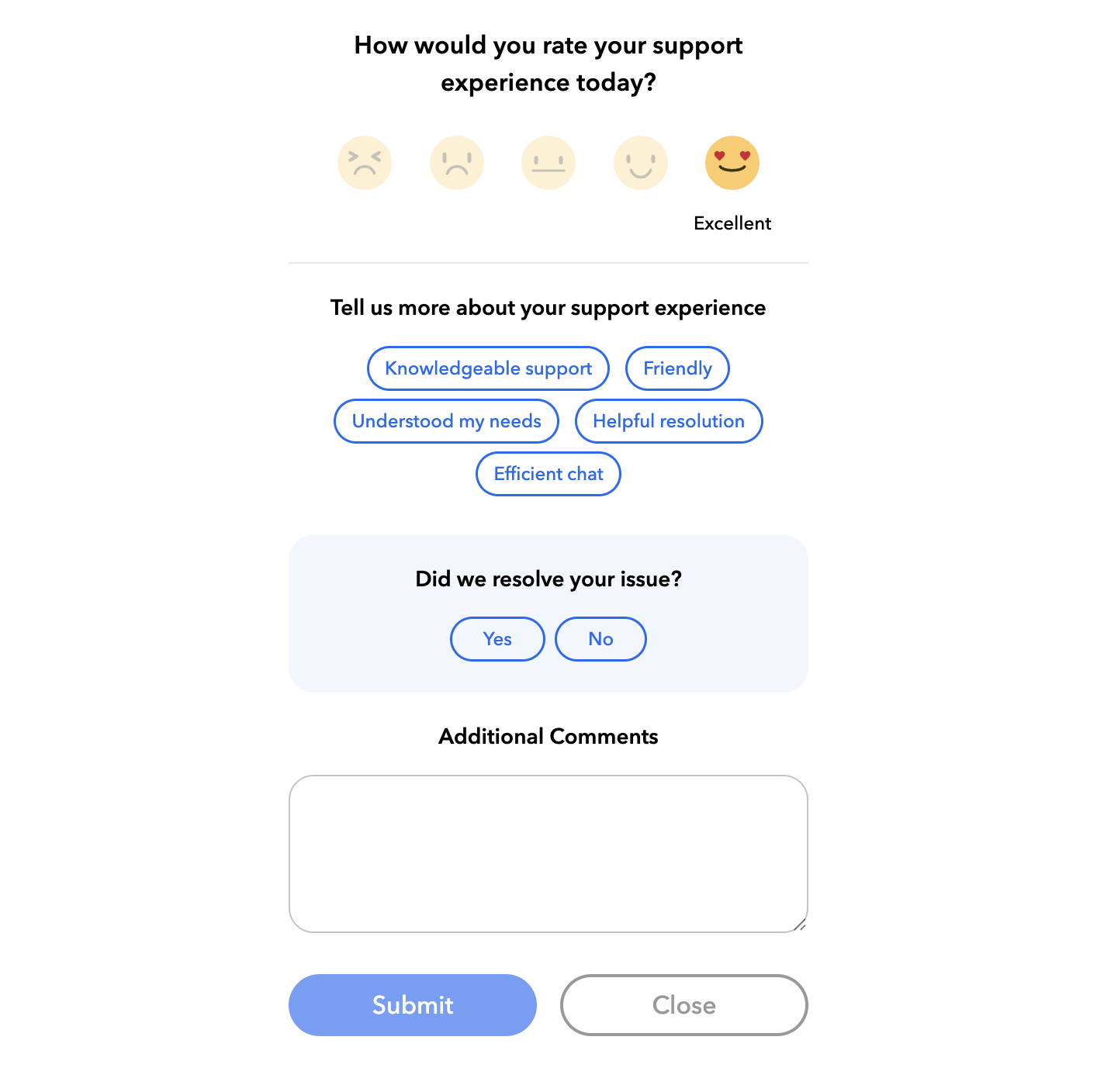 Chat Conversation CSAT
You can choose to collect either:
- A rating only, or
- A rating with additional feedback, as shown in the screenshot.
Ratings are collected on a 5-point scale:
- Terrible
- Bad
- Okay
- Good
- Excellent
Client Event
The Client Event add-on lets you control the UI state of the AI agent widget during a conversation. You can use it to open, close, minimize, or customize elements of the interface depending on where the user is in the flow.
Available client events include:
| Event | Description |
|---|---|
| Maximize bot | Opens or expands the AI agent window if it is minimized or closed. |
| Minimize bot | Minimizes the AI agent window. |
| Show close button | Displays a close button in the AI agent window to allow users to end the chat. This is useful after a resolution is provided or if the user wants to restart the conversation. You can also activate or deactivate this per step in the flow. |
| Hide close button | Hides the close button to prevent users from ending the chat. This is useful in steps where users must complete a required action before proceeding. |
| Show escape hatch | Displays an escape hatch at the bottom of the AI agent window. This gives users a way to exit the current flow and navigate to a specific page or support path. For example, you can select this option if the AI agent handles technical queries and the user needs help with a different topic, like sales. |
| Hide escape hatch | Hides the escape hatch to keep users focused within the current AI agent flow. This is useful when you want to prevent unnecessary exits and guide users toward a solution within the agent. |
| Show settings | Displays the settings menu in the AI agent window. This menu lets users control features like sound notifications for incoming messages, enter an email to receive the chat transcript, download the transcript, and view the privacy policy (if configured). |
| Hide settings | Hides the settings menu from the AI agent window. Use this when you want to restrict access to settings at certain points in the conversation. |
| Show restart conversation button | Displays a restart button that allows users to restart the conversation at any point. This is helpful when users want to explore different services or revisit options provided earlier. |
| Hide restart conversation button | Hides the restart button to keep users on a single, focused path. This helps ensure that users follow the intended flow toward a resolution. |
Cognitive Answers
The Cognitive Answers add-on uses large language models (LLMs) to fetch answers from your knowledge base.
Cognitive Email Response
The Cognitive Email Response add-on uses large language models (LLMs) to fetch answers from your knowledge base.
Conversation Agent
The Conversation Agent add-on lets customers converse with an AI agent that has the ability to clarify and search.
Data Table
The Data Table add-on looks up structured data from a data table and store the result in parameters.
Refer to the Use a data table in a flow section for an example that illustrates how to configure this node.
Dynamic Messages
The Dynamic Messages add-on inserts dynamic content into the conversation based on parameter values.
Email Template Response
The Email Template Response add-on responds using a predefined email template.
End Chat
The End Chat add-on immediately ends the conversation session with the user.
Generative Response
The Generative Response add-on allows you to provide instructions and generate a response using a language model. You can choose to use a base prompt or define instructions to use for the generative response. You can also opt to use the conversation to generate a response.
HTTP Request
The HTTP Request add-on lets you make calls to any external REST API. Common use cases include:
- Fetching data from an external system, such as retrieving an order status or customer profile.
- Sending collected information to an external system, such as updating an order.
Configure the HTTP request
Complete the following steps to configure the HTTP request node:
Drag the HTTP Request add-on onto the flow builder.
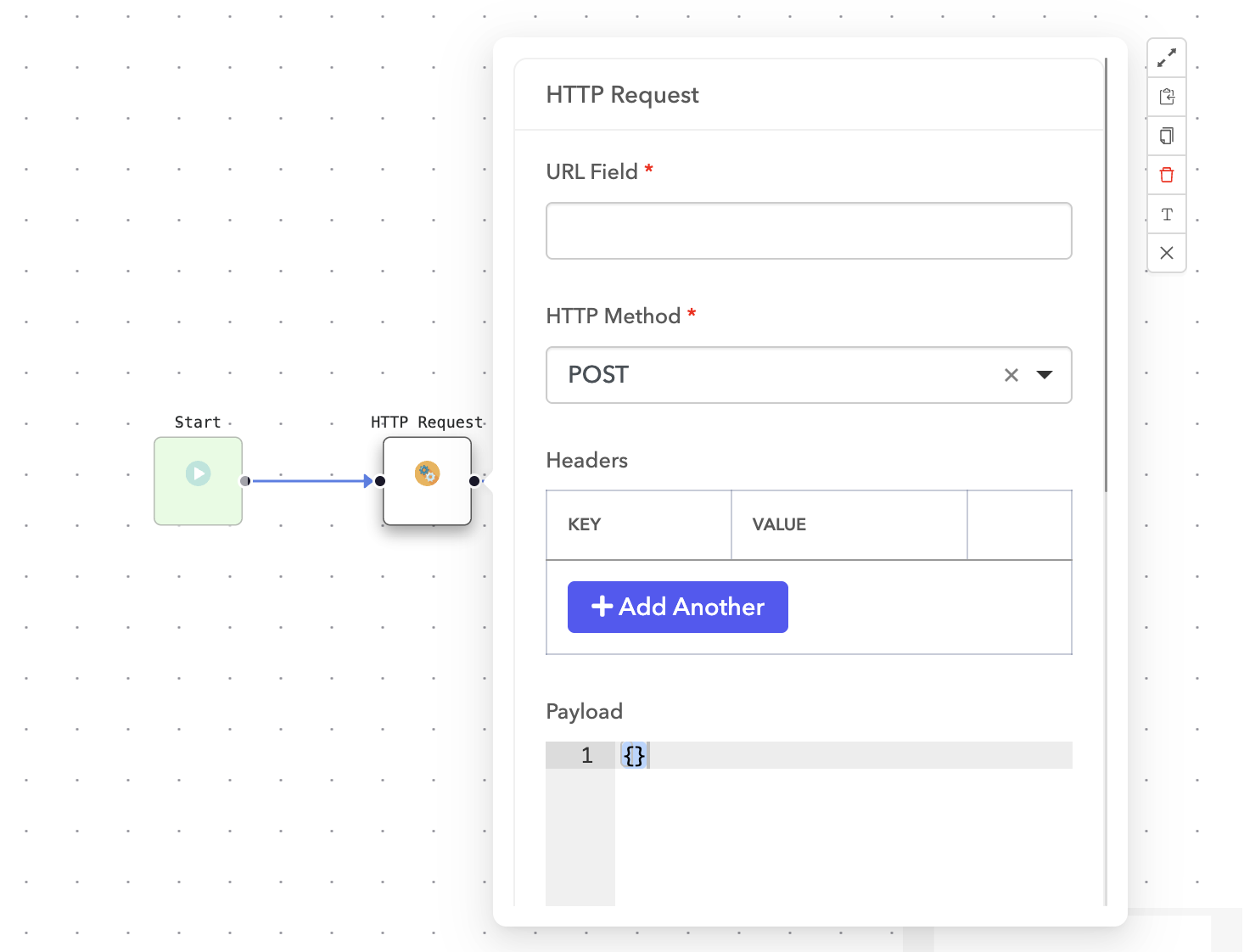 HTTP request
Configure the API request:
- Set the URL directly or reference a parameter containing the URL.
- Specify any required headers, payload, and the HTTP method.
Save your changes and connect the node within your flow.
Use the API response
After the HTTP request is complete, the response is stored in the actionOutput parameter. You can access this data using the templating language to personalize messages sent to the customer.
Example response
{
  "order": {
    "id": 12,
    "name": "blue tshirt",
    "price": 10,
    "count": 1
  }
}
Template example
Order ID: {{ actionOutput.order.id }}
Product: {{ actionOutput.order.name }}
Price: ${{ actionOutput.order.price }}
Quantity: {{ actionOutput.order.count }}
You can use these templates in any message component to dynamically display API response data.
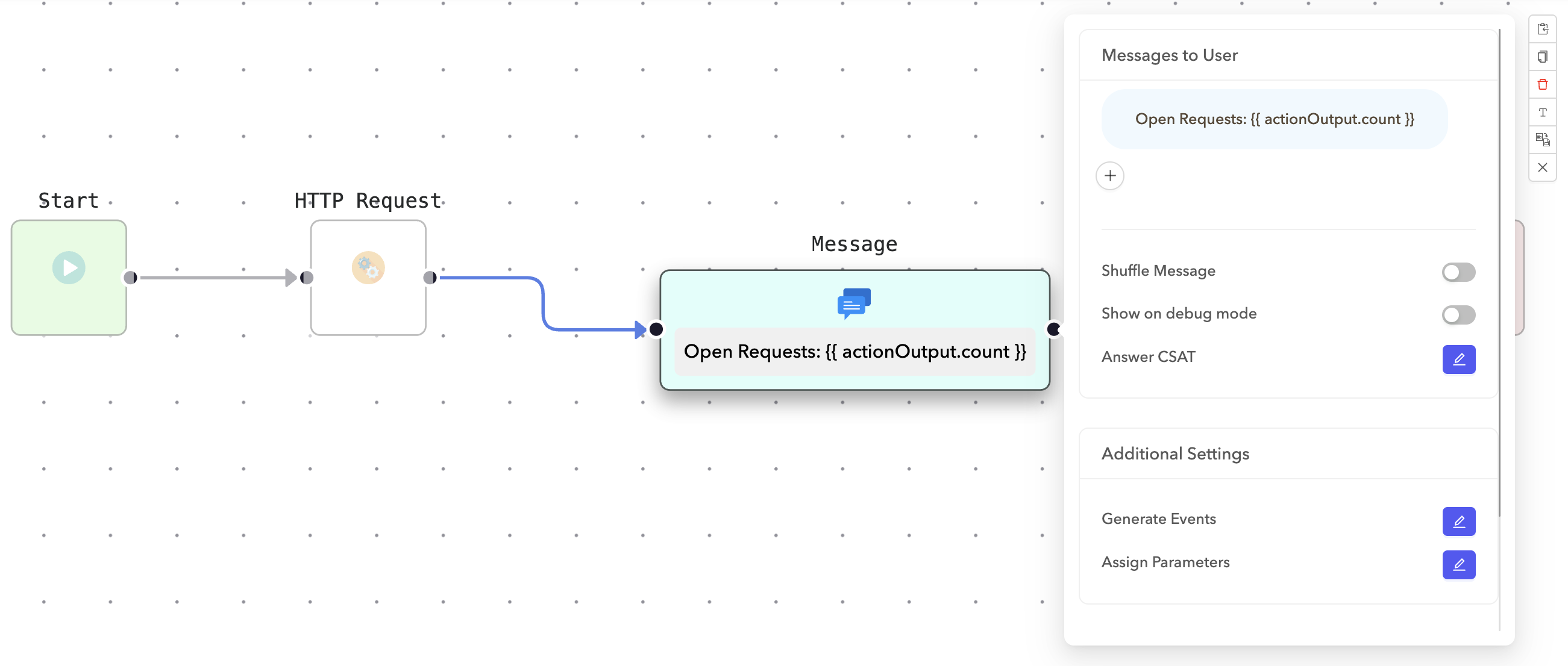 Display the API response in a message
Identity Verification
The Identity Verification add-on verifies a user's identity using a shared secret. This ensures that any metadata passed to the AI agent is authenticated and trustworthy.
When identity verification is enabled, the AI agent checks a hash of the user's metadata generated by your server. If the hash matches the expected value (based on the shared secret), the metadata is considered verified and is added to the flow context for use throughout the conversation.
List Options
The List Options add-on lets customers select an item from a predefined list and stores their selection in a parameter.
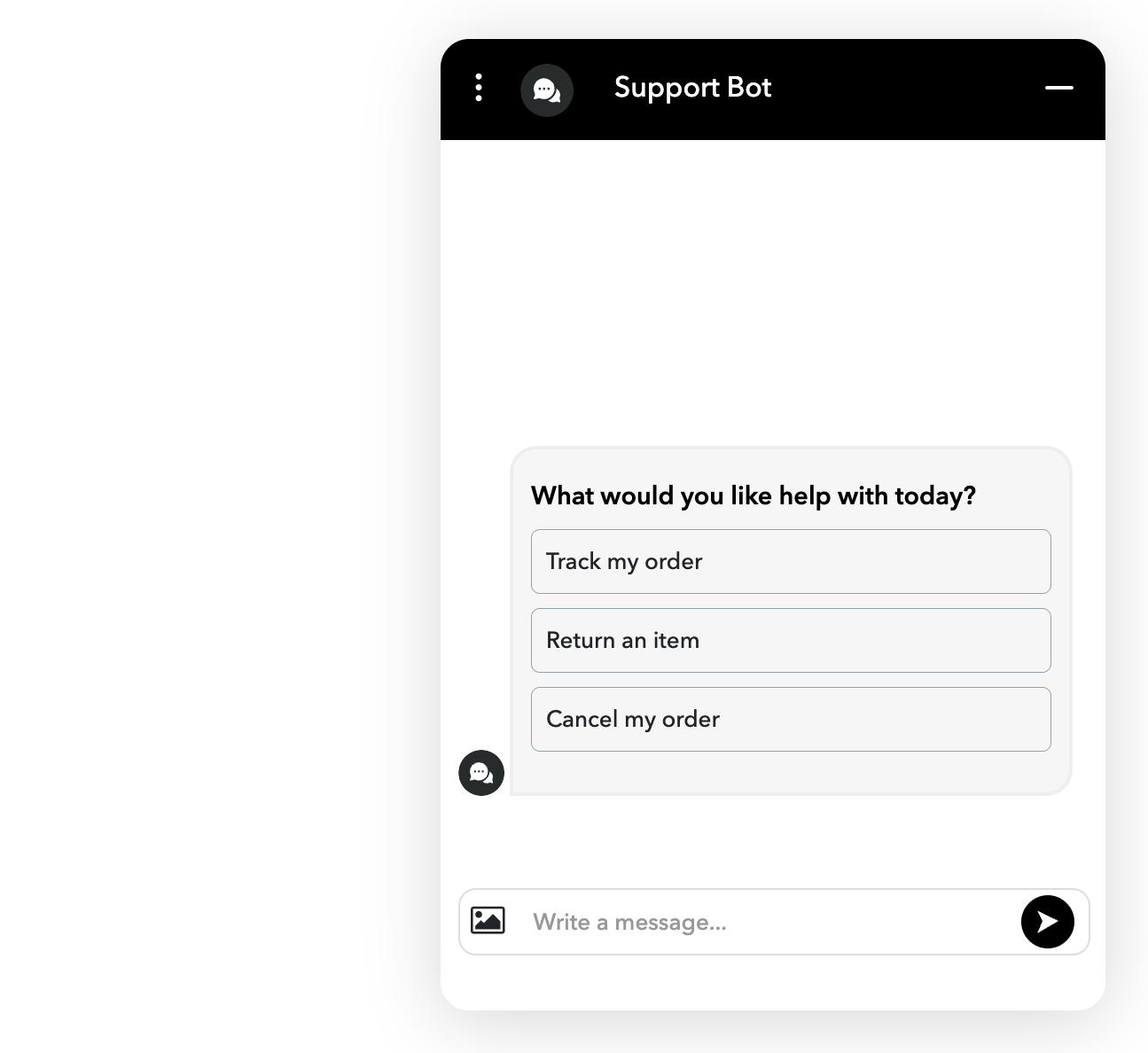 List options
You can follow this node with a Rule node to route users down different paths based on their selection.
OTP Authentication
The OTP Authentication add-on sends a one-time password (OTP) to the user's email or phone number and verifies it to confirm their identity.
Policy Flow
The Policy Flow add-on defines a task the AI agent can carry out using natural language instructions. These tasks can involve step-by-step interactions where the agent asks questions, makes decisions, and responds intelligently based on user input. Policies are powered by large language models (LLMs), such as GPT-4.
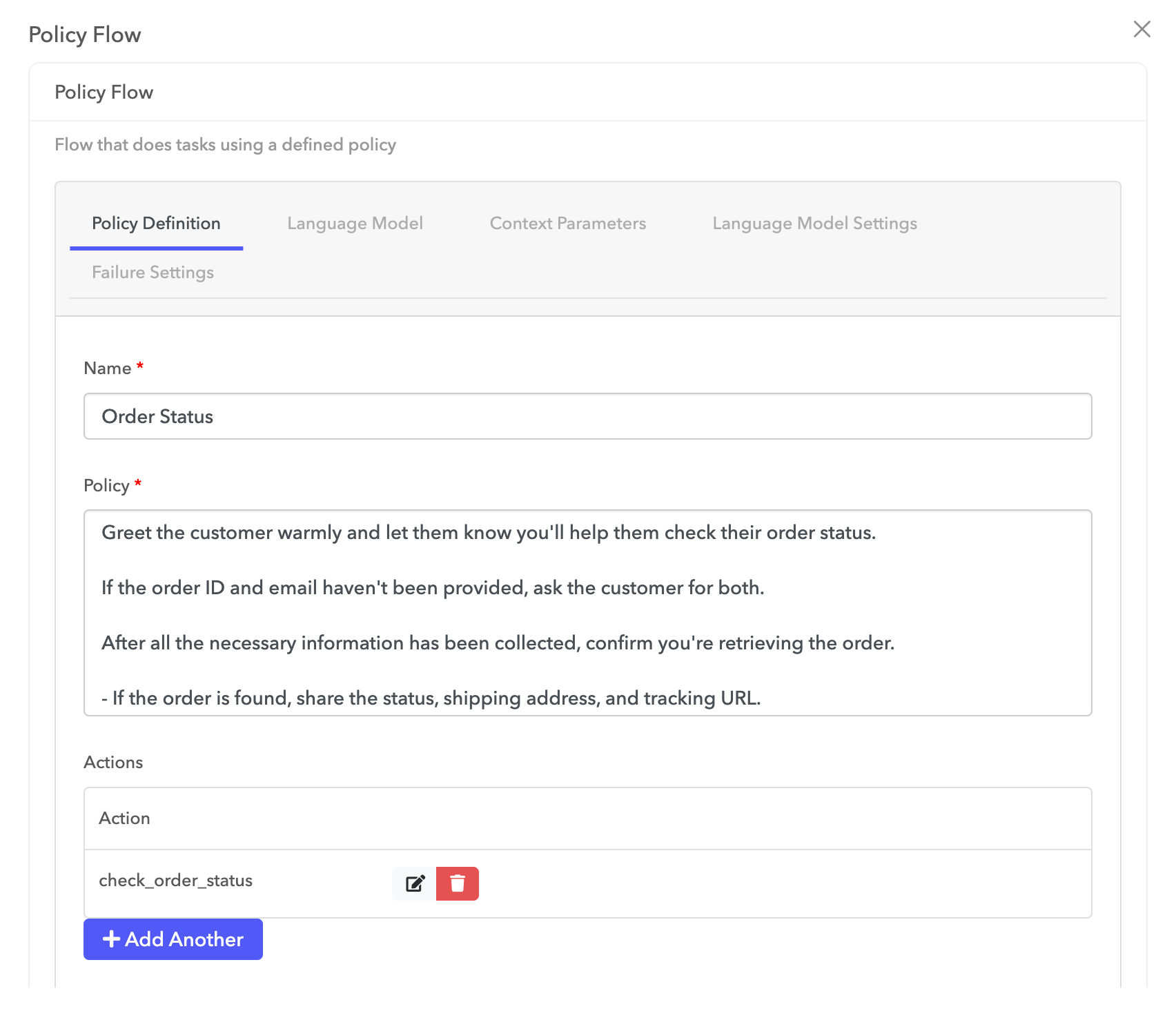 Policy Flow
This add-on includes the following key components and optional configurations:
Name: A clear, descriptive name for the policy.
Policy: A plain-text instruction set describing how the AI agent carries out the task. Ensure that the policy defines:
- The objective, or what the agent is helping with.
- The step-by-step approach.
- The exit criteria, or how to know when the task is complete.
Actions: Additional actions that the AI agent can perform as part of executing the policy.
Sample policy flow: Check a customer's order status
Greet the customer warmly and let them know you'll help them check their order status.
If the order ID and email haven't been provided, ask the customer for both.
After all the necessary information has been collected, confirm you're retrieving the order.
- If the order is found, share the status, shipping address, and tracking URL.
- If the order isn't found, ask the customer to verify and re-enter the details.
Beyond the core setup, you can configure advanced behavior using the following options:
Language model
The Language Model tab lets you choose which language model the Policy Flow node uses. You can either use the default model provided by AgentX Support or use an existing LLM connection (OpenAI, Azure, or Anthropic). You can also specify a particular model version if needed.
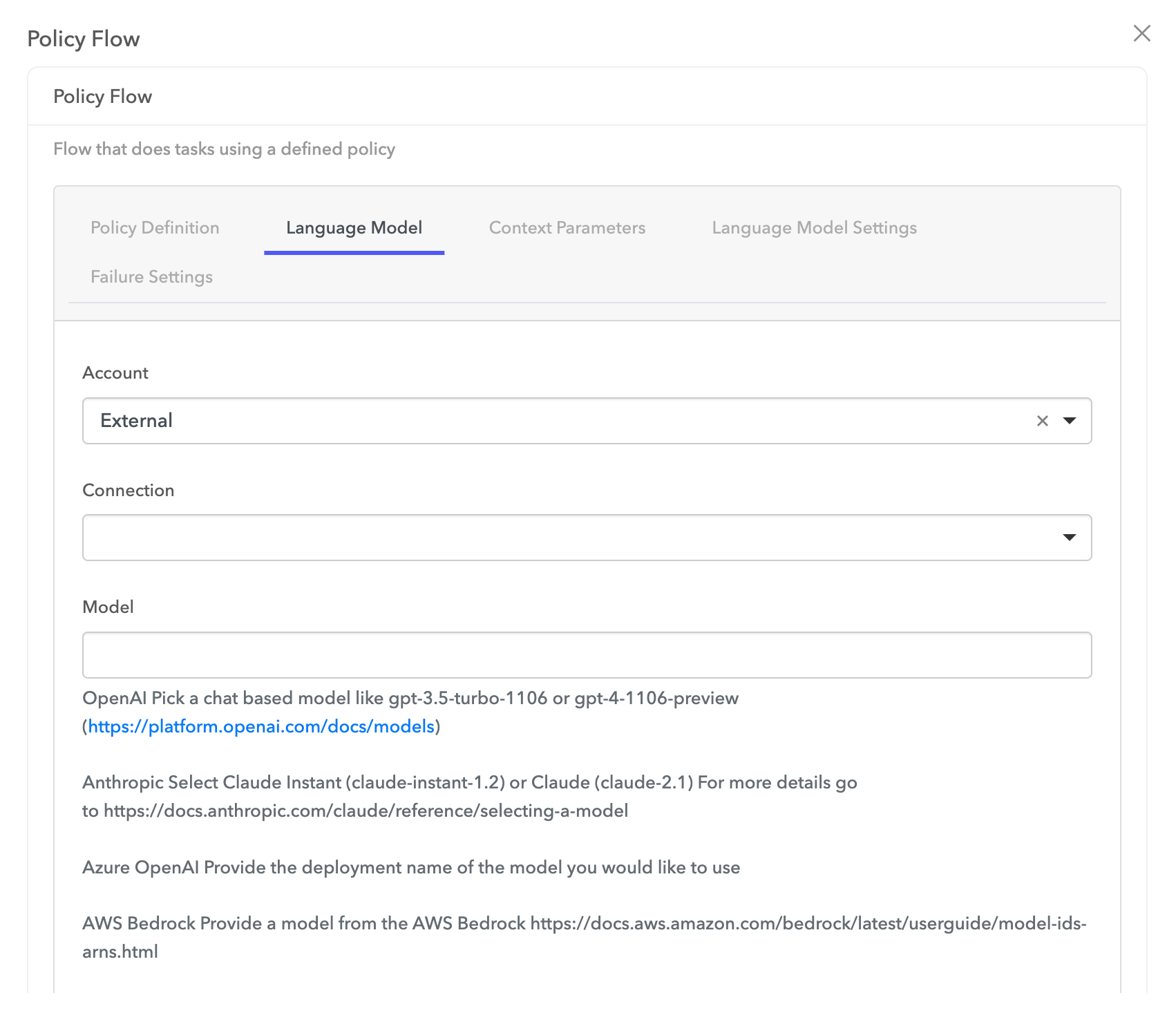 Model selection
Context parameters
The Context Parameters tab allows you to provide relevant context to the Policy Flow node to improve accuracy and reduce repeated questions.
| Field | Description |
|---|---|
| Parameters to include | List the parameters from the conversation context to pass into the policy. For example, name or email. |
| Parameters to capture | Define any values the agent should collect during the policy execution. Each parameter should include a name and a description of what it represents. |
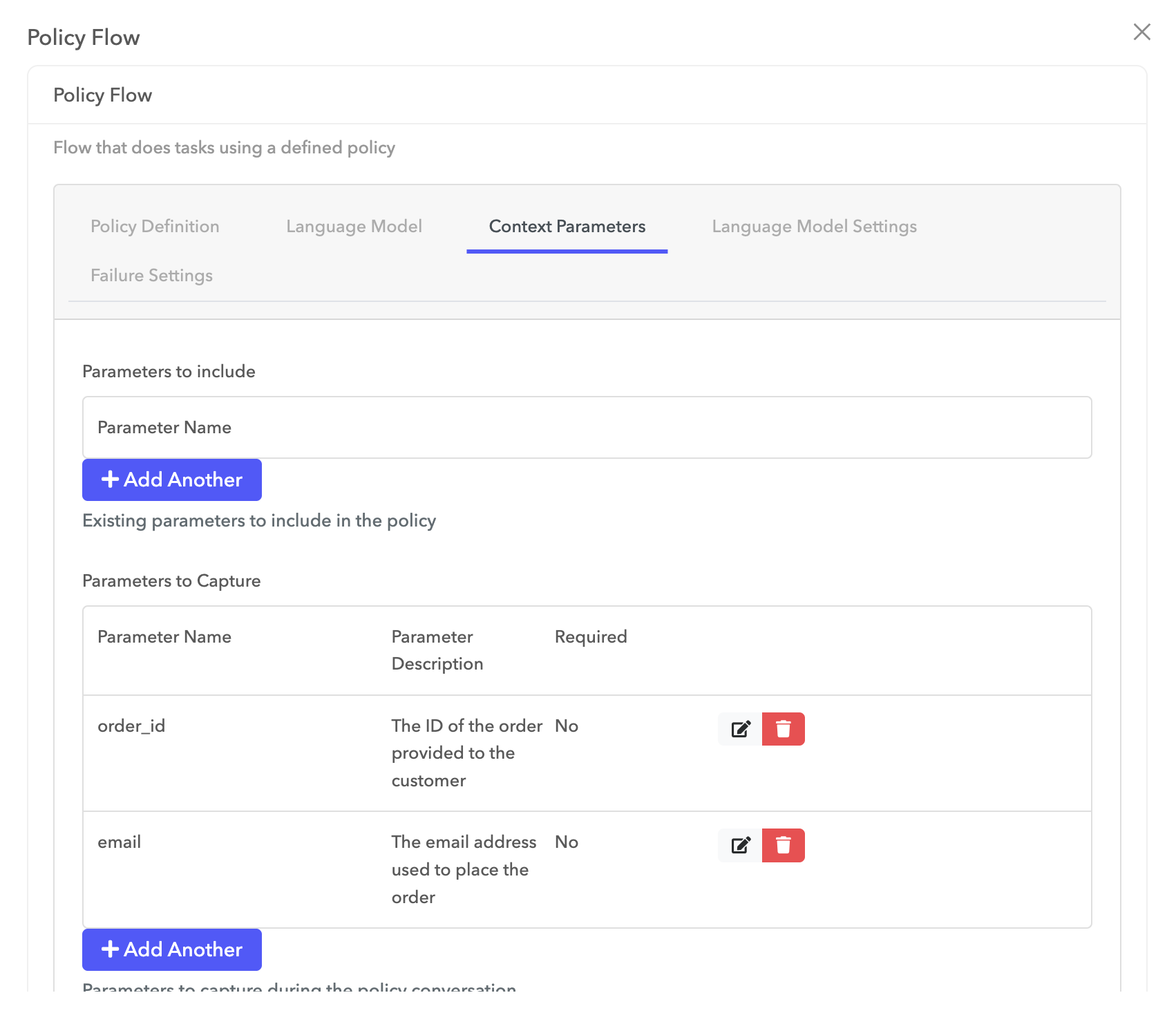 Parameter configuration
Failure settings
The Failure Settings tab allows you to set a maximum number of turns (message exchanges) the agent can take while executing the policy. This prevents the AI agent from looping indefinitely.
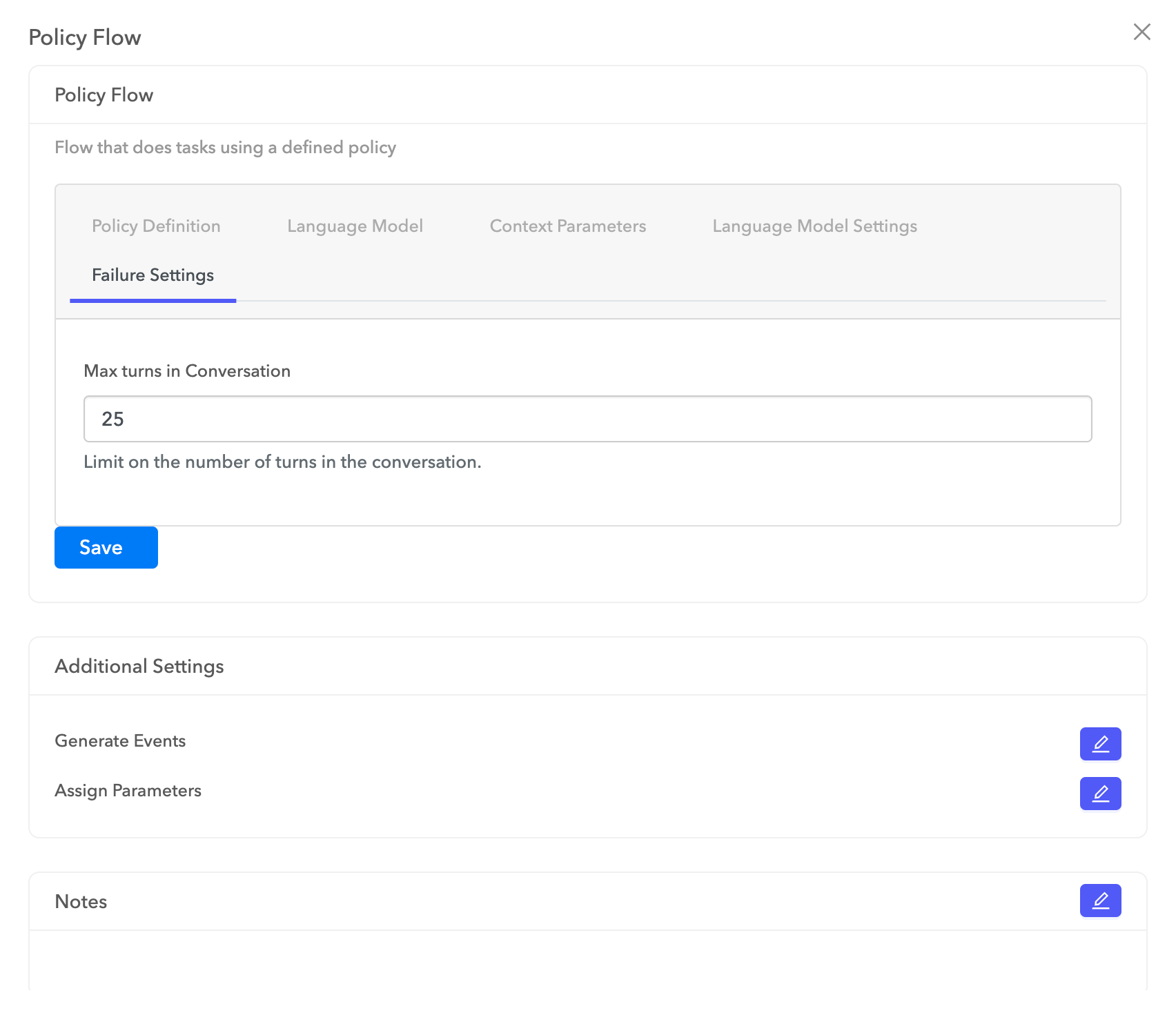 Failure settings
Sales AI Agent
The Sales AI Agent add-on assigns a specialized AI agent focused on sales conversations.
Salesforce - Agent Availability
The Salesforce - Agent Availability add-on checks whether any agents are available for live chat within a specified group.
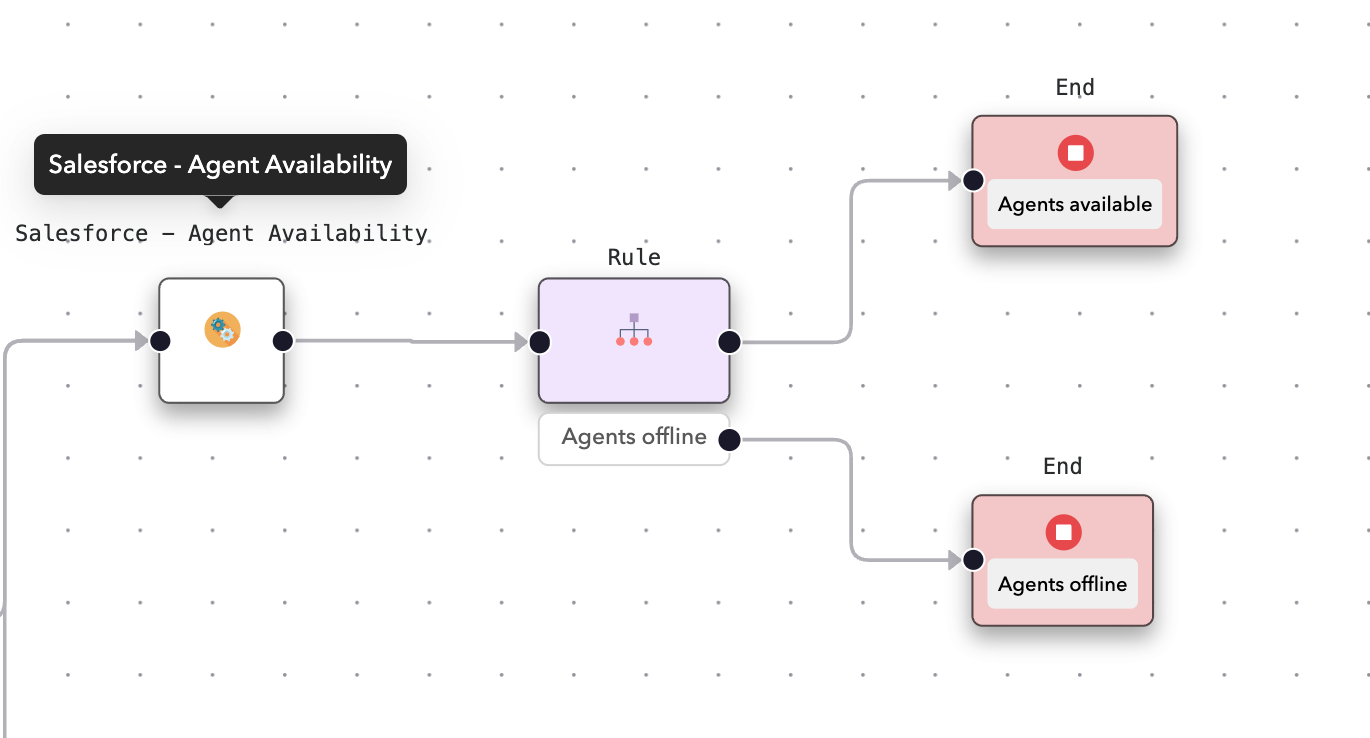 Salesforce - Agent Availability
To configure this node, provide the following details:
- Live Agent URL
- Salesforce Organization ID
- Deployment ID
- Button ID
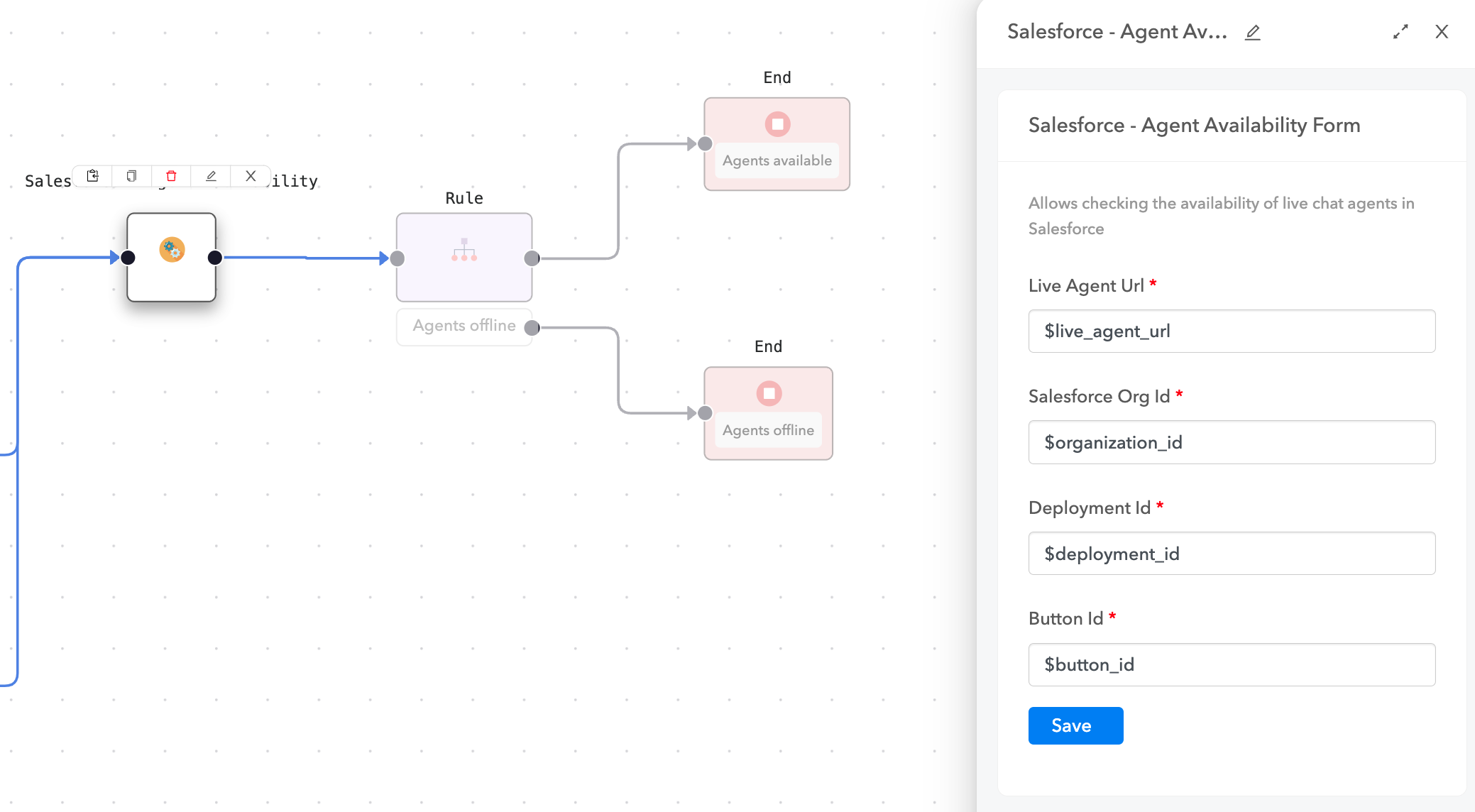 Configuration example
After you configure this node, it checks for agent availability and sets a parameter accordingly:
availability = available   (if agents are available)
availability = no          (if no agents are available)
You can reference this parameter in flow rules to route the conversation based on agent availability.
Salesforce - Live Agent Handover
The Salesforce - Live Agent Handover add-on routes the conversation to a Salesforce live agent. In addition to the handover, you can associate cases and contacts. You also have the ability to prefill fields on the LiveChatTranscript object.
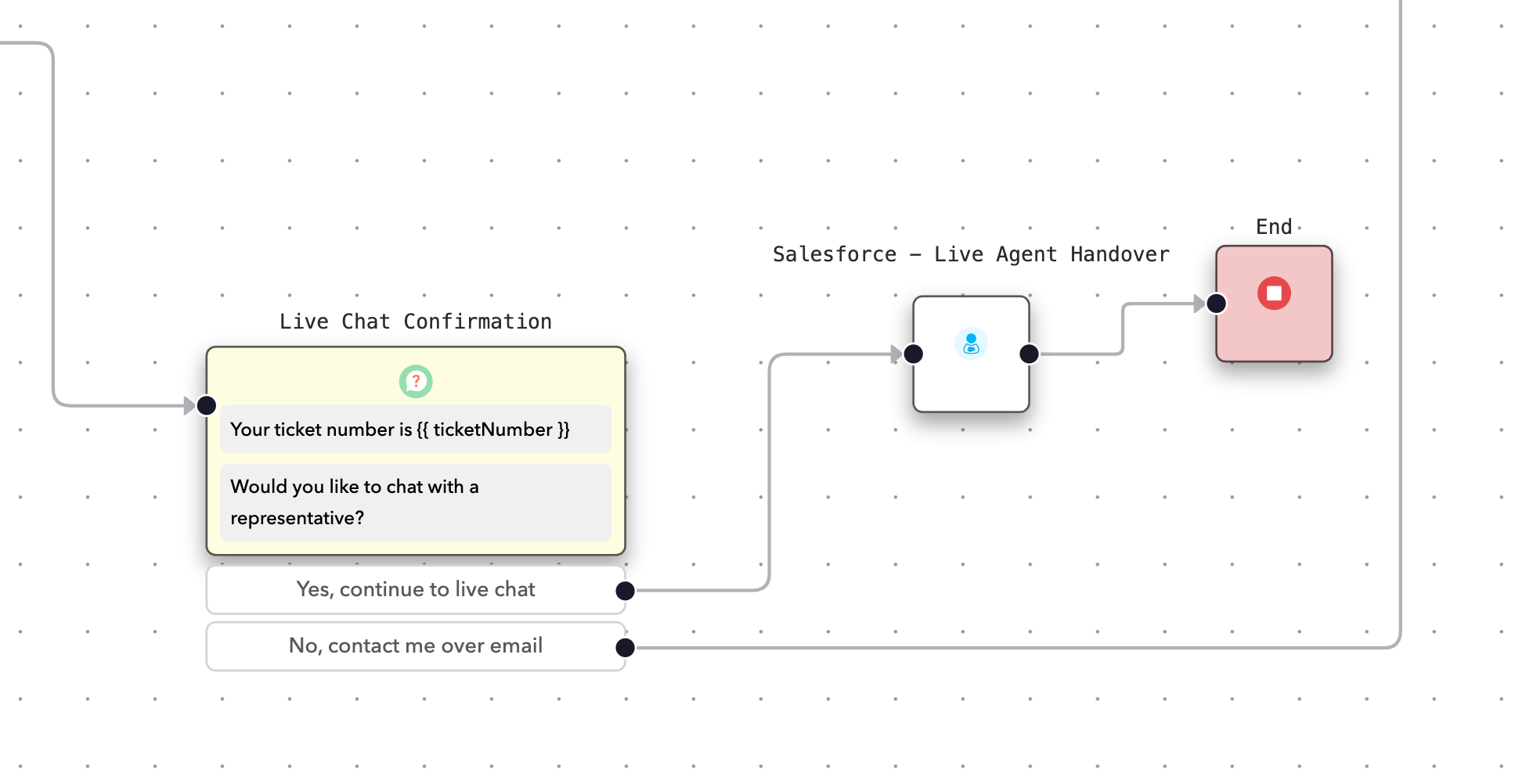 Salesforce - Live Agent Handover
The following fields are required. You can populate them directly or using parameters:
- Live Agent URL
- Salesforce Organization ID
- Deployment ID
- Button ID
- First Name
- Last Name
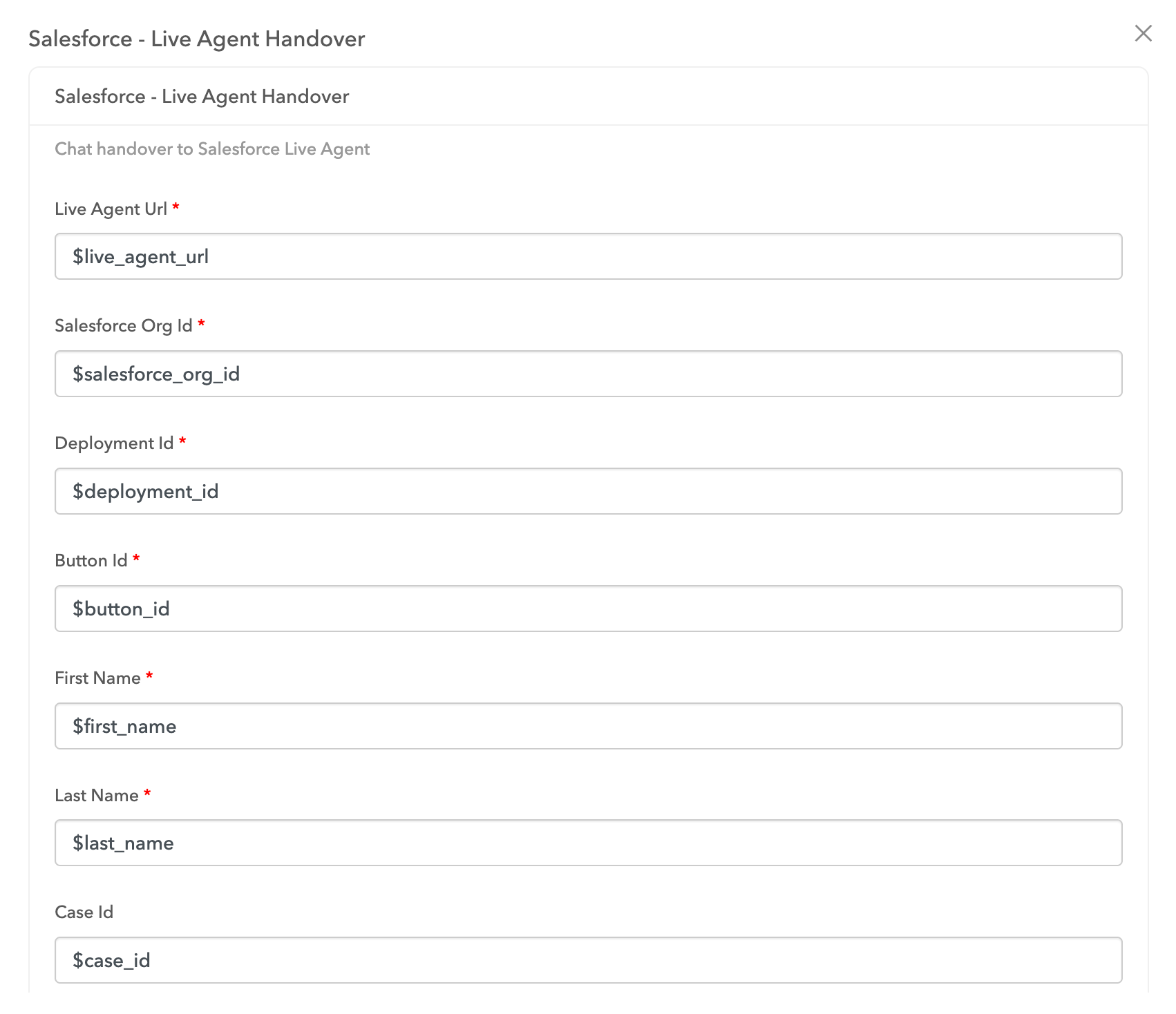 Salesforce - Live Agent Handover fields
Optional fields include:
| Field | Description |
|---|---|
| Case ID | Associates the transcript with a Salesforce case object. Create the case before handoff if this association is needed. |
| Contact ID | Associates the transcript with a Salesforce contact object. Create the contact before handoff if this association is needed. |
| Custom Fields | Key-value pairs to populate on the LiveChatTranscript object. These can include standard or custom fields defined in Salesforce. |
After the chat ends, the flow continues to the next node. A chat ends in the following scenarios:
- Agent ends the chat
- User ends the chat
- User disconnects (abandonment after timeout)
Salesforce - Messaging Handoff
The Salesforce - Messaging Handoff add-on transfers the user to Salesforce Messaging.
Select List
The Select List add-on presents a drop-down menu that lets users choose one or more items from a predefined list. You can optionally enable multi-select to allow users to pick multiple options.
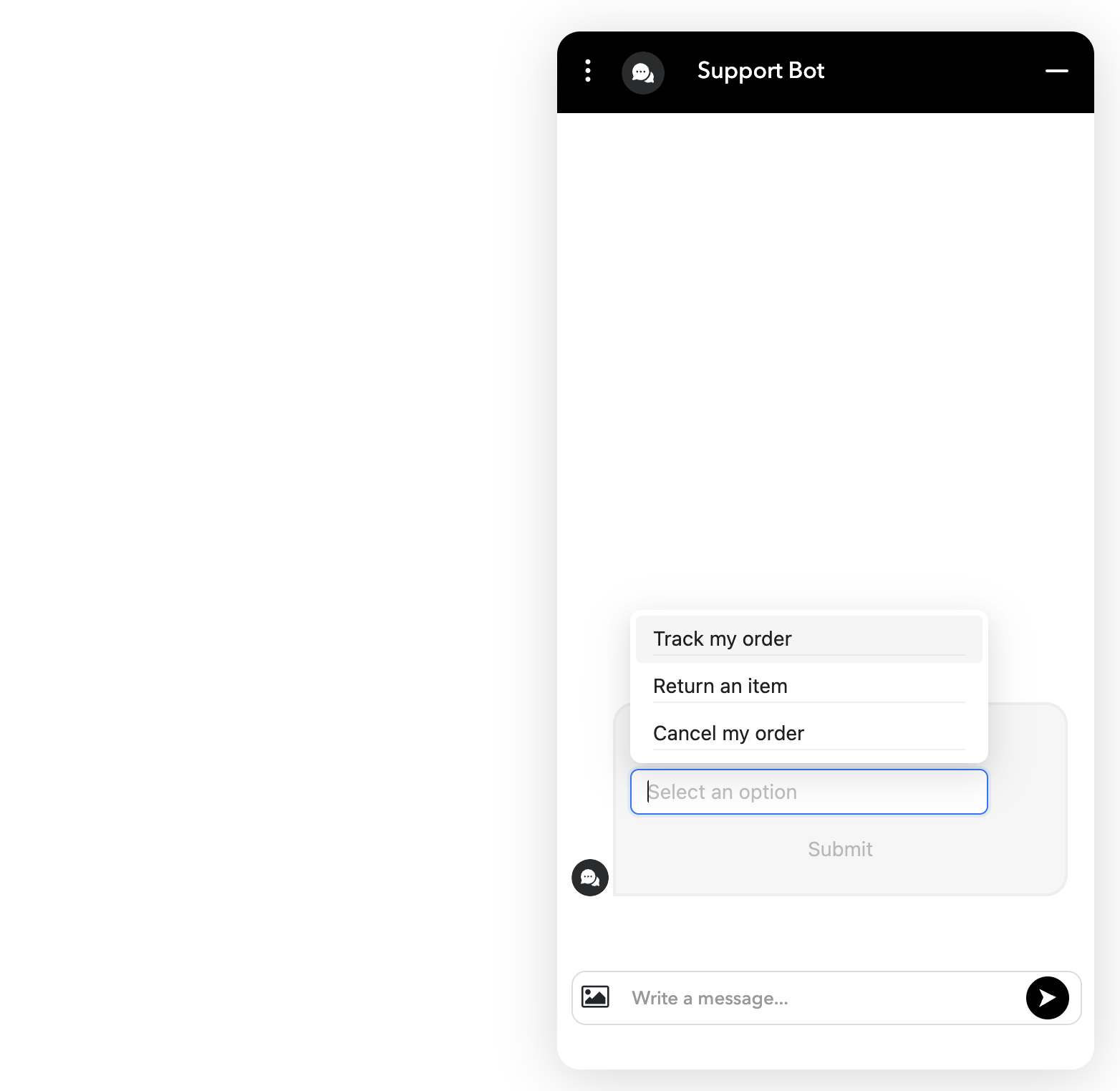 Select list
Slack - Live Chat Handover
The Slack - Live Chat Handover add-on hands off the conversation to a Slack channel for live support.
Transcript Summary
The Transcript Summary add-on generates a summary of the conversation. It also identifies the user's problem and sentiment.
Transient Message
The Transient Message add-on displays a temporary message that is not included in the conversation transcript.
Upload Attachment
The Upload Attachment add-on allows users to upload files during the conversation.
Zendesk - Field Triage
The Zendesk - Field Triage add-on uses logic to assign or update Zendesk ticket fields.
Zendesk Sunshine Conversations Handoff - In Widget
The Zendesk Sunshine Conversations Handoff - In Widget add-on hands off to a live agent using Zendesk Sunshine Conversations inside the chat widget.
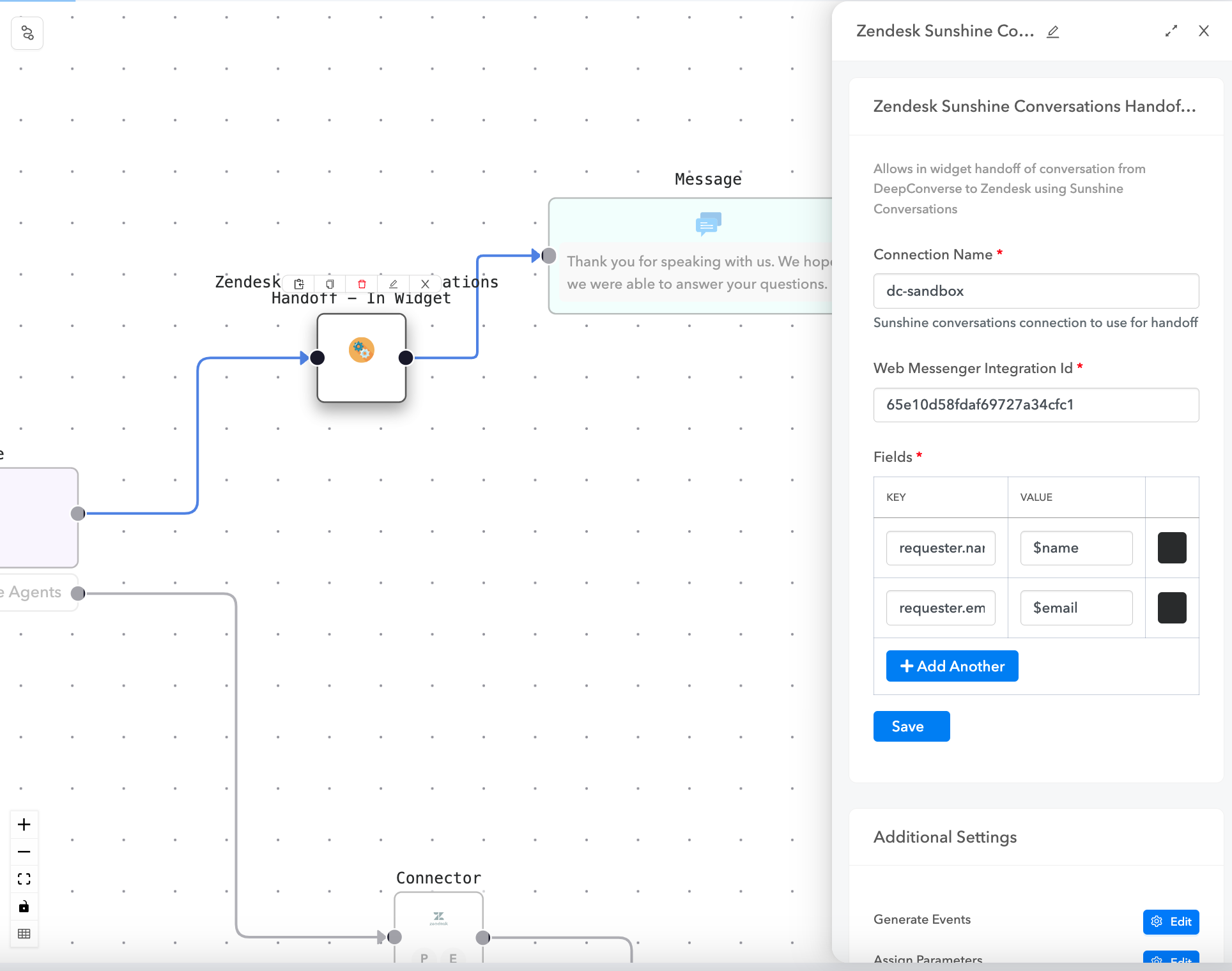 Zendesk Sunshine Conversations Handoff - In Widget
Zendesk Sunshine Conversations Handover
The Zendesk Sunshine Conversations Handover add-on hands off to a Zendesk Sunshine Conversations live agent outside the chat widget.
Zendesk Ticket Field Update
The Zendesk Ticket Field Update add-on updates ticket fields in Zendesk based on user input or flow logic.
Last updated: