Skills
You can create skills to define workflows that AI agents can invoke. Genies invoke skills directly, and MCP servers expose skills as tools that external AI clients call through the Model Context Protocol. Skills equip these agents with a comprehensive toolset to take action and respond to end users. You can assign skills to multiple genies and MCP servers, including those stored in different projects.
Every skill has two parts that work together:
Skill: A workflow with a Start workflow trigger and a Return response step. The skill contains the logic, API calls, data transformations, and error handling. The skill is what executes when the agent decides to invoke it.
Skill prompt: The description configured in the genie's Skills tab or the MCP server's Tools tab. The agent reads this prompt to decide whether to invoke the skill for a request. It contains the purpose, the When to Use and When NOT to Use conditions, input requirements, and the output requirements.
Skills without a well-written prompt are invoked inconsistently. A well-written prompt paired with a badly constructed skill invokes correctly but fails to execute.
Skills can accept document files through the File input parameter type. This passes file data to the recipe as a datapill.
There are three methods to add skills to a genie:
Build a new custom skill: Create a skill from scratch in the editor. This is the path for integrations with a Workato-connected app, a custom API, or a Data table.
Add an existing skill: Use a skill that was created and assigned to another genie. This is the path for reusing skills across multiple genies.
Add an MCP server as a skill source: Connect an external MCP server to a common provider server, such as Atlassian or Salesforce, or a custom MCP server, and select individual tools as skills. This is the path for accessing external APIs without building custom skill logic.
Refer to Create a skill with a File input parameter for more information.
Skills use Verified user access to allow each end user to authenticate with their own credentials when a skill runs. This ensures that the skill performs actions using the individual user's identity and permissions.
Your end users have the ability to manage their runtime user connection through the genie chat interface.
Skills can consume MCP servers. This enables you to access external APIs and integrate with third-party tools without custom skill development. Skills can call Custom MCP servers and common provider MCP servers.
You can share your skills in the Community Library.
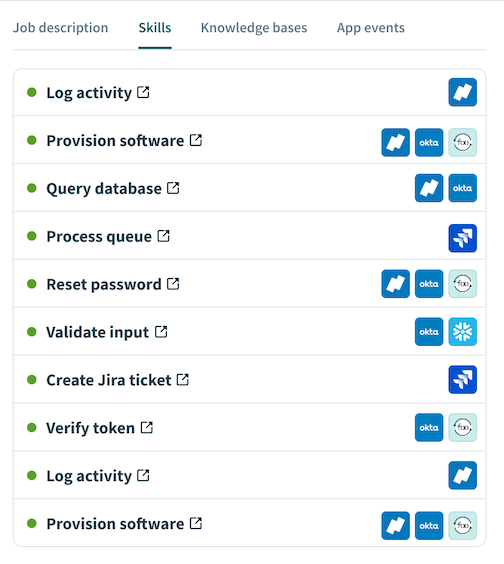 Skills
Getting started with skills
Refer to Create your first genie for complete steps on how to create a genie with a job description, AI model, chat interface, knowledge base, knowledge base recipe, and skills.
Watch a quick video guide: Create skills in Agent Studio
Complete the following steps to add a skill:
Sign in to Workato.
Go to AI Hub > Agent Studio and click + Create genie. Alternatively, go to the Projects page and click Create > Genie or press C+G.
Select New genie to create a blank genie.
Use the Location drop-down menu to select a location for your genie.
Enter a request or goal for your genie in the What would you like your genie to help with? field.
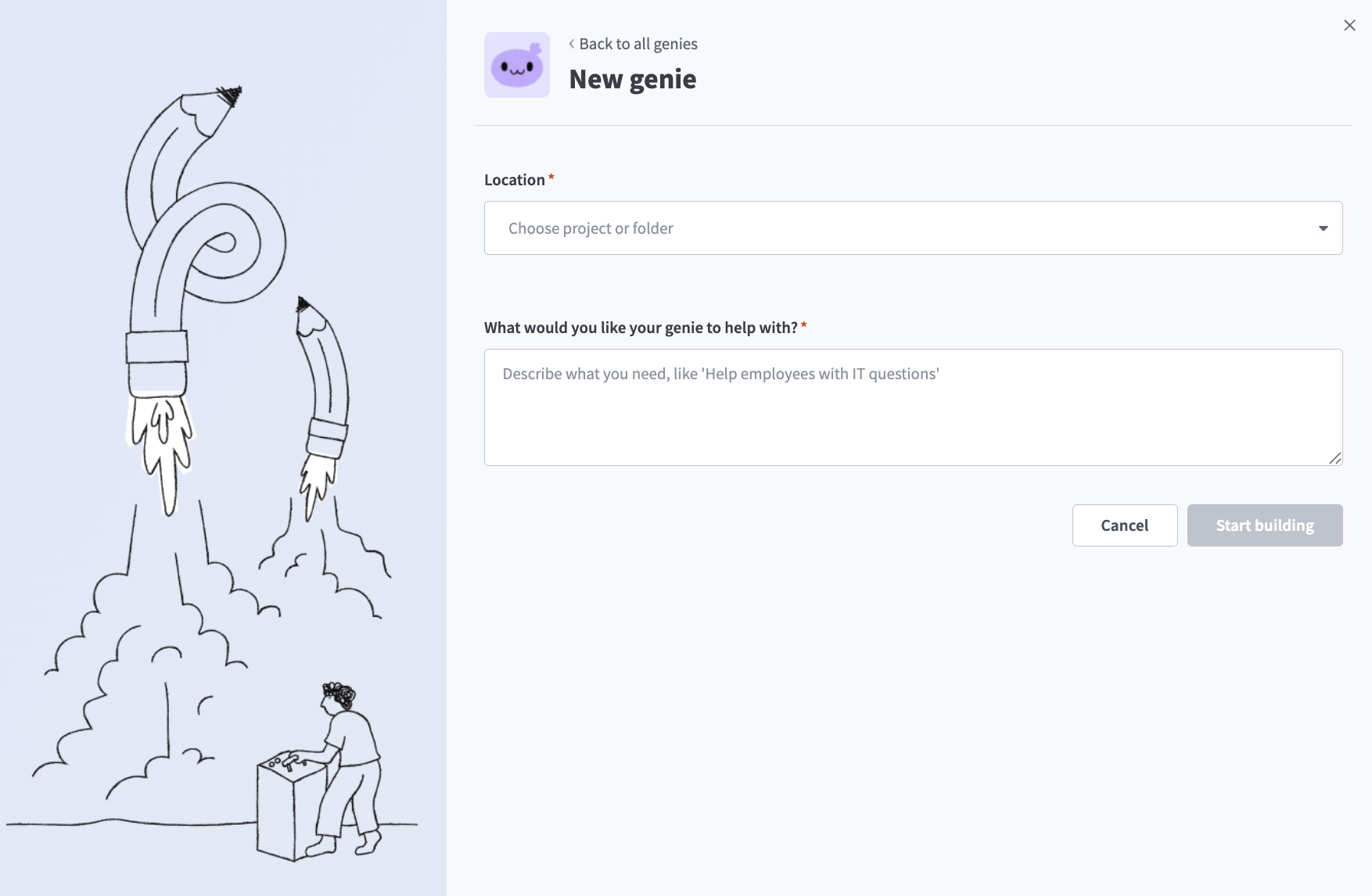 Create a genie
Click Start building. The genie Build page displays.
JOB DESCRIPTIONS ARE AUTOMATICALLY GENERATED
The Job description is automatically generated based on the input you provide to the What would you like your genie to help with? field during genie setup and can be edited to suit your requirements.
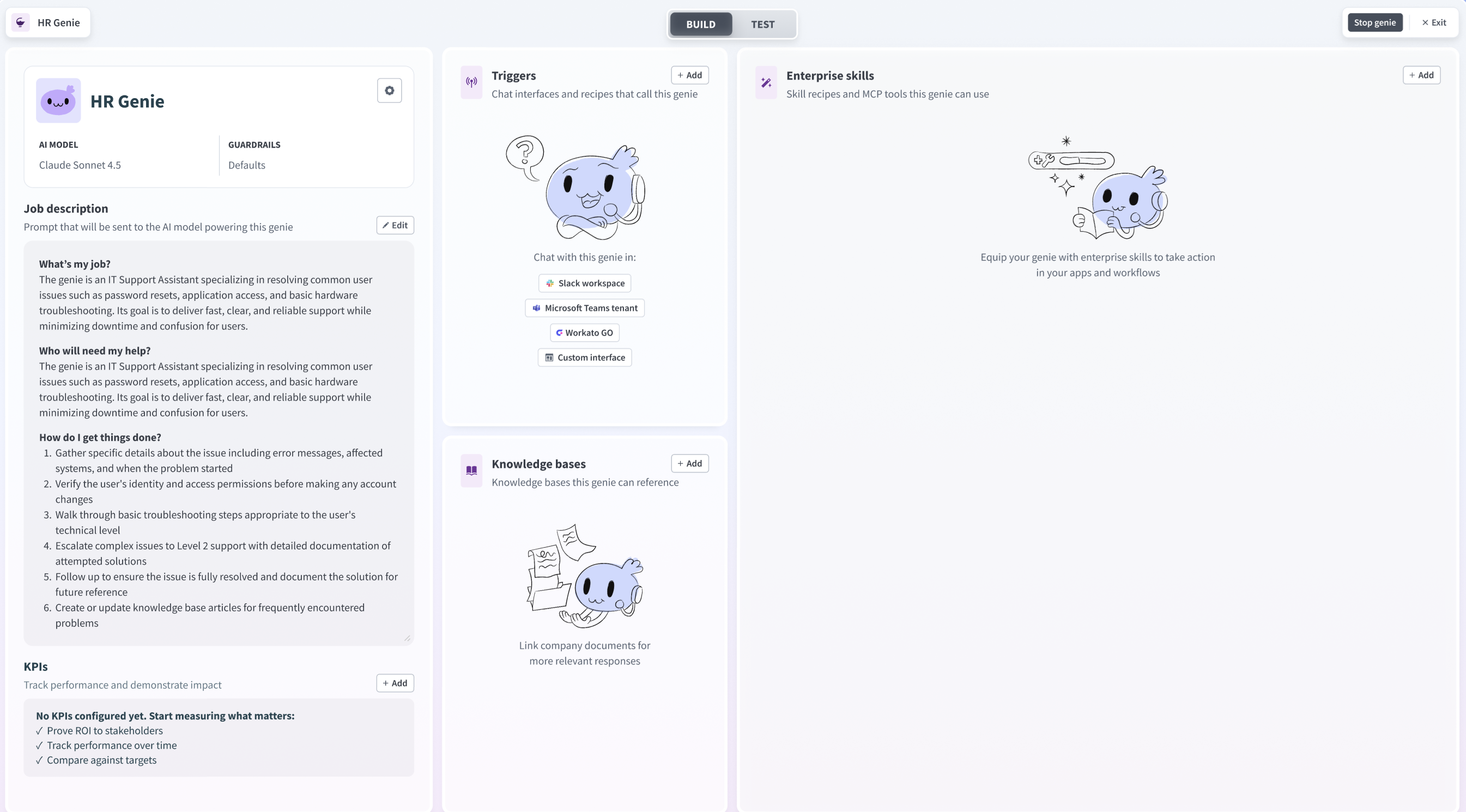 Genie build page
Click Edit.
Go to the Enterprise skills section and click + Add.
Select Skill.
Select New skill and click Create new skill.
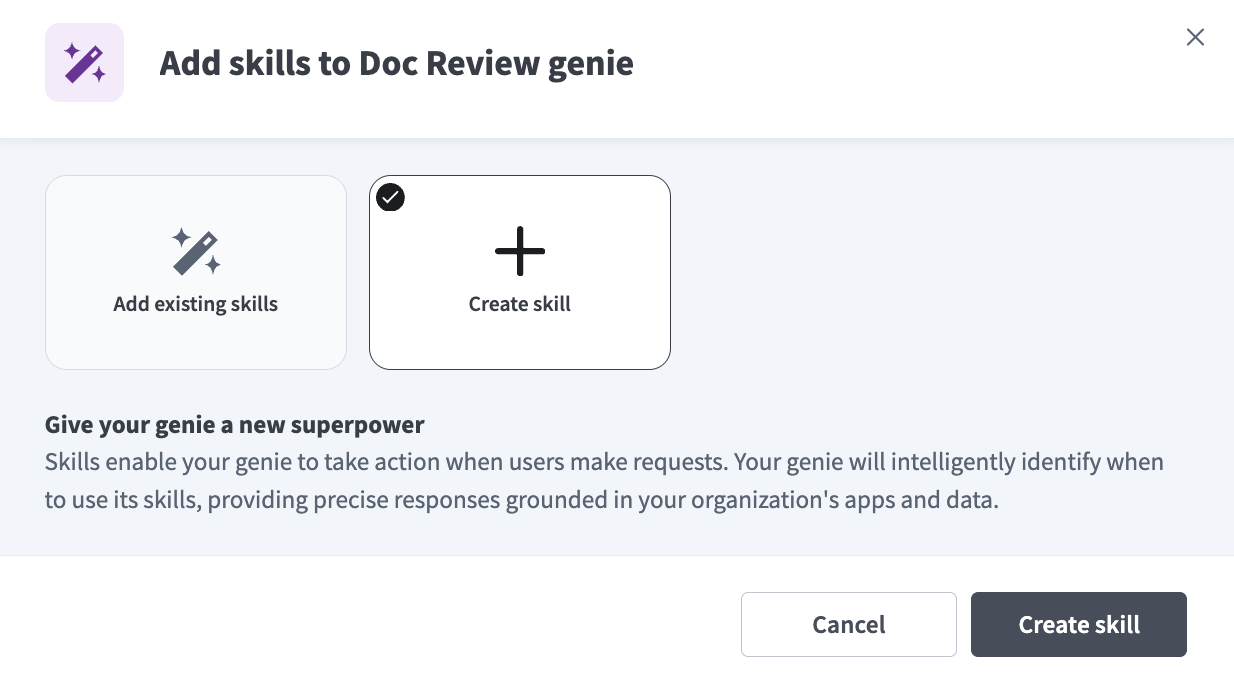 Select New skill
Alternatively, you can create a skill from the Projects page by clicking Create > Skill or pressing C+S.
Provide a name for your skill in the Skill name field.
Use the Location drop-down menu to select a location for your skill.
Click Start building. The editor opens with the Start workflow trigger and Return response action automatically selected.
You've created a new skill for your genie. Refer to Create a new skill for steps on how to configure your skill.
Watch a quick video guide: Create a new Slack skill in Agent Studio
More resources
Last updated: