Domo
Domo is a cloud-based business intelligence and data platform that helps organizations connect, transform, and visualize data to drive decision-making. This connector enables you to manage objects, such as accounts, datasets, users, groups, projects, and lists, and move data in and out of datasets in Workato.
API version
The Domo connector uses the Domo API v1.
Install Domo from the community library
Complete the following steps to install the Domo connector from the community library:
Open the recipe editor and search for a connector. Alternatively, you can search for a connector in the community library.
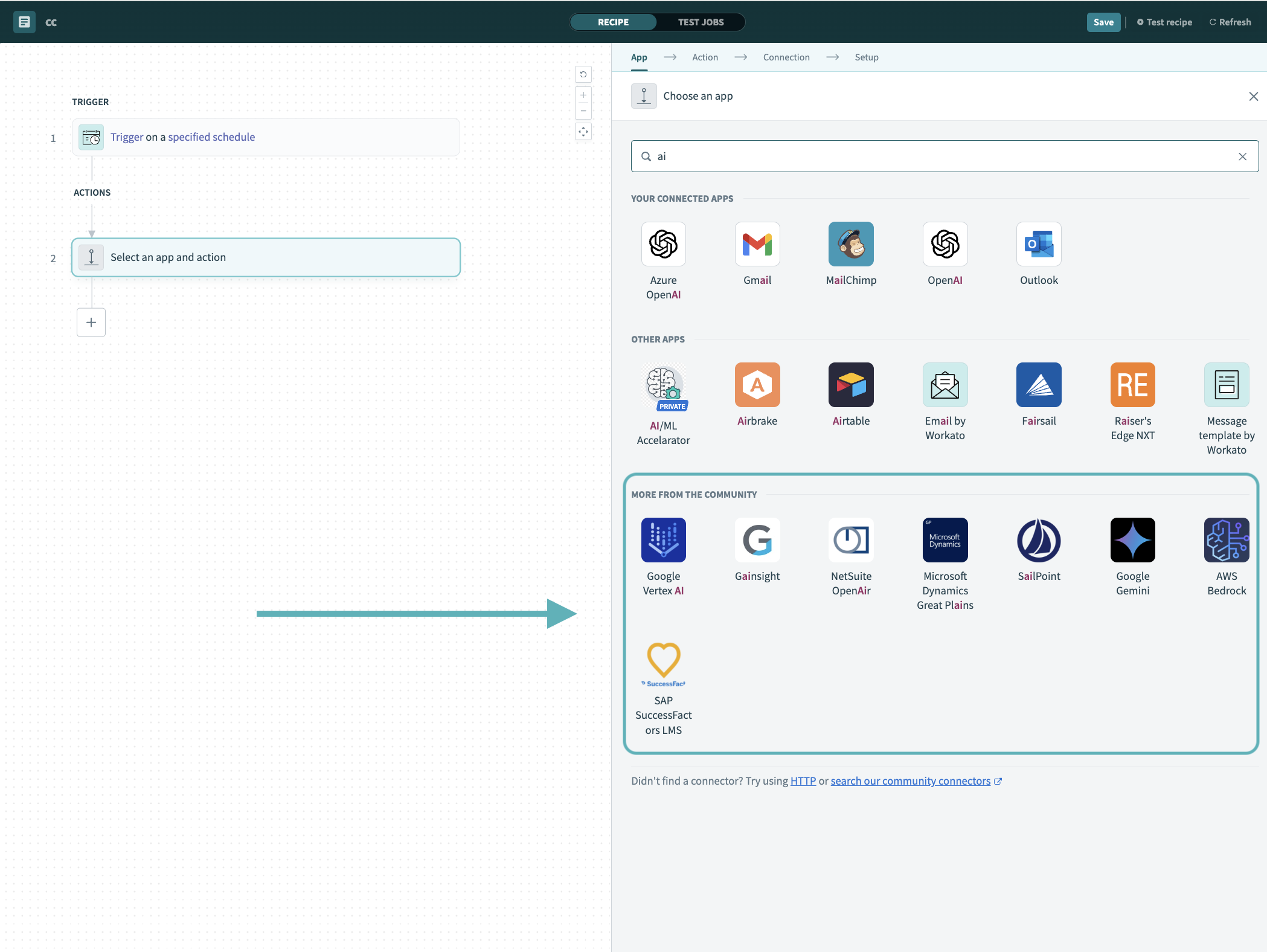 Search for community connectors in the recipe editor
Select the community connector you plan to install.
Click Install to install the connector from the community library.
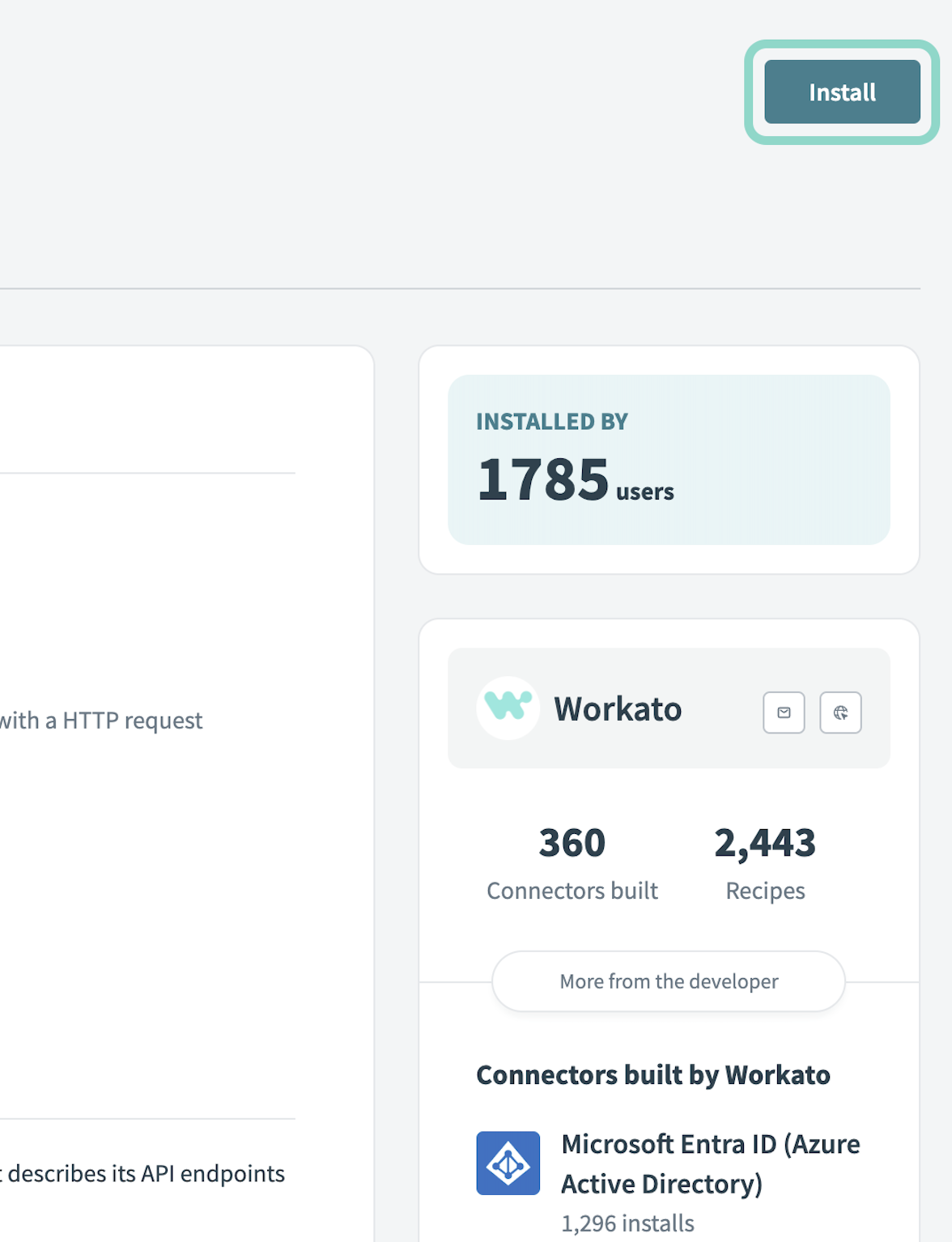 Click Install
Select Release connector. Alternatively, select Review code to review and modify the connector code before releasing it to the workspace.
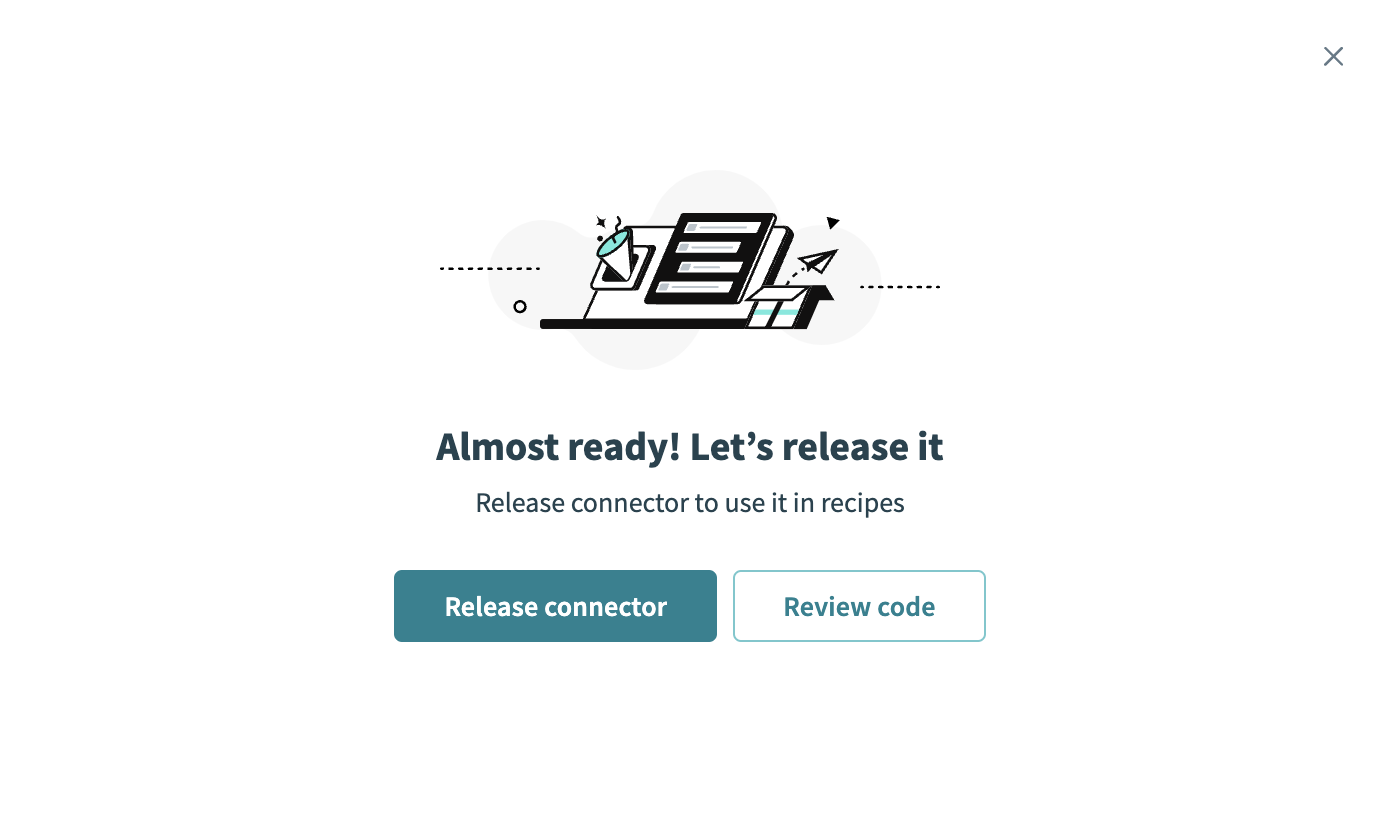 Release the connector
Summarize any changes you made to the connector, then click Release to allow workspace collaborators to use the connector in recipes.
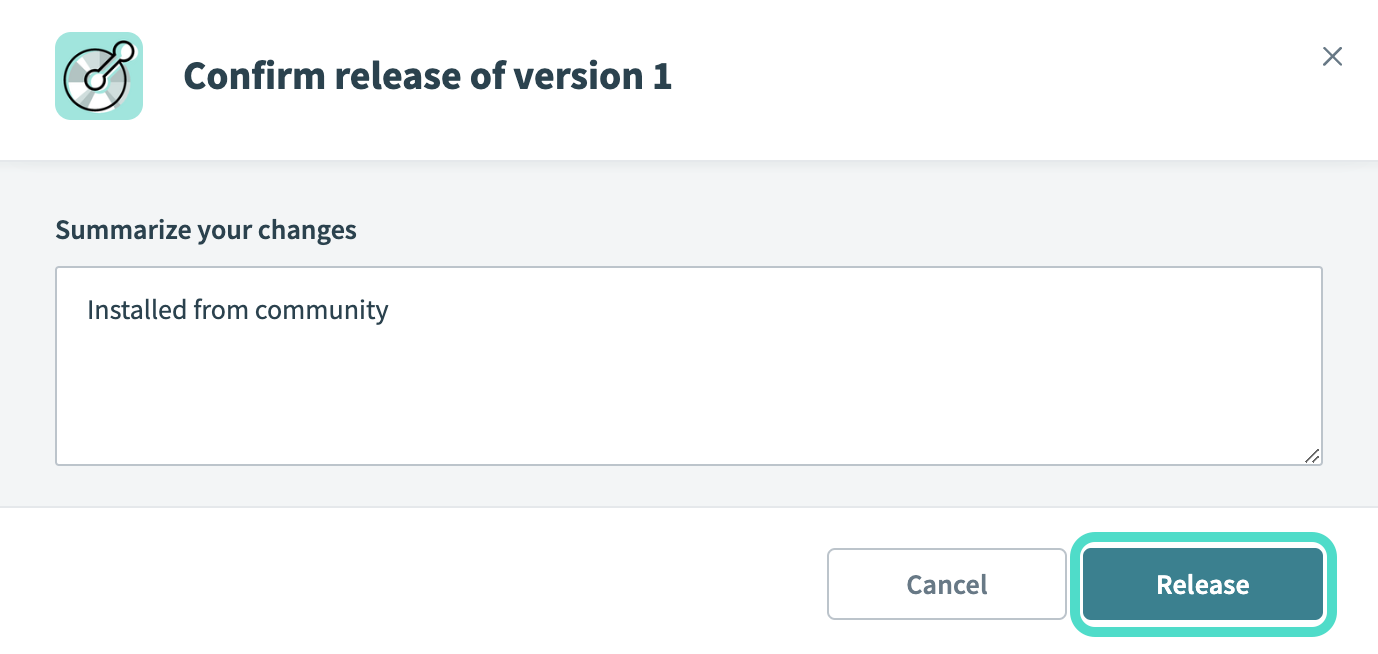 The Confirm release dialog
Connection setup
The Domo connector uses OAuth 2.0 (client credentials) authentication.
Minimum and default scopes
When you create your Domo API client, select the scopes that match the objects your recipes use. The connector requests the following scopes:
datauseraccountauditdashboard
Create a Domo API client
Complete the following steps in the Domo Developer portal to obtain your Client ID and Client secret:
Sign in to the Domo Developer portal and go to the New Client page.
Provide a name and description for your client application.
Select the scopes your recipes require.
Click Create to generate your client.
Record the Client ID and Client secret. You use these values to connect to Domo in Workato.
Connect to Domo using OAuth 2.0
Complete the following steps to connect to Domo in Workato:
Click Create > Connection.
Search for Domo and select it as your app.
Enter a name for your connection in the Connection name field.
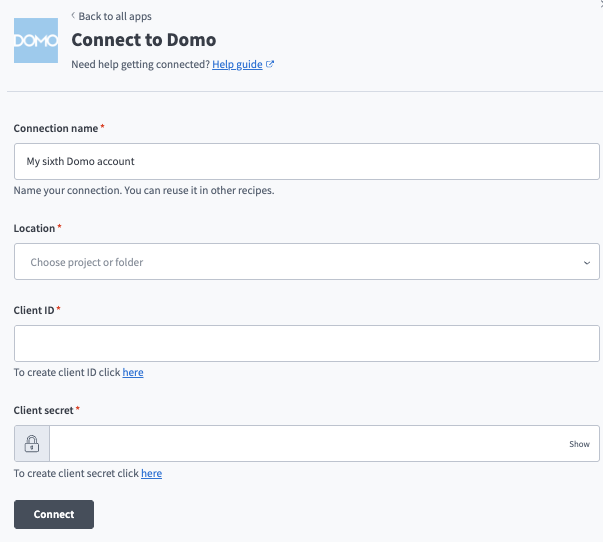 Create your connection
Use the Location drop-down menu to select the project where you plan to store the connection.
Enter your Domo Client ID. Refer to Create a Domo API client for more information.
Enter your Domo Client secret.
Click Connect.
Last updated: