Slack MCP server
The Slack MCP server enables LLMs to interact with your Slack workspace for exploring conversational content, posting messages, and discovering channels and users. It provides tools to search messages and channels, retrieve channel history and thread context, send and schedule messages, explore available communication spaces, and retrieve user profile information without switching to the Slack interface.
The Slack MCP server helps you streamline communication workflows by allowing you to find past discussions, catch up on channels, post and schedule announcements, and find the right channels or people to contact directly from your AI conversation.
Uses
Use the Slack MCP server when you plan to perform the following actions:
- Search for discussions about a topic, project, customer, or issue across channels
- Find a channel by name or topic
- Retrieve recent messages from a channel to catch up on activity
- Get the full context of a thread conversation
- Post meeting summaries, standup updates, or announcements to channels
- Schedule a message for future delivery to a channel or direct message
- Send direct messages to team members
- Discover available public channels in your workspace
- Find private channels you're already a member of
- Get information about specific channels (purpose, member count, etc.)
- Look up user profile information including title, department, and timezone
Example prompts
Use the following example prompts to invoke Slack MCP server tools:
What's been discussed about Customer Acme in the last two weeks?Is there a channel for the checkout redesign project?Catch me up on #engineering since Monday.Get the full thread for the deployment incident discussion.Post a summary of our standup to #engineering-updates.Schedule a reminder in #team-updates for Monday at 9 AM.Send a DM to Sarah letting her know the project plan is approved.What public channels are available for engineering discussions?Get details about the #product-team channel.What is Sarah's job title and department?
Slack MCP server tools
The Slack MCP server template provides the following tools:
| Tool | Description |
|---|---|
| search_messages | Searches for messages across channels and DMs the user can access, returning messages that match a query. |
| search_channels | Searches for channels by name or description, returning matching public and private channels the user can access. |
| get_channel_history | Retrieves recent messages from a specific channel in reverse chronological order, with thread indicators and author metadata. |
| get_thread | Retrieves all messages in a thread given the parent message's timestamp and channel. |
| get_channel_info | Retrieves detailed information about a single channel by its ID. |
| list_member_channels | Returns a list of private channels the user is a member of, including group chats and direct messages. |
| list_public_channels | Retrieves a list of public channels the user can access. |
| get_user_info | Retrieves profile information for a workspace user, including display name, real name, title, department, timezone, and current status. |
| post_message | Posts a new message to a specified channel or direct message conversation on behalf of the authenticated user. |
| schedule_message | Schedules a message to be posted to a specified channel or direct message at a future time. |
Install the Slack MCP server
Complete the following steps to install a prebuilt MCP server to your project:
Sign in to your Workato account.
Go to AI Hub > Enterprise MCP.
Click + Create MCP server.
Go to the Start with pre-built MCP Servers using your connected apps section and select the prebuilt MCP server you plan to use.
Click Use this server.
Provide a name for your MCP server in the Server name field.
Use the Location drop-down menu to select the project for the MCP server.
Go to the Connections section and connect to your app account.
Select the connection type you plan to use for the MCP server template.
- User's connection: MCP server tools perform actions based on the identity and permissions of the user who connects to the application. Users authenticate with their own credentials to execute the skill.
- Your connection: This option uses the connection established by the recipe builder and follows the same principles as normal app connections.
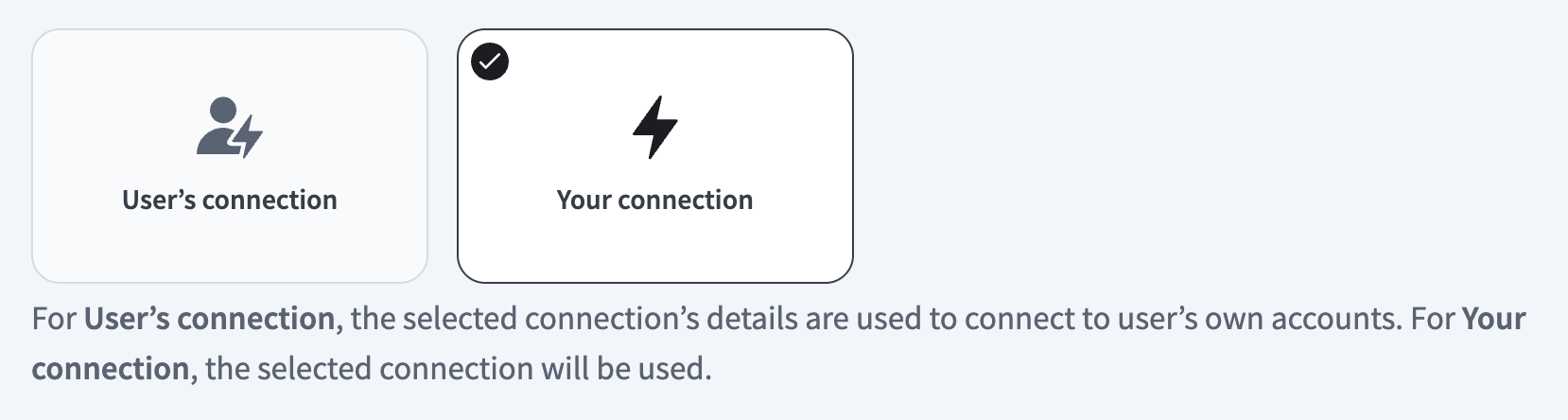 Select your connection type
VERIFIED USER ACCESS AUTHENTICATION REQUIREMENTS
Only app connections that use OAuth 2.0 authorization code grant are available for user's connection. Refer to Verified user access for more information.
Complete the app-specific connection setup steps in the following section.
Slack connection setup
View Slack connection setup steps
You must authorize Workato to access your Slack organization using the OAuth 2.0 standard.
Complete the following steps to connect to Slack in Workato:
Click Create > Connection or press C twice.
Search for Slack and select it as your app.
Enter a name for your connection in the Connection name field.
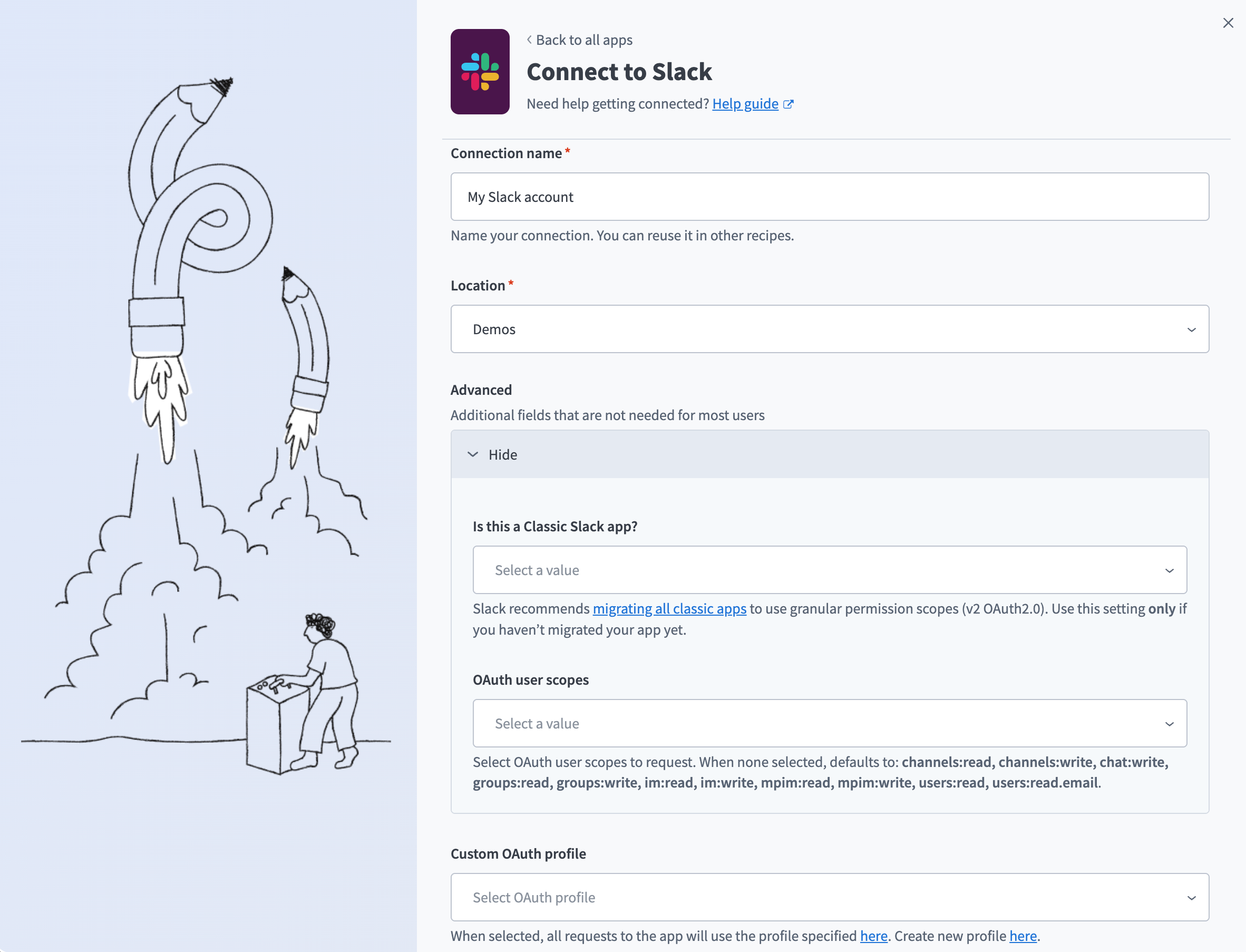 Slack connection
Use the Location drop-down menu to select the project where you plan to store the connection.
Optional. Expand Advanced and use the Is this a Classic Slack app? drop-down menu to select Yes or No. Select Yes only if you haven't migrated your Slack app to granular permission scopes. Refer to Moving to granular permission scopes for more information.
Optional. Use the OAuth user scopes drop-down menu to select the OAuth user scopes to request for your connection. Leave this field empty to request the default scopes.
Optional. Use the Custom OAuth profile drop-down menu to select a custom OAuth profile for your connection. Refer to Custom OAuth profiles for Slack for more information.
Click Connect.
Click Allow to grant Workato permission to access your account.
Slack permissions
Each tool operates within the authenticated user's Slack permission scope. The connected account must have access to the channels and conversations it searches or posts to, and it must be granted the OAuth scopes appropriate to the tools it runs. Refer to Slack's OAuth scopes documentation for the complete list of scope capabilities.
How to use Slack MCP server tools
Refer to the following sections for detailed information on available tools:
search_messages tool
The search_messages tool searches for messages across channels and DMs the user can access and returns messages that match a query. Your LLM uses this tool to find discussions about a topic, project, customer, or issue, locate past decisions, or surface who has been discussing a subject across your workspace.
Try asking:
What's been discussed about Customer Acme in the last two weeks?Find messages about the checkout redesign in #product.Did anyone discuss the budget approval last month?Why did we decide to sunset the v1 API?
search_channels tool
The search_channels tool searches for channels by name or description and returns matching public and private channels you can access. Your LLM uses this tool to find a channel by name or topic, discover whether a channel exists for a subject, or identify relevant channels to monitor.
Try asking:
Is there a channel for the API migration project?Find channels related to customer success.Which channels cover engineering discussions?Search for a channel about release announcements.
get_channel_history tool
The get_channel_history tool retrieves recent messages from a specific channel in reverse chronological order, with thread indicators and author metadata. Your LLM uses this tool to catch up on a channel after time away, review recent activity, or understand what's been posted in a particular space.
Try asking:
Catch me up on #engineering since Monday.Show me the last 30 messages in #product.What was posted in #customer-success this week?Pull recent activity from the #releases channel.
get_thread tool
The get_thread tool retrieves all messages in a thread given the parent message's timestamp and channel. Your LLM uses this tool to get the full context of a conversation after identifying a relevant thread through search_messages or get_channel_history.
Try asking:
Get the full thread for the deployment incident discussion.Show me all replies in this thread.What did people say in the thread about the pricing change?Pull the complete conversation for the Acme escalation thread.
get_channel_info tool
The get_channel_info tool retrieves detailed information about a specific Slack channel, including name, description, purpose, member count, creation date, and whether it's archived or private. Your LLM uses this tool to verify channel details before posting, understand a channel's purpose, or check membership information when coordinating team communication.
Try asking:
What is the #engineering channel used for and how many members does it have?Get the details for the customer-feedback channel.Is the #project-alpha channel archived or still active?Show me the description and member count for #sales-team.
list_member_channels tool
The list_member_channels tool retrieves the private channels you're a member of, including group chats and direct messages. Your LLM uses this tool to discover where you're already participating, find a specific conversation space, or get a view of your private Slack conversations.
Try asking:
What private channels am I a member of?Show me all the private channels I'm in.List my group chats and DMs.What group conversations do I participate in?
list_public_channels tool
The list_public_channels tool retrieves all public channels available in your workspace, including those you haven't joined yet. Your LLM uses this tool to discover channels you can join, find the right place to post information, or explore what communication spaces exist in your organization.
Try asking:
What public channels are available in our workspace?Show me all the engineering-related public channels I can join.List all public channels so I can find the right place to share this update.What channels exist for product discussions that I'm not yet a member of?
get_user_info tool
The get_user_info tool retrieves profile details for workspace members, including their job title, department, timezone, and current status. Your LLM uses this tool to identify a message author, get context on a person mentioned in a discussion, or understand someone's role before reaching out.
Try asking:
Who is Sarah Chen and what is her role on the team?What department does @Dani work in?What is @Sarah's current status and timezone?Find out who the MCP development lead is and tell me their job title.
post_message tool
The post_message tool sends messages to Slack channels or direct messages. Your LLM uses this tool to share summaries, post project updates, announce decisions, or send quick follow-ups without leaving your AI chat.
Try asking:
Post a summary of our meeting notes to the #marketing-team channel.Send a DM to @Sarah letting her know the project plan is approved.Announce the v2 launch in #product-announcements and tag the @engineering-lead.
schedule_message tool
The schedule_message tool schedules a message to post to a specified channel or direct message at a future time. Your LLM uses this tool to time reminders, schedule announcements for specific hours, or send messages to teammates in different time zones. Slack posts the message automatically at the scheduled time on your behalf.
Try asking:
Schedule a reminder in #team-updates for Monday at 9 AM.Send this announcement to #releases tomorrow morning.Schedule a standup nudge in #engineering for 8 AM Pacific.Post this update to #product at the start of next week.
Getting started
View and manage your MCP server tools in the Overview page Tools section. Tool management provides the following capabilities:
TOOLS MUST BE STARTED
Your LLM can only access active tools in your MCP server connector.
Last updated: