The AIRO MCP server supports two authentication methods:
OAuth 2.0: Recommended for interactive clients. Your MCP client opens a browser window the first time you connect. The window displays Workato's authorization screen, which lists the permissions requested by the client. Click Authorize to complete the connection. Refer to Connect using OAuth 2.0 for the setup steps.
API token: Recommended for headless or configuration-driven setups. Pass a Workato API token as a bearer header. Refer to Connect using an API token for the setup steps.
The server exposes tools organized into the following categories:
The AIRO MCP server respects your Workato account permissions for OAuth 2.0 connections, or the permissions of the API client role for API token connections. All actions performed through the MCP server follow the same access controls as actions performed in the Workato platform.
The activity audit log attributes actions that the AIRO MCP server takes on your behalf to your user account with a (via AIRO) label.
An MCP-compatible client installed, such as Claude Code, Claude Desktop, Cursor, ChatGPT, or Codex CLI
Some MCP client configurations use npx. These configurations require Node.js to be installed and available in your PATH. Run node -v in your terminal to verify your installation.
API token authentication also requires a Workato API token. Refer to Generate an API token for instructions.
The AIRO MCP server URL depends on the data center where your Workato workspace is hosted. Developer Sandbox workspaces always use the trial URL. Use the server URL that matches your workspace region:
Complete the following steps to connect the AIRO MCP server to your MCP client using OAuth 2.0:
WORKSPACE AND ENVIRONMENT SCOPE
OAuth 2.0 scopes each AIRO MCP server connection to the Workato workspace and environment active in your browser session. Sign in to the target workspace and environment before you start authorization. Repeat the authorization steps for a different workspace or environment, or create a separate connection for each workspace and environment you need to access at the same time.
ChatGPT requires Developer mode to connect to remote MCP servers. Developer mode grants ChatGPT read and write access to your AIRO tools. OpenAI classifies developer mode as an advanced feature with elevated risk, so refer to their developer mode guide for details before you enable it.
1
Sign in to ChatGPT on the web with a Pro, Plus, Business, Enterprise, or Education account. Developer mode isn't available in the desktop or mobile apps.
2
Settings > Security and login > Developer modeに移動し、Developer modeトグルを有効にします。
3
ChatGPT Pluginsに移動し、+をクリックして新しいプラグインを追加します。 This button appears after you turn on developer mode.
ChatGPT requires Developer mode to connect to remote MCP servers. Developer mode grants ChatGPT read and write access to your AIRO tools. OpenAI classifies developer mode as an advanced feature with elevated risk, so refer to their developer mode guide for details before you enable it.
1
Sign in to ChatGPT on the web with a Pro, Plus, Business, Enterprise, or Education account. Developer mode isn't available in the desktop or mobile apps.
2
Settings > Security and login > Developer modeに移動し、Developer modeトグルを有効にします。
3
ChatGPT Pluginsに移動し、+をクリックして新しいプラグインを追加します。 This button appears after you turn on developer mode.
Create a recipe that syncs new Salesforce opportunities to Jira issues.Add an OpenAI step to summarize the opportunity before creating the Jira issue.Save the recipe and show me the test cases.
Build a connector for the National Weather Service API at https://www.weather.gov/documentation/services-web-api.Add an action that retrieves active weather alerts for a state or territory.
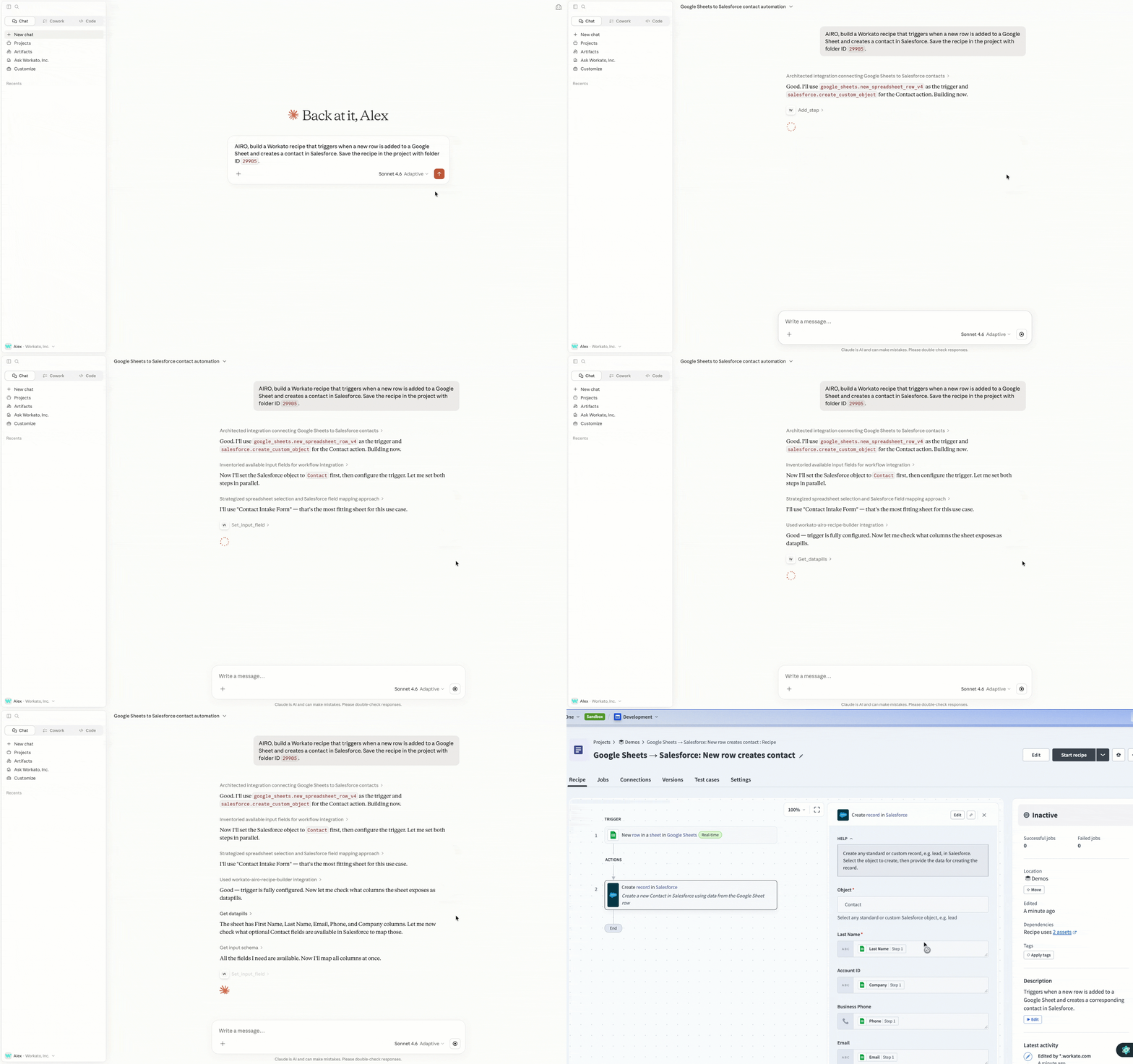 MCPサーバーとしてのAIRO
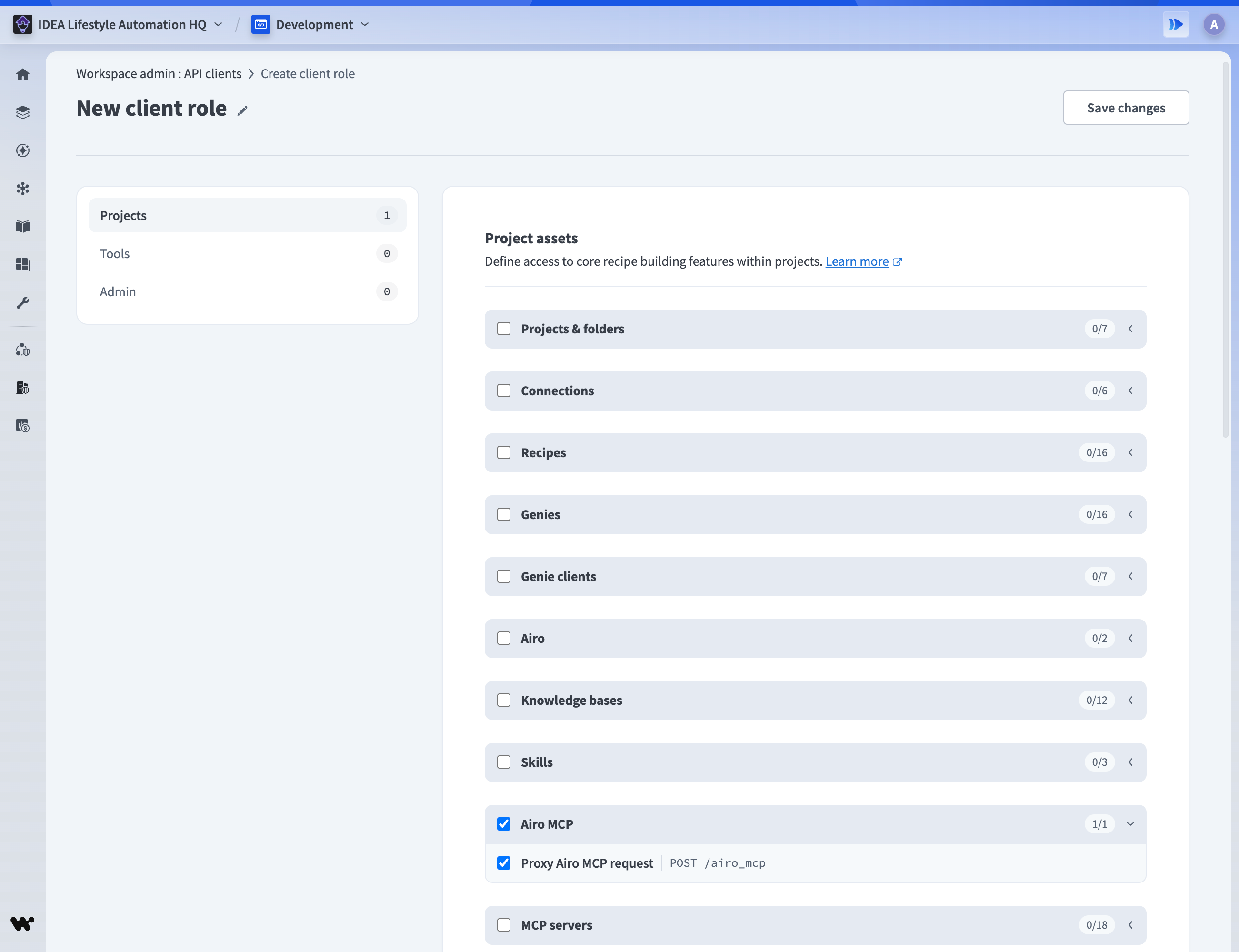 クライアントロールのAIRO MCP機能を有効化する